This guide sits under our iFLYTEK AINOTE 2 review in the iFLYTEK hub. The review covers the device; this page covers the part the box does not explain, which is how pages and planners actually get onto it.
Two kinds of page
What iFLYTEK AINOTE 2 templates actually are
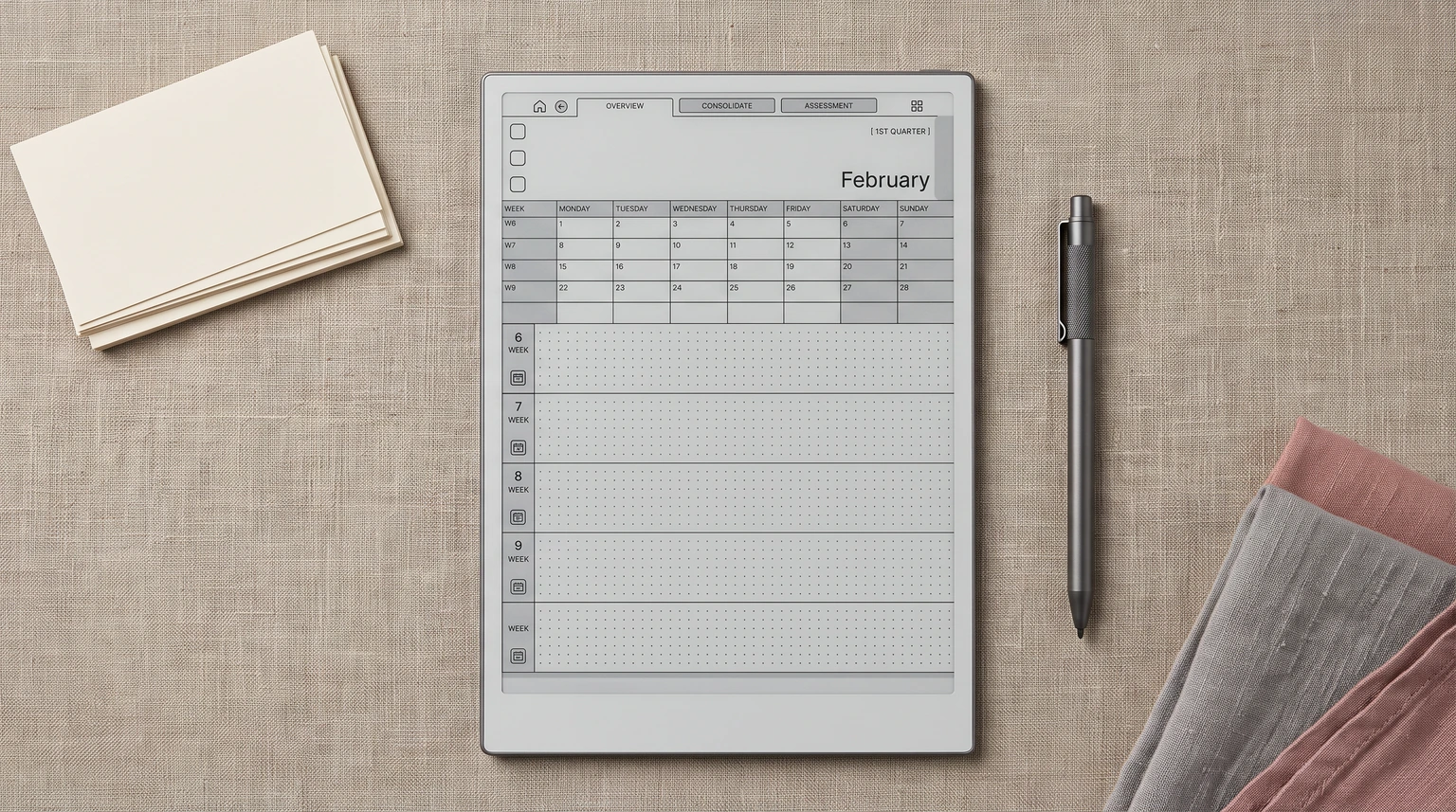
Search for iFLYTEK AINOTE 2 templates and you get two different things under one word. iFLYTEK’s own AINOTE Air 2 user manual draws the line clearly. Inside a note, a template is a single page: you tap the template button, pick one, and it is inserted as the next page of the note you are in. A background is different again, a ruling such as lined, grid, blank, dot or square paper that every new page in that notebook picks up.
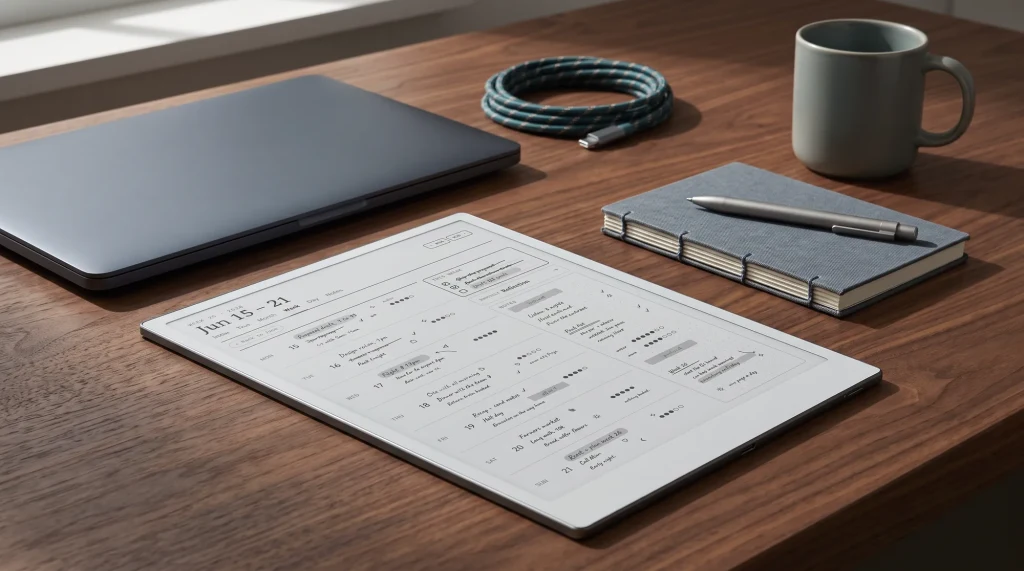
A planner is neither. A dated week-by-week year is hundreds of pages that point at each other, and that arrives on the tablet as a document, not as a template. The AINOTE 2 runs Android 14 with full Google Play, and iFLYTEK’s AINOTE 2 page lists PDF among the documents it reads and annotates, with the stylus writing straight onto the page. So the practical question is never which template to download. It is whether the job in front of you is one page or a whole year.
Built in
The 80-plus built-in templates, and what they are for
Start with what is already on the device. In its guide to creating notes on the AINOTE 2 (April 2026), iFLYTEK says the tablet carries 80+ built-in templates and names the scenarios they cover: class schedules, Pomodoro timers, meeting notes, SWOT analysis, medication trackers and fitness plans. For a single structured page, that library is the fastest route there is. Nothing to download, nothing to size, and the page lands inside the note where you are already writing.
The limit is built into the idea. Each insert is one page, so a meeting template works the same on Tuesday as it did on Monday, and neither page knows the other exists. That is fine for a meeting, a SWOT, or a workout log. It stops working the moment you want the page to belong to a date and sit inside a week.
Your own pages
How to add your own template images
When the built-in set does not have your layout, you can add your own. iFLYTEK’s AINOTE 2 manual describes custom templates as images, PNG, JPG and similar, not documents: you copy them into a [template] folder over USB, then pick them from the template menu under Custom.
-
1
Prepare the page as an image
Export your layout as a PNG or JPG. One image is one template page.
-
2
Connect the tablet to a computer
Use a USB cable between the AINOTE 2 and your computer.
-
3
Copy it into the [template] folder
That folder is where the notes app looks for custom templates.
-
4
Add it from the template menu
In a note, open the template menu at the top, select Custom, and tap your imported template.
The safest size for a template image is the screen’s own resolution, so nothing is stretched or softened on the way in. That is 1920 x 2560 on the AINOTE 2 and 1440 x 1920 on the AINOTE Air 2. Both are the same 3:4 portrait shape, which is why one well-drawn page can serve either tablet.
For a whole year
When you want a planner, use a PDF instead
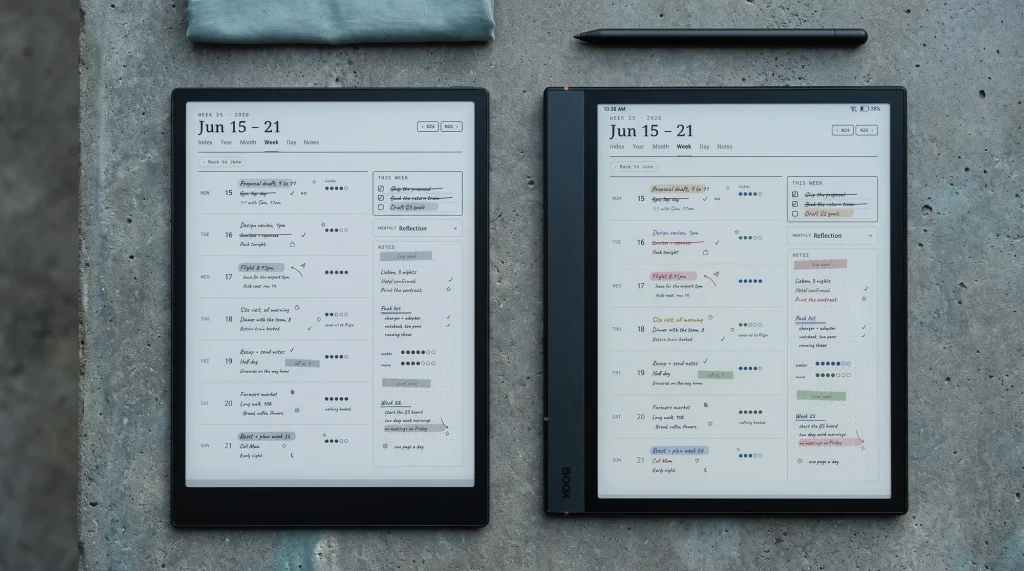
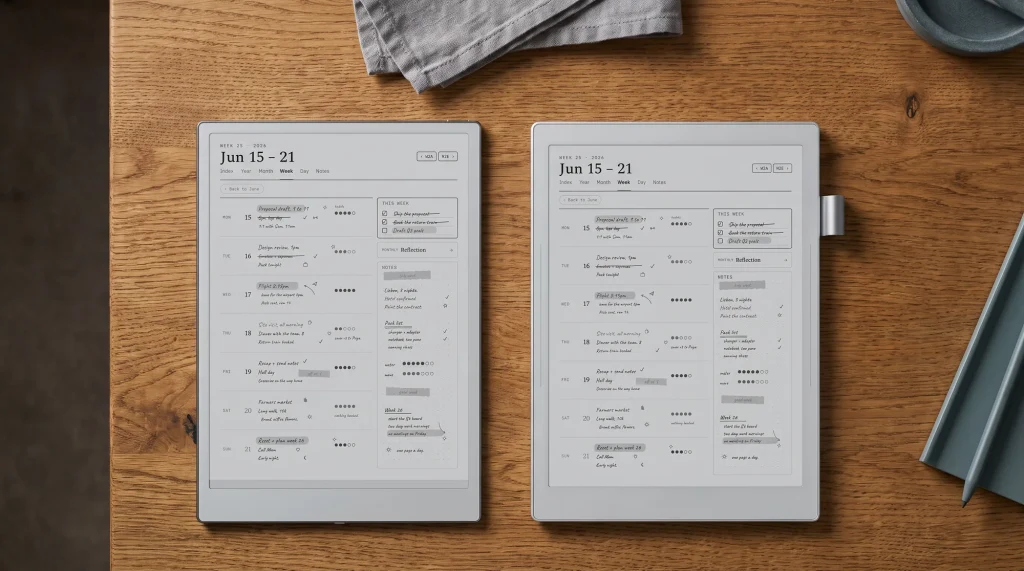
A dated planner breaks the template model in two places. It is far too many pages to insert one at a time, and its value is in the links between pages: the month that opens the week, the week that opens the day. A PDF carries both. iFLYTEK’s AINOTE 2 manual gives three ways in: copy the file over USB into the [Bookshelf] folder, use Wi-Fi Import from the Bookshelf screen, or pull it down from a cloud drive. Its reader supports handwritten annotations, highlights and excerpts, and the AINOTE 2 store page lists PDF, EPUB, TXT, MOBI and AZW3 among its supported documents. For a planner, that annotation layer is the page you write on.
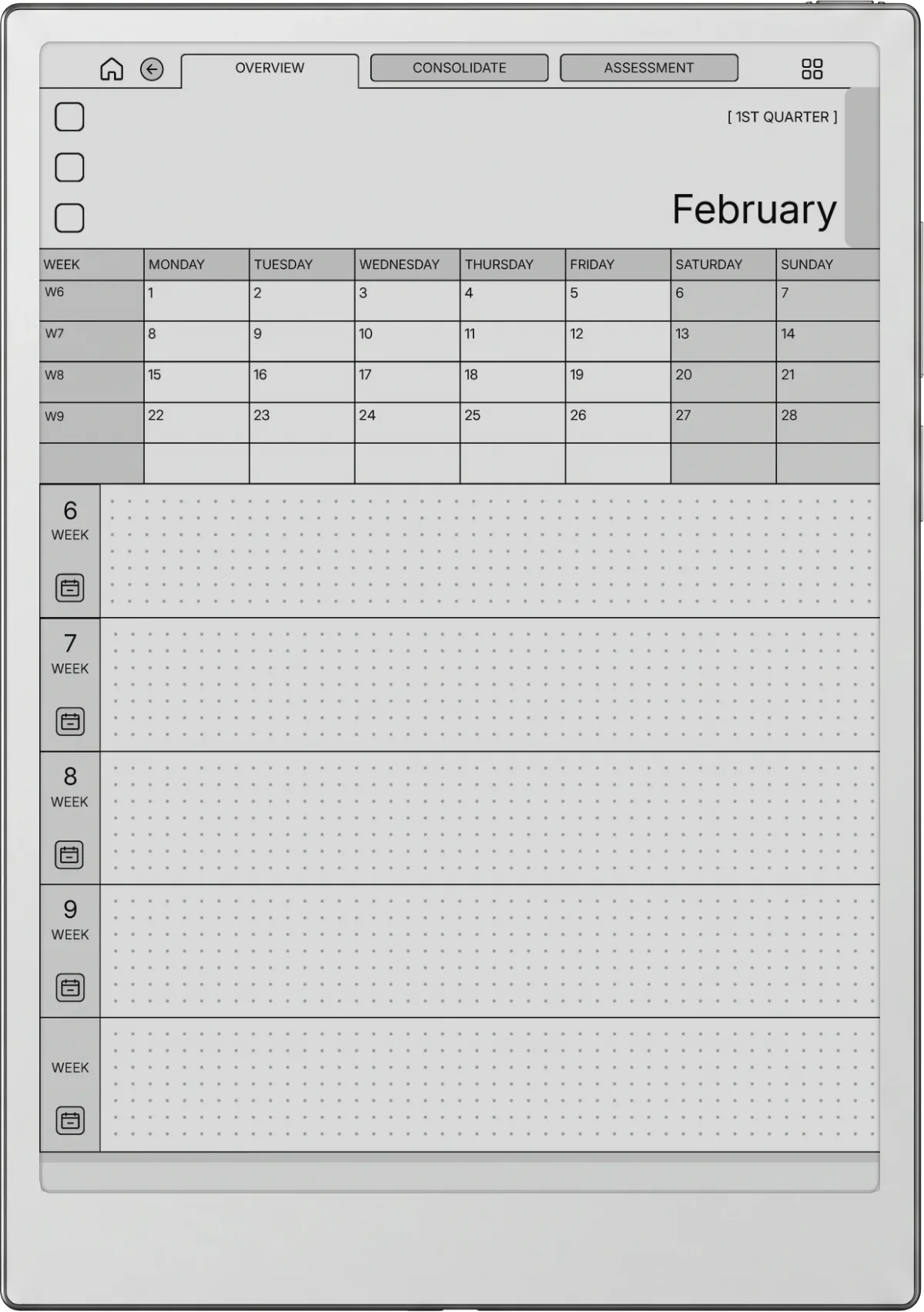
This is the part a one-page template cannot fake. A month page is only useful if it is the same month everywhere in the file, with the right weekdays under the right dates, and that is a property of the whole document rather than of any page in it.
If the page stands alone, use a template. If the page belongs to a day in a year, use a PDF planner.From this guide
Sources
Where AINOTE templates and planners come from
There are four places worth knowing, and they sell different things. Read the format column before the price column, because an image pack and a planner file are not substitutes for each other.
| Source | What you get | Format | Price |
|---|---|---|---|
| Built-in library | 80+ single-page templates by scenario | On the device | Included |
| Your own images | Any layout you can draw | Image, one page each | Your time |
| MyDeepGuide vol.1 | 36 templates, 18 portrait and 18 landscape: Cornell, dot, grid, lined | Page templates for 8-inch 300 PPI screens | US$9.99 |
| Templacity iFLYTEK set | Weekly, daily and daybook planners plus three endless notebooks | One hyperlinked PDF, dated 2026 and 2027 | $39 |
The MyDeepGuide pack names the AINOTE Air 2 among its supported devices and is sized for 8-inch screens, so it suits the Air 2 more naturally than the larger AINOTE 2. It is a set of page rulings, which makes it a good fit for the custom-template route above. Owners also swap layouts in the iFLYTEK AINOTE community on Reddit, which is worth a look before you draw something from scratch.
Two screens
AINOTE 2 or Air 2: sizing templates for each
The two tablets share a page shape and differ in size. The AINOTE 2 is a 10.65-inch screen at 1920 x 2560 and 300 PPI; the Air 2 is 8.2 inches at 1440 x 1920 and 293 PPI. Because both are 3:4, a template or planner drawn for one opens on the other without cropping or letterboxing. What changes is scale: type and tap targets sit smaller on the Air 2, so a layout that feels roomy on the AINOTE 2 can feel tight in the hand on the smaller tablet.
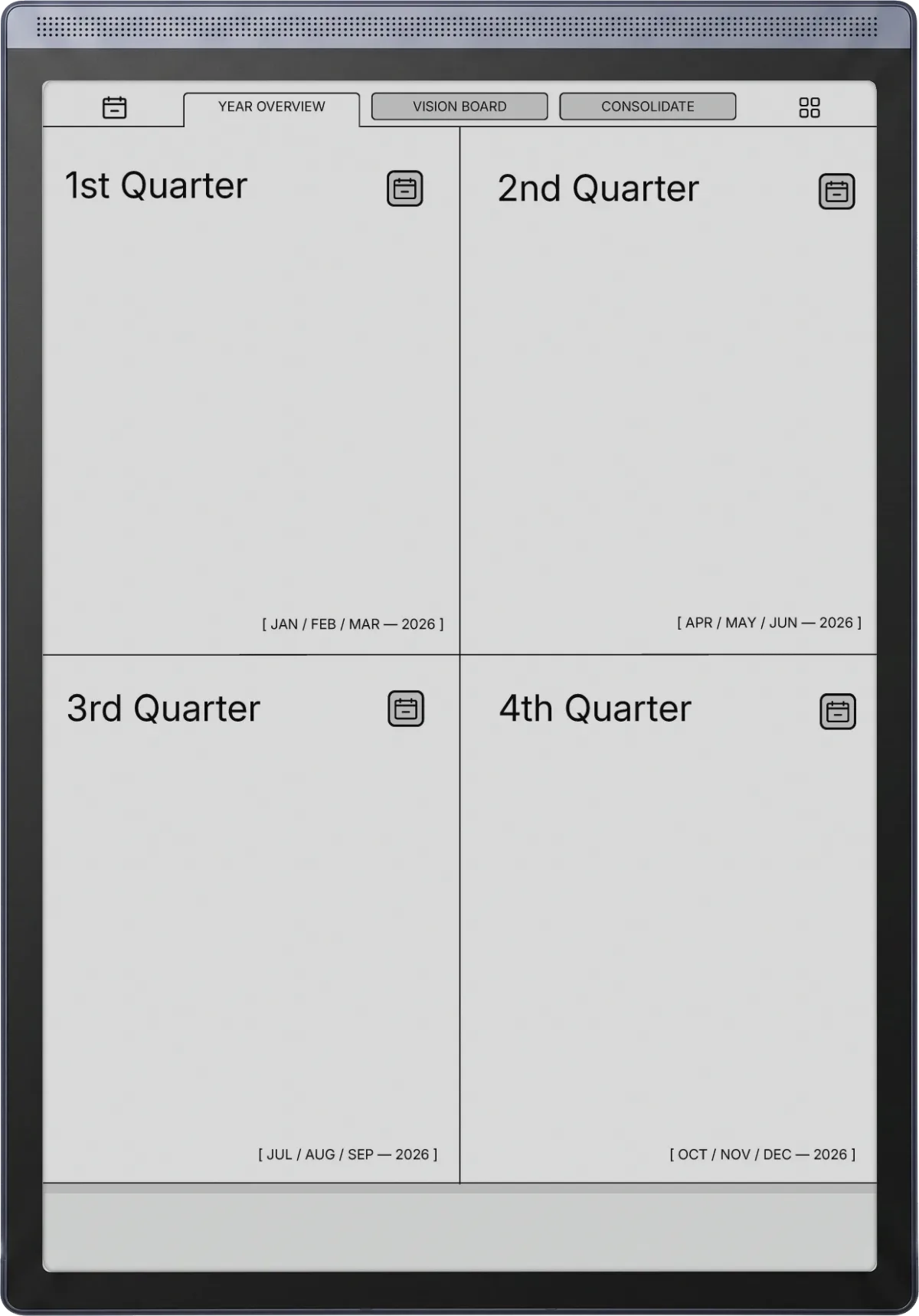
The practical rule: if you own the Air 2, favour layouts with fewer, larger boxes, and test a custom template image at full screen before you build a week of them. If you are still choosing between the two tablets, our AINOTE 2 vs reMarkable Paper Pro comparison now covers the Air 2 as well.
Have a template that earns its place on your AINOTE? Tell us which one and what you use it for in the comments. The layouts owners actually keep are the best guide to what we draw next.
FAQ
Common questions, answered briefly
How do I add custom templates to the iFLYTEK AINOTE 2?
Can I use a PDF planner on the AINOTE 2?
How many templates does the AINOTE 2 have built in?
Do AINOTE 2 templates work on the AINOTE Air 2?
If yours isn’t above, drop the question in the comments and we’ll add it.
People also ask