Plan a post once. See it everywhere.
One list of posts, with its platform, owner and separate draft, publish and promote dates. The week, the month, the idea bank and a dashboard of late drafts and stuck posts all draw themselves from it.
Google Sheets · Excel .xlsx · Blank + filled example
Language
Instant download. Permanent link in your account.
Instant download. Permanent link in your account. Yours forever, no subscription.
You plan the post. It keeps the calendar.
Everything on the right is a formula you never have to touch, in Google Sheets and in Excel alike.
You type
- Each post, once, with its dates
- Your ideas and a quick score
- Your platforms, formats and people
It works out
- The week and the month, coloured by platform
- Late drafts and posts that are stuck
- Your best unused ideas
- Posts per campaign and how many are out
Open any tab. These are the real ones.
Tap a tab, then the picture to read every figure full size.
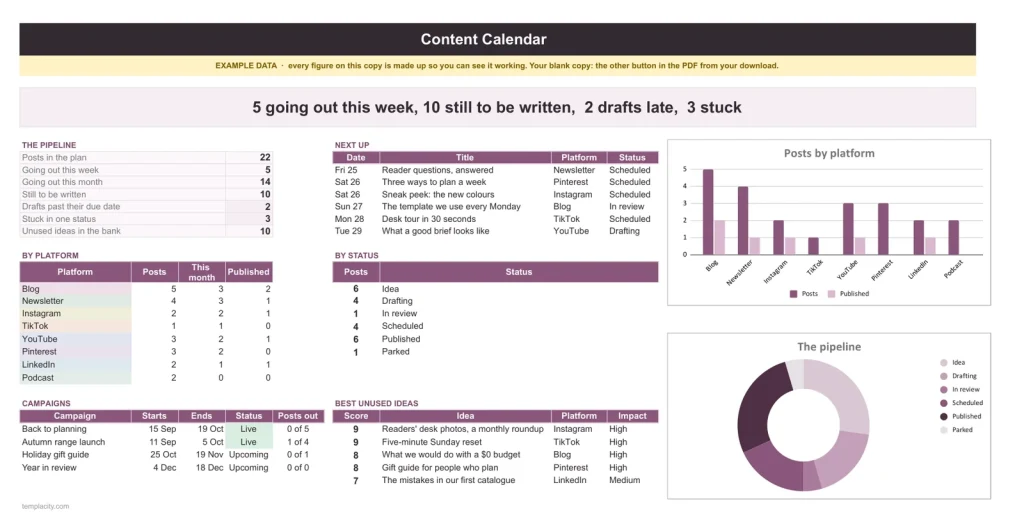
Dashboard
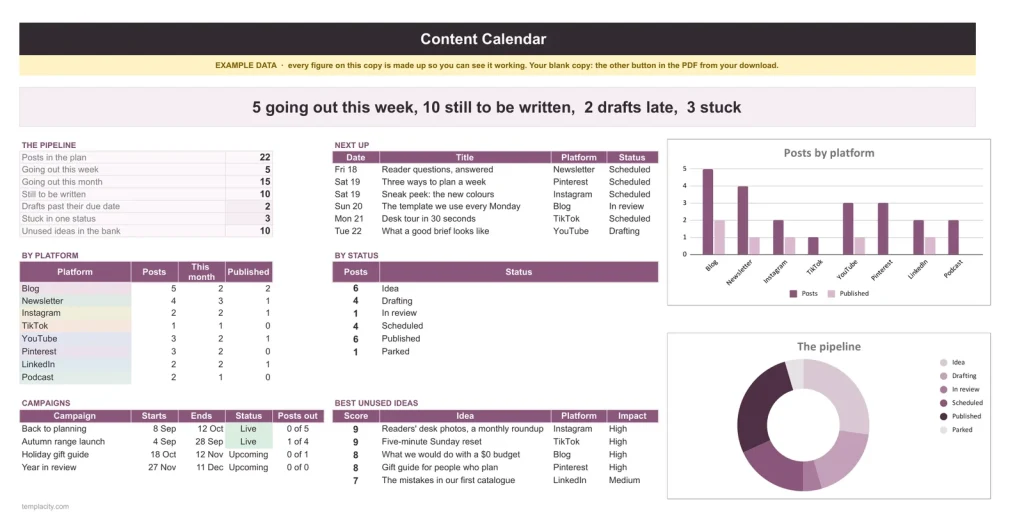
The Dashboard tab.
The dashboard: this week, late drafts, stuck posts and your best unused ideas.
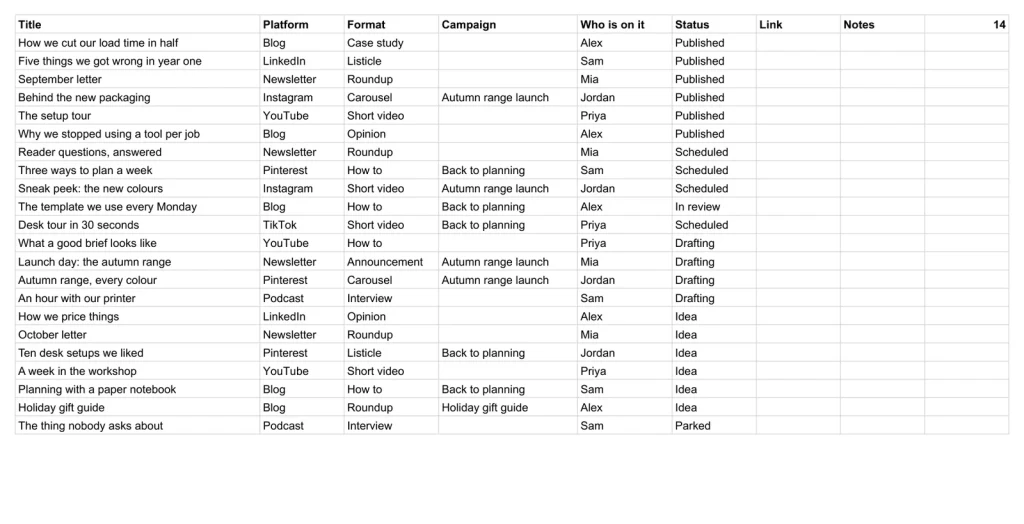
Posts
The only place you plan.
Each post gets its platform, format, campaign, owner, and its own draft, publish and promote dates. Type it here once; every other tab reads from this list.
This Week
What goes out each day.
Seven days, coloured by platform, with the drafts due and the promotion work beside what publishes. Step to any week by changing one number.
Month
The month, drawn as a calendar.
Pick any month and your posts lay themselves out on it, so a thin week or a crowded one shows before it happens.
Idea Bank
Ideas that score themselves.
Rate each idea on impact and effort and the best rise to the top. Once its title appears in Posts, it is marked used.
A plain spreadsheet, and this one.
On the left, the plain posts list most people keep. On the right, the Dashboard tab. Drag the line.
Google Sheets or Excel. You do not have to choose.
The download carries both: the Sheets copy link and the native .xlsx. Every formula is chosen to work identically in the two, and we test the round trip on every build.
Your first five minutes.
-
1
Buy it once.
¥258, no subscription. Your order email and your account both carry the download, permanently.
-
2
Copy it into your Drive.
One click and it is yours, in your own Google account, forever. We keep no access to your copy and nothing in it phones home.
-
3
Start in the example.
The filled copy shows every tab already working. Poke it, break it, then open your blank and type your own.
Add the rest of the set.
All four goes in as the Real Estate Agent Kit at ¥868, not four separate items. You keep ¥314.
Also in the Content Creator Kit: all three for ¥568, you keep ¥206.
№ · One list, every platform
A content calendar spreadsheet that draws the week and month from one list of posts
The Content Calendar Planner is for a creator, small business or marketing team posting across a blog, a newsletter and social channels from one plan. On Settings, put in the platforms you post on (blog, newsletter, Instagram, TikTok, YouTube, Pinterest, LinkedIn and podcast to start), your formats and the people who write. Every dropdown reads these lists.
Plan the post once
Each post is a row on Posts: title, platform, format, campaign, who is on it and status, with four separate dates, draft due, publish on, promote on, and status set on. This Week and Month are drawn from that list and coloured by platform, so nothing on them is typed and a publish date moved on Posts moves everywhere.
Stuck posts and good ideas
Every time a status changes, put the day in Status set on. A post in one status longer than 14 days, or the number you set, is flagged as stuck on the Dashboard. Ideas wait in the Idea Bank with an impact and effort rating and a score, and the bank marks an idea used once its title is on Posts. Campaigns lays launches out on a 16-week timeline, counting the posts tagged to each and how many are out.
The download is a short PDF with two Google Sheets buttons, one for a blank copy in your own Drive and one for a copy filled with an example, the same workbook as blank and example Excel files, and a one-page Quick Start for each.
The questions we actually get
Why does each post have four dates?
Draft due, publish and promote are different days on purpose, and status set on is how the file knows a post is stuck.
When is a post flagged as stuck?
When it has sat in one status for longer than the limit on Settings, 14 days to start, counted from its Status set on date.
Can I add my own platforms?
Yes. Add one in a blank slot on Settings and it appears in the dropdowns at once. Rename a platform and every post filed under it follows, colour included.
Does it work for a team?
Yes. Add each writer under Who is on it, and in Google Sheets everyone can work in one copy.
Does it work in Excel?
Yes. The download carries native .xlsx files, one blank and one filled with an example, for Excel 2010 and later, Excel for Mac and Microsoft 365. Every formula is ordinary Excel, with no macros to enable.
Is there a year printed in it?
No. No year is printed anywhere in the files, so it starts the day you do and keeps working next year.
Every post, planned once.
The week, the month and the ideas, in Google Sheets and Excel, no subscription, no year baked in.
Get the calendar · ¥258Still deciding? Open it live, read‑only. Not the sheet you need? See every spreadsheet template or ask at Templacity Hall.
Be the first to say something.
Nobody has written about this one yet. If it is on your device, yours is the first thing the next person reads.
Instant download.
Your file is in your account the moment you check out, yours to re-download any time. A receipt lands in your inbox, too.
One-time purchase.
No subscription, no annual renewal, no upgrade nags. Pay once and the file is yours.
Quiet, secure checkout.
Stripe. Apple Pay. No spam, no “partners,” no reselling your details. Receipt, file, done.