The trap
Note or template: the choice that decides everything
There are two ways to get a planner into Notability, and they do very different things. You can import the PDF as a note, which brings in the whole file, every month, week and day page, ready to write on. Or you can turn a page into a custom template, which saves a single page design you can apply to other notes.
The trap is that “planner template” sounds like the second one. Ginger Labs is specific about what happens if you take that route with a full planner: “When creating a custom template from a multi-page PDF, the template will be created from the first page.” A 400-page dated planner turned into a template becomes its cover. It also notes that one template can be set per note.
The steps
How to import a planner into Notability
These steps follow Ginger Labs’ own guide to importing external planners, which opens with exactly the use case: “Download planners online and import them into Notability to use as templates!”
-
i.
Save the PDF where the iPad can see it
Download the planner to Files, iCloud Drive or another cloud folder first, so it is waiting when Notability asks for it.
-
ii.
Start a new note with Import
In the Library, tap +New, or tap and hold +New and choose Import. In a note, Import also sits at the bottom of the page.
-
iii.
Pick the planner file
Tap the PDF and it opens as a note with all its pages. From another app, the share sheet does the same thing.
-
iv.
Name the note for the year
Rename it “Planner 2027” or similar and give it its own subject, so it does not drown among class or meeting notes.
That is the whole import. The planner now behaves like any other note: you write on its pages, and the file you downloaded stays untouched in Files if you ever need a fresh copy.
The templates
When to make a custom template instead
Custom templates earn their place for single pages you want again and again: a blank daily sheet, a meeting-notes layout, a habit grid. Once the planner is imported, open the Content Manager, tap the icon on the page thumbnail you want, choose Create Template, name it and save. Ginger Labs says it is then stored in My Templates under Custom Templates, ready to apply to a new note.
This is also the answer to the question of how to use multiple templates in Notability. Since a note holds one template, keep each recurring page as its own custom template and start a new note from whichever you need, rather than trying to stack several onto one note.
A planner is a note. A page you want to reuse is a template.
One more detail from the same help page: templates you download from Notability’s own Gallery are stored on the device you downloaded them on. If you plan on two iPads, add the templates on each one.
Using it
Writing in an imported planner
Two habits make an imported planner pleasant to live in. First, keep a clean copy. Ginger Labs gives the same advice for its own planners: always copy the original template page before adding notes, so the unmarked version survives. With an imported PDF, that clean copy is simply the original file in Files.
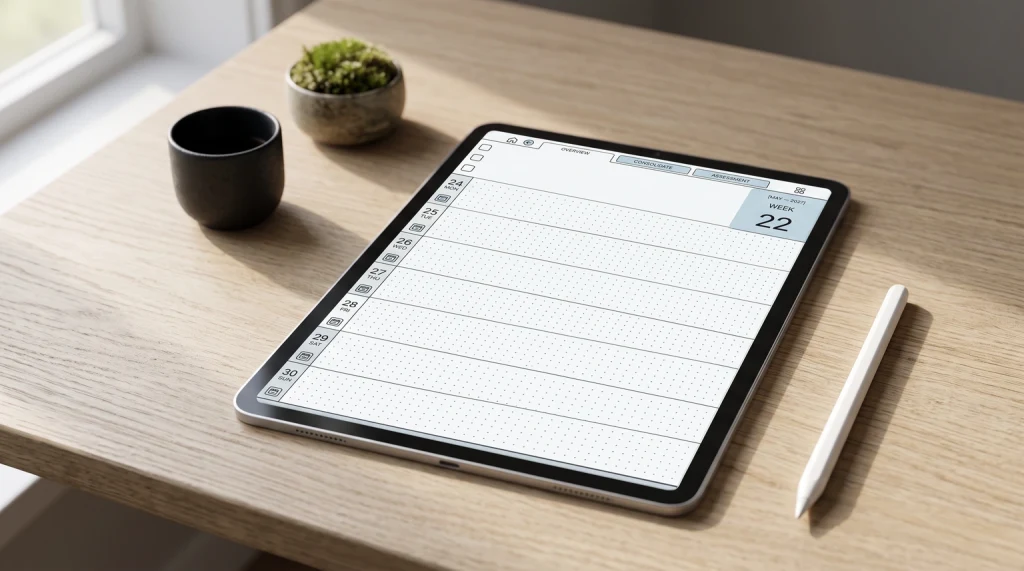
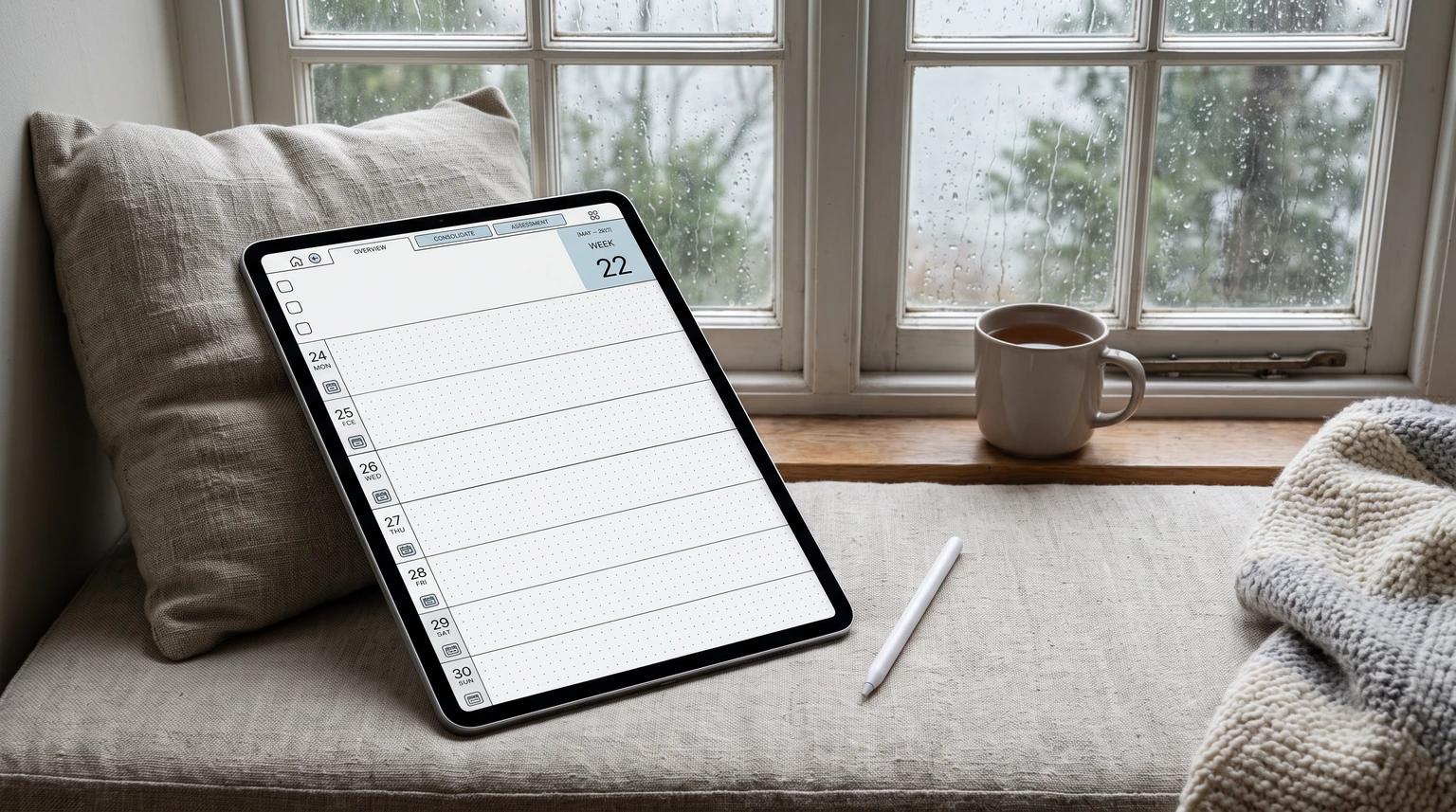
Second, expect to move around with the page thumbnails and the Content Manager. Notability’s own 2026 planners are built for its tab and week-number navigation, and those built-in planners are available to Plus users from the Templates menu. For imported PDFs, what Ginger Labs documents is Outlines: “After importing a PDF with a table of contents, Notability automatically detects and displays the document’s headings and sections”, and you tap a heading in the Content Manager to jump there. So a planner that ships with a built-in outline lets you jump to a month or week without scrolling. How an outside planner’s in-page links behave is not something Ginger Labs documents for imported files, so test those on your own iPad before relying on them. Our Notability planner templates guide compares built-in, free and paid options side by side, and the Goodnotes vs Notability comparison is useful if you are still choosing an app.
Import the planner as a note, make templates from single pages, and keep the original file safe: that covers almost every planner setup in Notability. If your imported planner behaves differently on your iPad, tell us in the comments which app version you are on, because that detail helps everyone else setting up the same file.
FAQ
Common questions, answered briefly
How do I import a PDF planner into Notability?
Why did my Notability template only keep one page?
Where do custom templates go in Notability?
Can I use more than one template in a Notability note?
People also ask