For the broader buyer’s guide on running a Kindle planner on the Scribe (device check, file-format anatomy, setup paths, free vs paid tradeoffs, and the reMarkable comparison), see the pillar.
Filter
How to pick the best Kindle Scribe templates for your use
Searches for the best Kindle Scribe templates land on dozens of roundups that all read the same: a screenshot grid, a sentence each, a download link. The honest test that matters more is whether a template survives a month of daily use without you abandoning it. The picks below are filtered by that criterion, not by visual polish.
Three filters narrow the field fast. Native pixel resolution (1980 x 2640 px on the 11-inch 2025 Scribe, 1860 x 2480 on the 10.2-inch original) over scaled letter-size designs. Light grey form lines (30 to 40 percent black) over pure black grids. A clear single-workflow focus over generic “library packs” that promise to cover everything. Templates that pass all three almost always end up in the daily rotation; templates that fail any of the three usually get installed once and forgotten. If you would rather test a file than trust a listing, our e-ink PDF size database lists the Scribe’s exact page size and has a checker you drop a PDF into.
Picks
The best Kindle Scribe templates by category
| Category | Best paid | Best free | Built-in alternative |
|---|---|---|---|
| Weekly planner | Templacity weekly | Templacity free pack | None (Calendar is monthly only) |
| Daily log | Studio bundles ($20-40) | Community PDFs | None (Notebook works manually) |
| Journal | Specialty journal makers | Community PDFs | None |
| Project tracker | Templacity project | Limited free options | None |
| Meeting notes | Studio bundles | Designer giveaways | To-Do (limited fit) |
| Notebook alternatives | Rare | Community PDFs | Lined, Dotted, Cornell built in |
Read the table by what you need most. The categories with strong built-in alternatives (notebook layouts) almost never need a third-party download. The categories with no built-in equivalent (planners, journals, project trackers, meeting notes) are where studio bundles and community PDFs earn their place. The “best free” column has more variation in quality than the “best paid” column; vetting takes time on the free side.
Planner
Best Kindle Scribe templates for planning
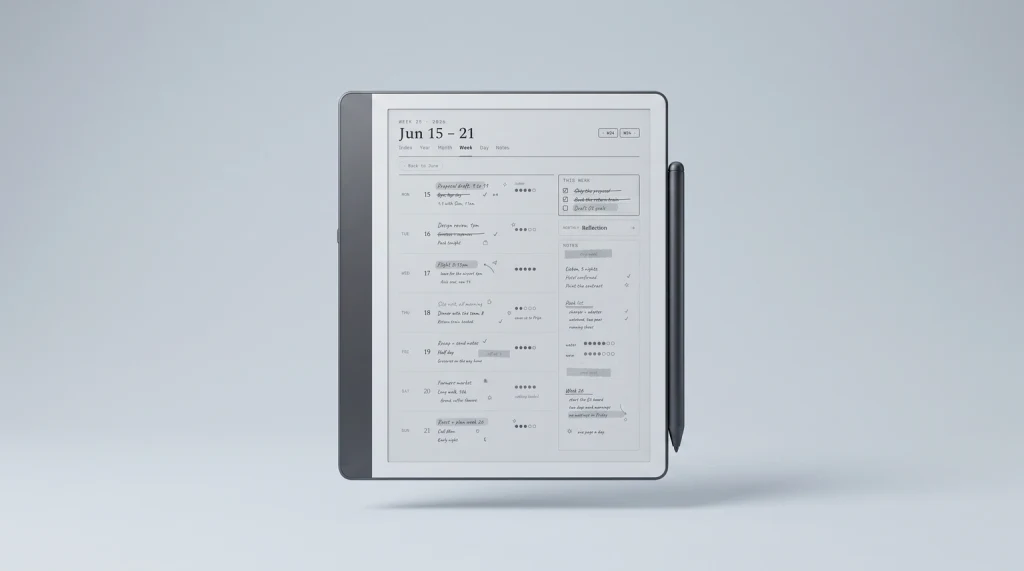
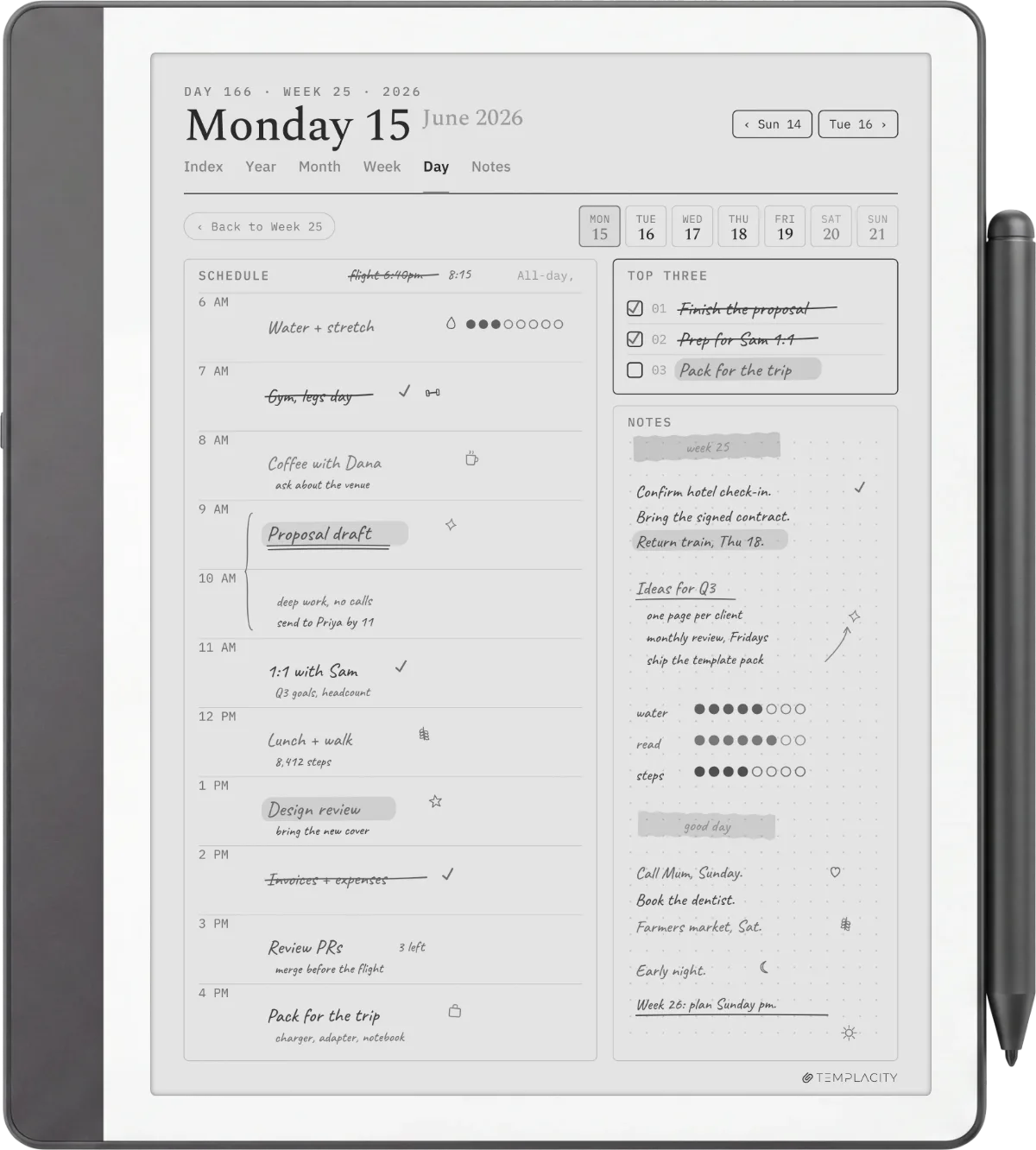
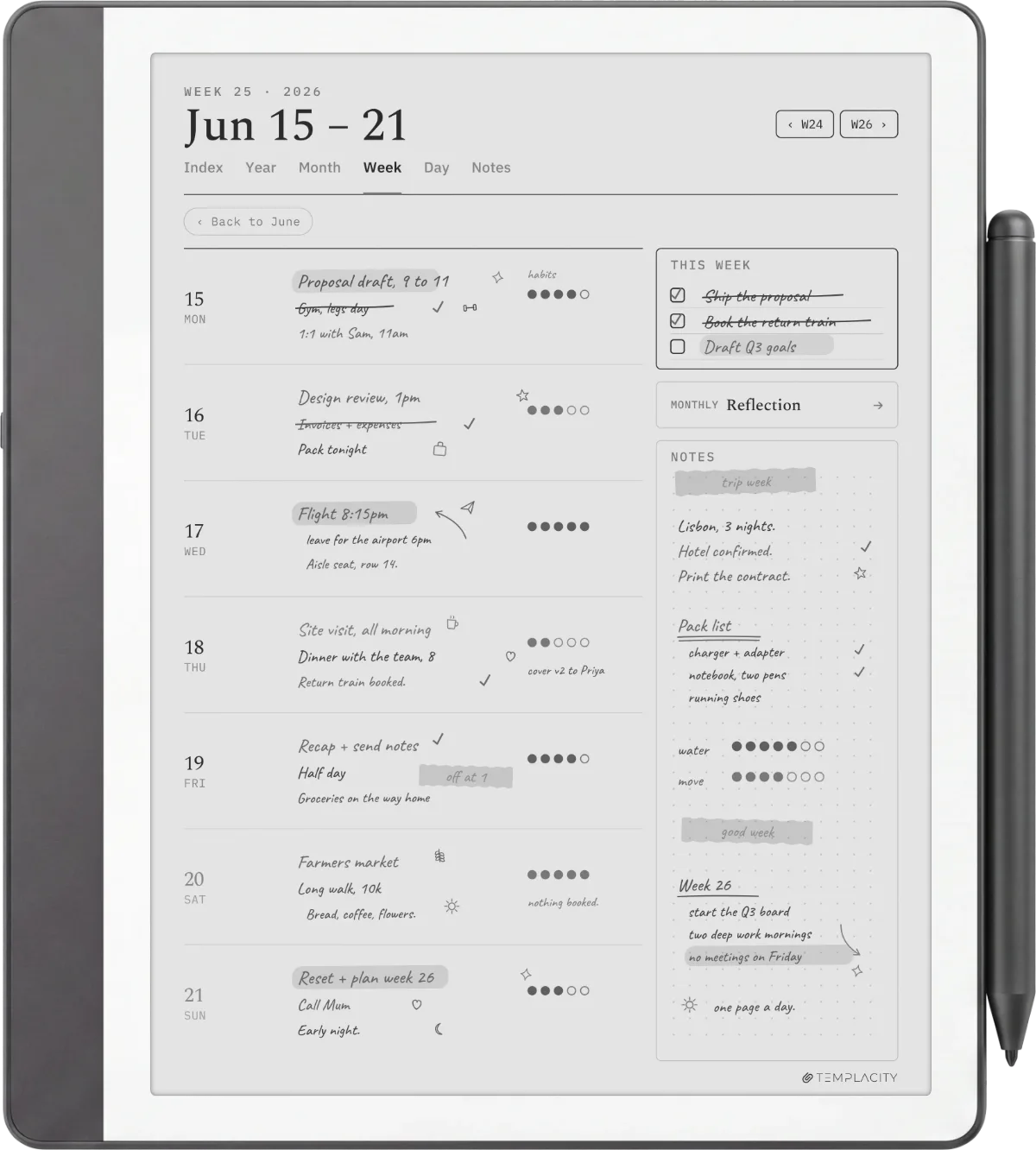
Planning is the deepest category for both paid and free Kindle Scribe templates because it is the use case most readers default to first. The best Kindle Scribe templates for planning split into three formats. Weekly two-page spreads (the most flexible, our most-used). Daily logs (suited to people writing more than 200 words per day). Monthly calendars (better as date reference than primary planning).
What separates the best planner templates from the merely pretty ones: explicit day labelling, light grey form lines, a notes catch-all zone outside the main daily blocks, and a layout that survives being half-filled with handwriting. Designs that look great empty often fail when partially used; planners that survive are the ones that look balanced at any fill level. Our best Kindle Scribe planner piece drills into the planner-specific picks if planning is your primary use case.
Journal
Journal and reflection templates worth installing
Journal templates among the best Kindle Scribe templates split into prompted and structured. Prompted journals (one or two questions at the top, blank space below) work for people who want a starting nudge and freedom in what follows. Structured journals (gratitude, day rating, three things, weather) work for people who want consistency and the small dopamine hit of filling in the same shape daily. Both work; neither is universally right.
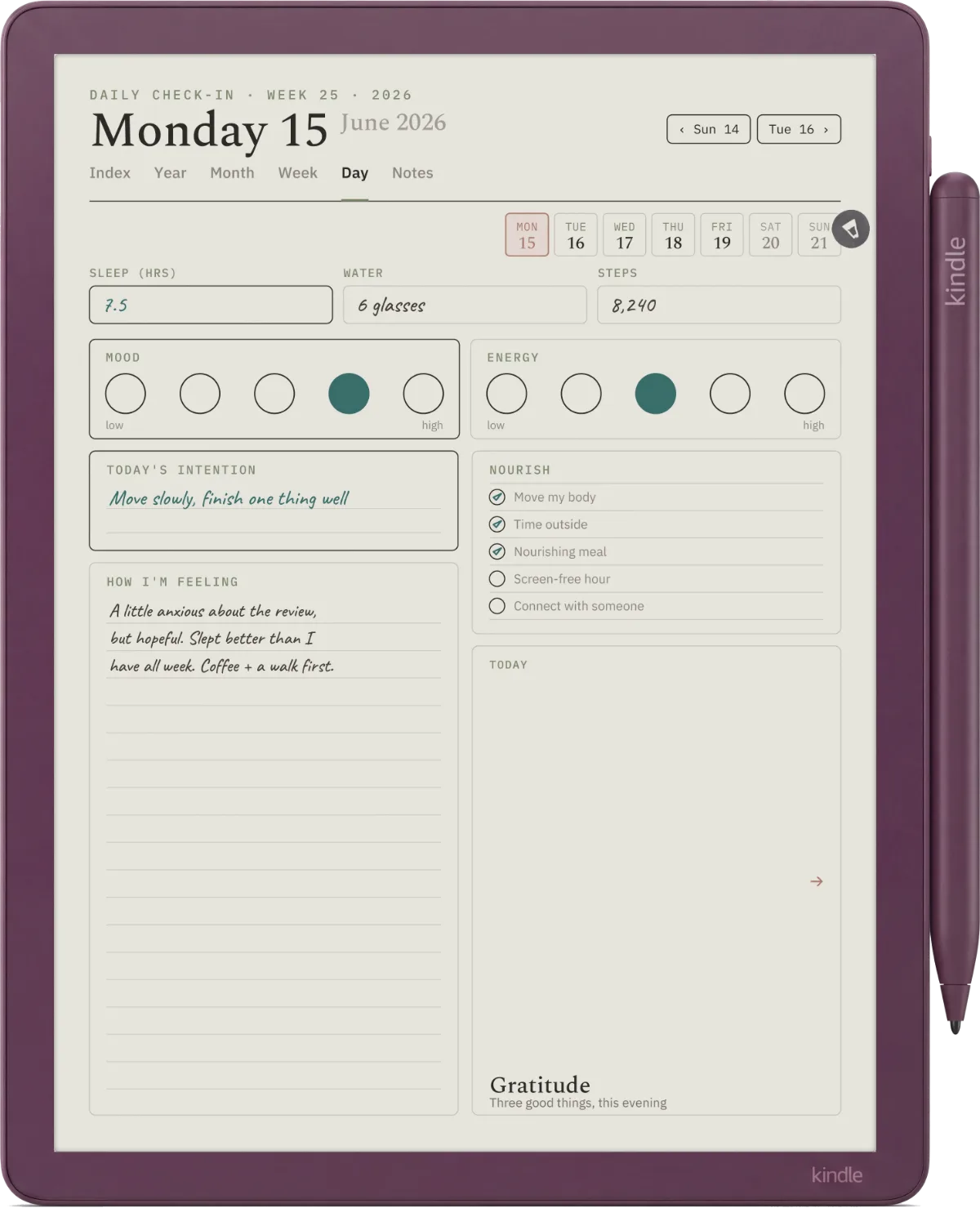
The honest test for journal templates: install one, use it for a week, then ask whether you are still using it because it serves the reflection or because the format flatters the page. The templates that survive that test are usually the simplest prompted designs with one strong question. The elaborate structured templates tend to get abandoned by week two when the formality starts to feel like a chore.
The best Kindle Scribe templates were almost always single-author designs solving a specific workflow rather than studio packs trying to be universal.Filter section
Work
Project tracker and meeting note templates
For project work, the best Kindle Scribe templates fall into three patterns. A meeting note template (date, attendees, agenda, decisions, action items) saves the cognitive load of structuring the page mid-meeting. A project tracker (weekly status, blockers, next actions) suits work that has phases. A 1-3-5 daily template (one big thing, three medium, five small) is a popular focus framework that translates cleanly to e-ink. The Templacity bundle covers all three in one set.
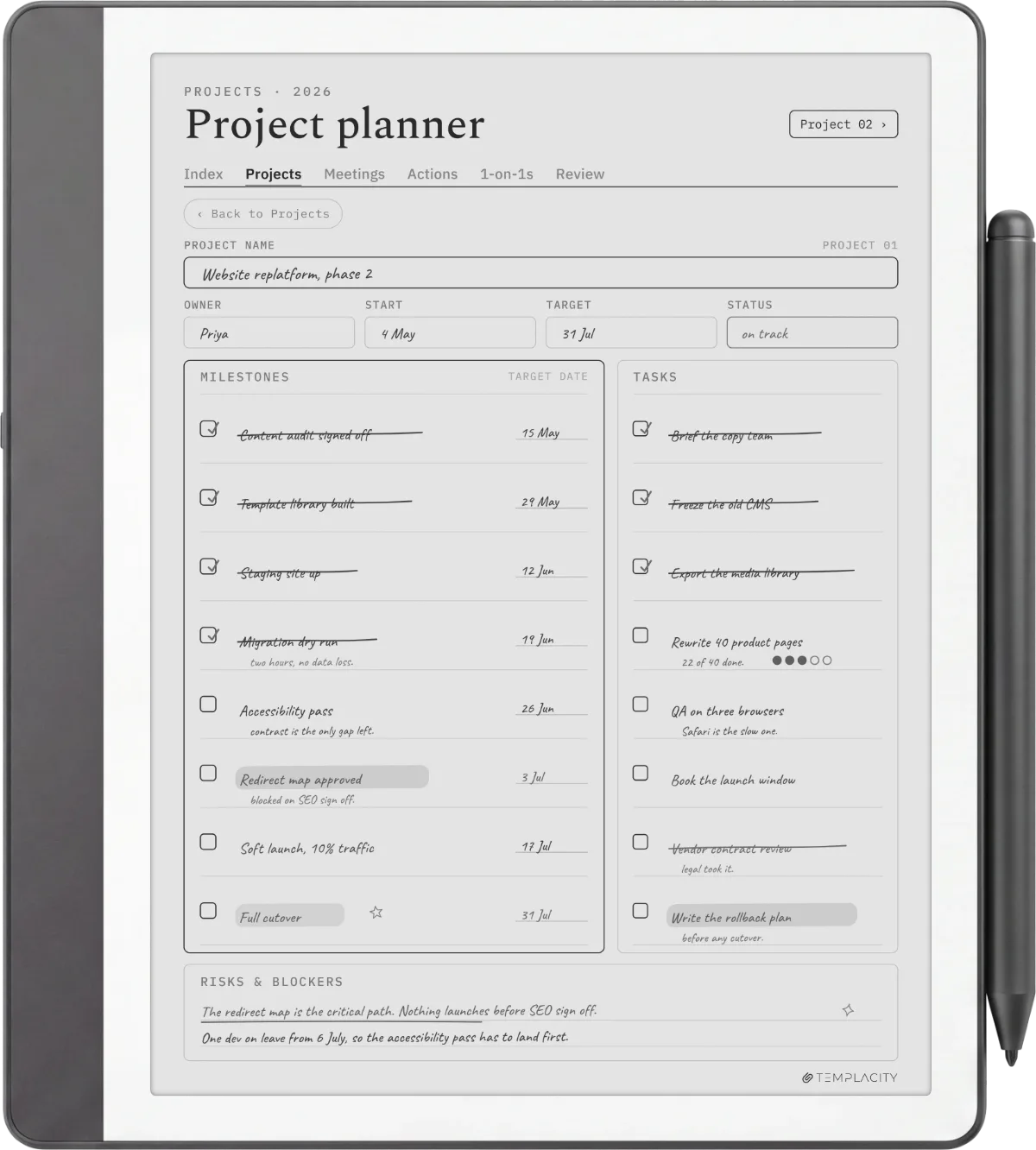
Where work templates differ from planning templates: the structure has to survive being filled in by hand. Designs that look great empty often fail when half-filled with handwriting. Pick templates with explicit zones for the dynamic content (a wide notes area at the bottom of a meeting template, a deliberate blockers row in a project tracker) rather than templates that fill the page with form lines.
Notebook
Notebook layouts and the built-in question
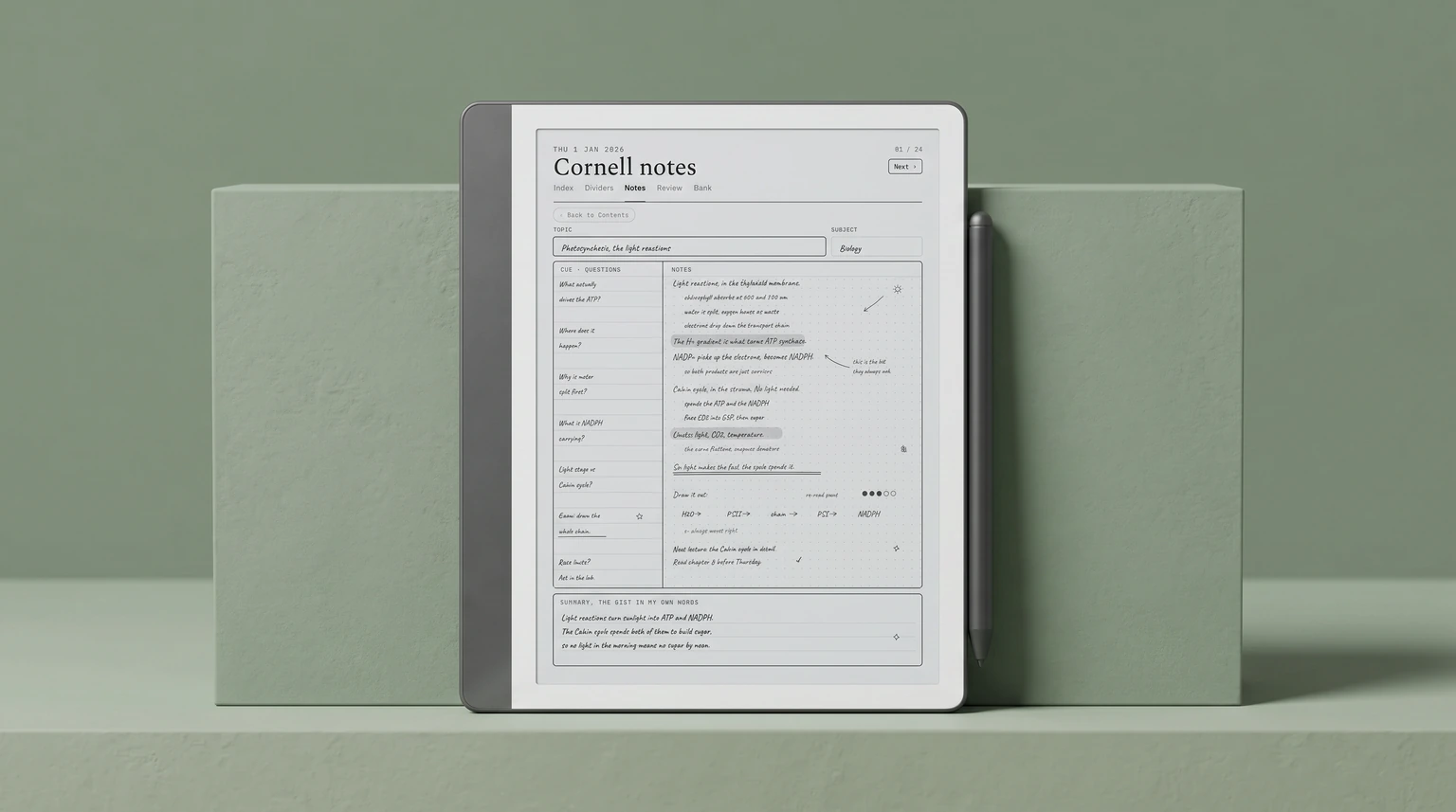
For basic notebook layouts (lined, dotted, grid, Cornell, blank), the best Kindle Scribe templates are usually the ones already on the device. The built-in set covers these formats well, and there is almost no reason to install third-party versions. The exceptions are specific line spacings the built-in does not offer (extra-wide for handwriting practice, 0.5cm dotted for engineering notebooks) or layouts with a date strip and footer page numbers that the built-in templates omit.
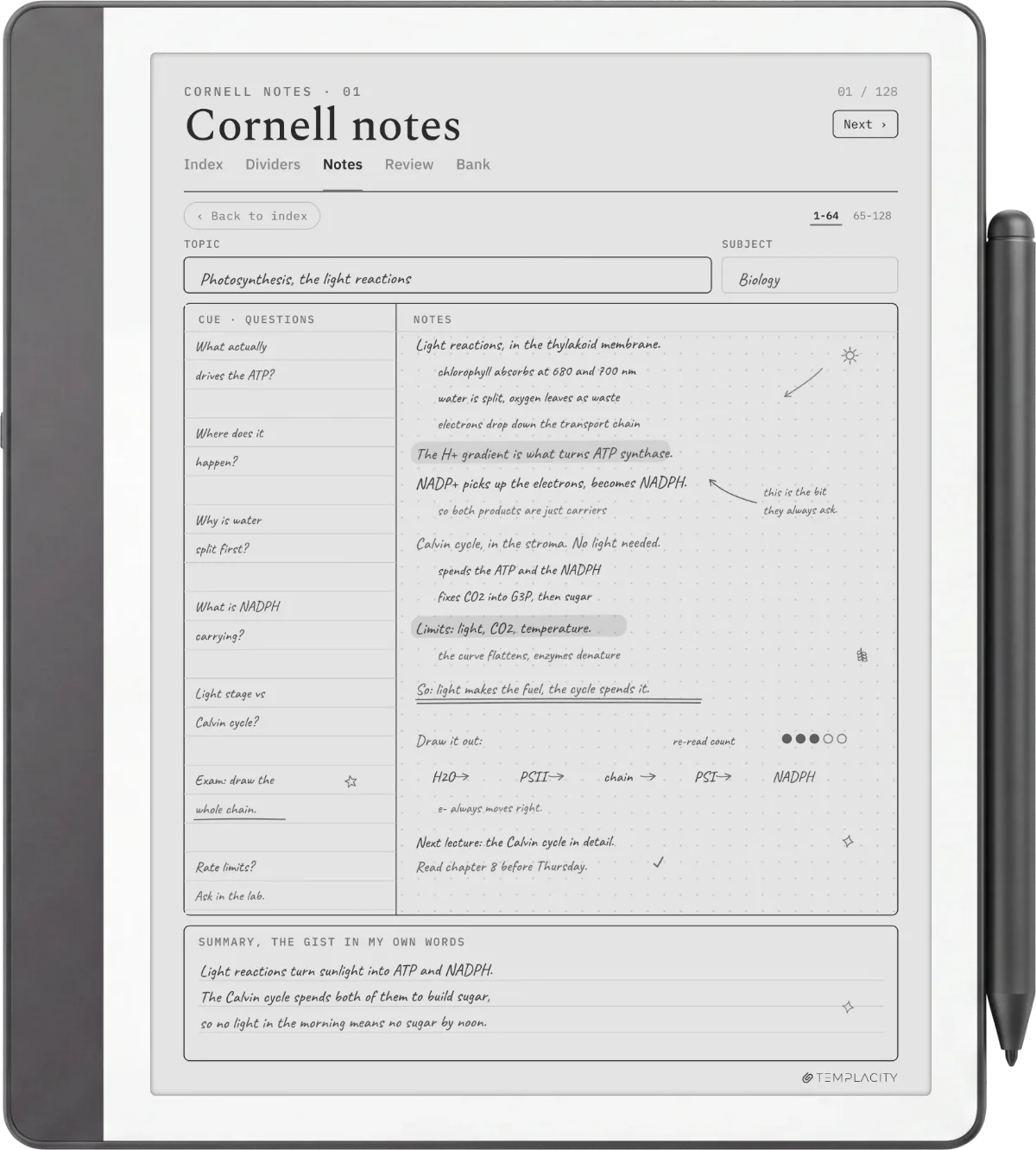
One slightly contrarian recommendation we have found useful: the most useful “notebook” template is a fully blank page with a hairline header bar for the date and a footer for the page number. Sounds trivial; the date strip alone keeps notebooks chronological, and footer numbers let you cross-reference pages later. Several free PDFs ship this layout; it takes 10 minutes to design yourself. Our free Kindle Scribe templates page covers the broader free landscape.
Install
How to install any of these best Kindle Scribe templates
Install path is the same for every template above: drag the PDF to amazon.com/sendtokindle, confirm your Scribe as the destination, wait about a minute. The PDF lands in your Library on the device with full pen-tool support: write directly, erase, save annotated versions, sync back to your Amazon library. We unpack the design side in how to make Kindle Scribe templates.
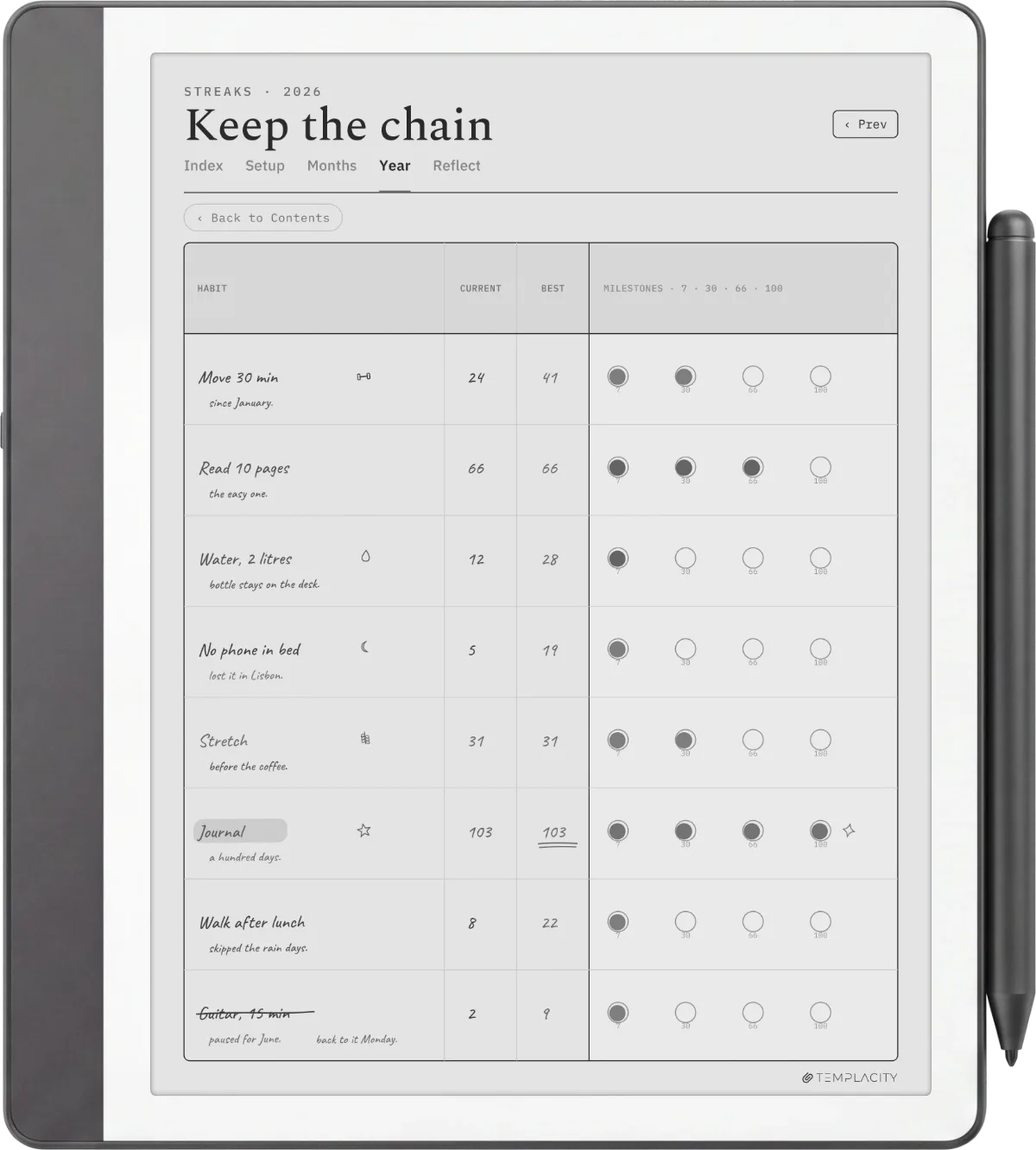
What you cannot do, despite some tutorials online suggesting otherwise: add a custom template to the Notebook Templates menu inside the device. That list is locked by Amazon at the firmware level. The PDF route is the only user-facing option and it is the one most workflows actually want anyway.
If you have favourite Kindle Scribe templates we missed (especially community PDFs from outside the obvious subreddit threads), drop them in the comments. The roundup gets refreshed monthly and reader-suggested sources have been about a third of recent additions.
FAQ
Common questions, answered briefly
What are the best Kindle Scribe templates in 2026?
Are the built-in Kindle Scribe templates good?
What is the best free Kindle Scribe template overall?
What pixel size should the best Kindle Scribe templates be?
Can the best Kindle Scribe templates work on the Colorsoft?
Are Amazon Scribe templates the same as Kindle Scribe templates?
If yours isn’t above, drop the question in the comments and we’ll fold it in next refresh.
People also ask