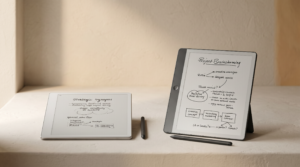
Landscape
What “reMarkable template installer” actually means in 2026
Searches for “reMarkable template installer” land on three different things, and it helps to name them upfront. First, a third-party desktop tool that uploads custom templates over USB or wifi. Second, the manual install path through SSH that the community has used since the original reMarkable 1. Third, a wishlist feature that the official reMarkable desktop and mobile apps still do not have, despite three years of community requests. The first two work. The third is not real yet.
Across the three live paths, the right reMarkable template installer for you depends on whether you want a polished GUI, whether you are comfortable with a terminal, and whether you want any third-party software touching your device at all. The rest of this post walks the three options, points out the gotchas, and tells you which one we use ourselves.
Method A
Method A: RCU, the recommended reMarkable template installer
RCU (reMarkable Connection Utility) by Davis Remmel is a desktop application for Mac, Windows, and Linux. It connects to your reMarkable over USB or wifi, browses the device filesystem, and provides a UI for installing custom templates without touching a terminal. The download is donation-priced ($12 suggested) and it is the only third-party tool in this category we have seen survive multiple firmware updates without breaking.
Get the device’s SSH password from the rM settings.
On the reMarkable, open Settings, Help, Copyrights and licenses. Scroll to the bottom and find the GPL section. Below that, the device shows a one-line “ssh root@…” string with a password. Copy the password (the long random one, not the IP). RCU asks for it on first connection.
Connect, then open the Templates panel.
Plug the reMarkable in via USB. Launch RCU. Pick USB connection, paste the password, accept the host key on first run. The left sidebar shows a Templates entry. Open it.
Drop the PNGs in, name them, save.
Use Add Template, browse to your PNG files, give each a category and an icon. RCU writes the PNG to the device’s templates folder and updates templates.json automatically. When you save, RCU restarts the xochitl service and the templates appear in the Notebook template menu within five seconds.
One thing to know: RCU also handles backup, restore, and document management beyond templates. If you have ever wanted a way to pull all your reMarkable notebooks to a desktop folder for safekeeping, RCU does that too. The template installer feature is one tab among many, and the rest are worth the donation on their own.
Method B
Method B: manual SSH, no installer required
If you want no third-party software touching your reMarkable, the manual SSH path still works exactly as it did on the rM1. The trade-off is one terminal session and a small JSON file edit. The community has documented this thoroughly at remarkable.guide; the short version is below.
Get the SSH password from Settings, Help, Copyrights and licenses (same as Method A). From a terminal: ssh root@10.11.99.1 (the device’s USB IP). Copy your PNGs into /usr/share/remarkable/templates/ using scp. Edit /usr/share/remarkable/templates/templates.json to add an entry for each new template (name, filename, iconCode, categories array). Run systemctl restart xochitl to refresh the template menu. The new templates appear in the device’s Notebook template picker.
Manual SSH survives firmware updates better than you would expect. Custom PNGs in the templates folder usually persist; the templates.json file is sometimes overwritten on major firmware bumps (3.0 to 3.10 was the last one we saw it happen on). Keep your edited copy outside the device so you can restore it if a firmware update wipes the entries.
Method C
Method C: the official path that does not exist yet
The reMarkable desktop app and the official web interface both let you upload PDFs and EPUBs to the device. They do not install templates. This is a long-standing community frustration: a feature that would be one engineering week for reMarkable is still not on the public roadmap as of May 2026. The closest thing is reMarkable’s official browser extension that converts web pages to documents, which is also not template installation.
If you specifically want an Amazon-style “official” install path, your best move is to ask reMarkable support to mark the feature as “highly requested” (they do track this) and use RCU in the meantime. We have asked. We will keep asking. If reMarkable ships official template installation, we will update this post the same week.
For Paper Pro users specifically, our how to add templates to reMarkable Paper Pro piece walks the same three methods at the larger device’s resolution. The reMarkable 2 ratio (1404 x 1872) does not scale cleanly to the Paper Pro screen (2160 x 2880); rebuild templates at the larger resolution rather than upscaling.
If you build a custom template that solves a problem the built-in set misses, we would love to see it. Drop a screenshot in the comments or send it to the address on our reMarkable hub. The more interesting community templates often start as someone’s personal solution that they only later realised others would want.
FAQ
Common questions, answered briefly
What is the best reMarkable template installer in 2026?
Does the official reMarkable app install custom templates?
What size should a reMarkable custom template be?
Will custom templates survive a reMarkable firmware update?
Is using a reMarkable template installer safe for the device?
If yours isn’t above, drop the question in the comments and we’ll fold it in next refresh.
People also ask