Why build instead of copy
Build it yourself in 20 minutes (and why)
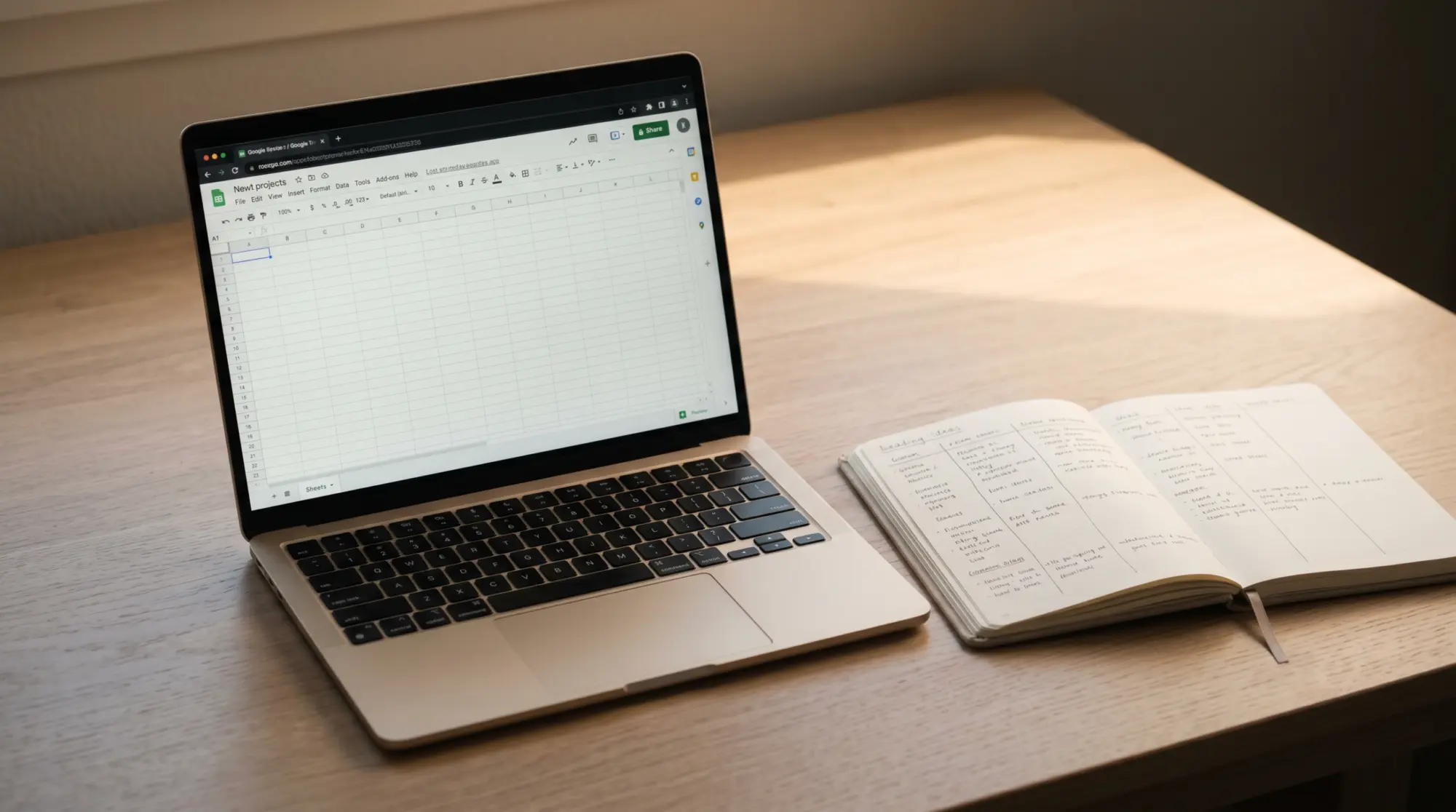
A reading tracker you built is a reading tracker you’ll maintain. Every column was a choice you made, every chart answers a question you asked, and there’s no mysterious formula breaking the dashboard math. Downloaded templates win on convenience and lose on customisation; they have six columns you didn’t choose and three you don’t need. If you’ve abandoned a template-based tracker before, the 20-minute build is the cleanest reset. Open Google Sheets and follow the six steps below.
The six steps
Six steps to a working reading tracker in Google Sheets
Open a new Google Sheet, name it without a year.
Title it “Reading Tracker”, not “2026 Reading Tracker”. A year-tagged file forces yearly migration; a use-case-tagged file compounds. You’ll thank yourself in January 2028. Save it to a Drive folder you’ll actually find again.
Set six columns in row 1.
Title, author, started, finished, rating, notes. Skip genre, format, pages, source, theme on the first pass. You can add them later if you find yourself writing them in the margin. The default six columns cover the working case for 90% of readers.
Add data validation on the rating column.
Select the rating column. Data > Data validation > Add rule > Dropdown from a range > type 1, 2, 3, 4, 5 (or use a 1 to 10 scale if you prefer). The dropdown speeds up logging and prevents typos that break the dashboard count later. See Google’s data validation docs if you need a walkthrough.
Add a Dashboard tab with two charts.
Right-click the tab at the bottom, Duplicate, rename to “Dashboard”. Clear all data on the new tab. Insert chart 1: a column chart counting finished books per month, using COUNTIFS on the “finished” column with MONTH conditions. Insert chart 2: a donut counting ratings, using COUNTIF the rating column for each value. Use open-ended ranges (A:A, not A2:A100) so the charts don’t drift past row 100. The full dashboard walkthrough is in our reading tracker dashboard piece.
Freeze the header row and turn on filter view.
On the log tab, click any cell in row 1. View > Freeze > 1 row. Data > Create a filter. The frozen header keeps the column labels visible as you scroll past 50 books; the filter lets you sort by rating or finished-date without disturbing the underlying order.
Open the sheet on your phone and log a book.
This is the step most people skip and most should not. Install the Google Sheets app on your phone if you don’t have it, open the workbook, and log the book you finished most recently. If logging takes more than a minute, adjust the column widths on the log tab until phone logging is fast. The first book you log should be the one you finished yesterday; that’s the test.
After the build
What to add later (and what to leave alone)
The six default columns will carry you for the first 30 books. After that, you’ll know which extra column you actually want. The most common add is a “source” column (who recommended the book, where you saw it); it’s the field you’ll read most when picking what to read next, and we recommend it for everyone. Second most common is a “genre” column with constrained values (literary, mystery, sci-fi, non-fiction, romance, other). After that, the additions are diminishing returns; format (paper / ebook / audio) is interesting once, then becomes a chart you ignore.
What to leave alone: any column with more than five possible values that isn’t already in your reading life. “Theme” is the classic over-add; readers think they want to record a book’s theme and discover they can’t articulate it until they’ve sat with the book for a month. Skip. Same for “mood” (interesting but not actionable), “page count” (look it up if you need it), “publisher” (rarely matters to a reader), and “rating breakdown” (single rating column is enough). One column does one job; eight columns do four jobs each badly.
The first version of your tracker should be ugly enough that you don’t feel precious about deleting columns from it.The six steps
FAQ
Common questions, answered briefly
How long does it take to make a reading tracker in Google Sheets?
What are the best columns for a reading tracker?
Should I use a template or build my own?
How do I make a dashboard for my reading tracker?
Can I use this build in Excel instead?
If yours isn’t above, drop the question in the comments and we’ll add it.
People also ask