This is part of our Supernote hub. If you are still setting the device up, our Supernote templates guide covers the other half of a good workflow.
The basics
How Supernote cloud sync works
Supernote cloud sync exists to solve one problem: your notes live on a single device, and you want them backed up and reachable elsewhere. Because a Supernote is a closed, focused notebook, it does not sync the way an open Android tablet does, but it gives you several clear routes, and you can use more than one at once. The point is redundancy, so a note you wrote on the device is safe even if the device is not.
There are four routes worth knowing, and they suit different needs. Here is how they compare before we set the main one up.
| Method | Best for | Needs |
|---|---|---|
| Supernote Cloud | Everyday sync and access from a browser or app | A free Supernote account |
| Partner App | Browsing and pulling notes onto your phone | The app on iOS or Android |
| Browse & Access | Quick transfer with no cloud at all | Both devices on the same Wi-Fi |
| Dropbox / Drive / OneDrive | An independent, automatic backup copy | Your existing cloud account |
Setup
Setting up Supernote Cloud
Supernote Cloud is the first-party service and the simplest place to start. Create a free Supernote account, sign in on the device under its settings, and turn on sync. From then on your notebooks upload automatically, and you can read them through a web browser or the Partner App on your phone. This is the everyday convenience layer: it means the note you wrote at your desk is on your phone by the time you leave the room.
If you would rather keep files off any cloud, the device also has a local option called Browse and Access. It turns the Supernote into a small web server on your Wi-Fi, so you open a browser on your computer, connect, and pull files across directly, no account and no internet required. It is slower and manual, but it is the most private route and useful for a one-off transfer.
Third-party
Syncing to Dropbox, Google Drive, or OneDrive
Beyond its own cloud, Supernote can sync to the big third-party services, which is how most people build a proper backup. In the device settings you connect your Dropbox, Google Drive, or OneDrive account, and Supernote can then push copies of your notebooks there automatically. That gives you an independent backup in a service you already trust and can reach from any device, which is exactly what you want if the notes matter.
For more technical setups, Supernote also supports WebDAV, which lets you sync to a self-hosted or third-party WebDAV server if you prefer to control where the files live. Most people will not need it, but it is there, and it fits the brand’s theme of giving you ownership of your own data rather than locking it inside one account.
Templates
Keeping your templates and planner in sync
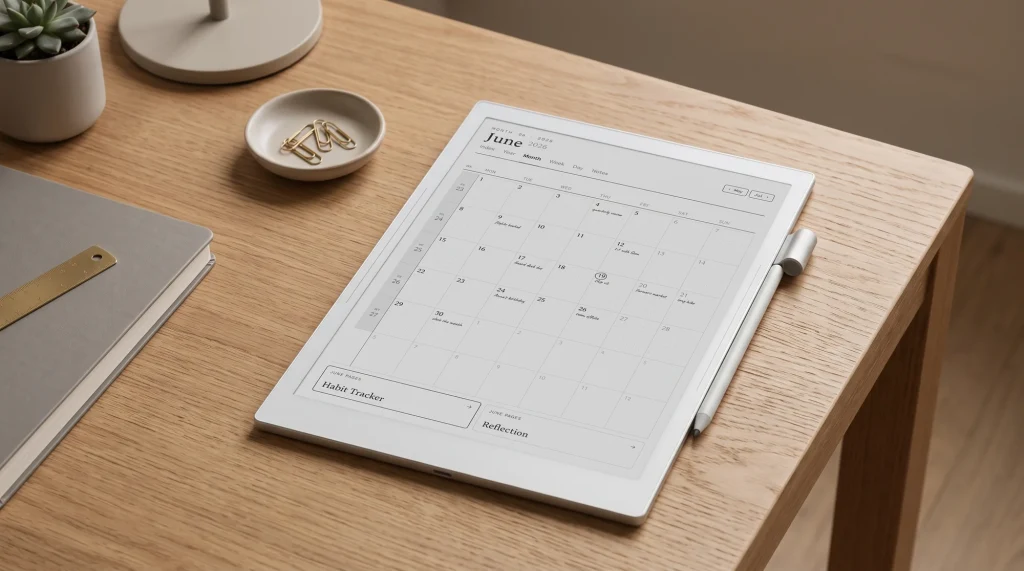
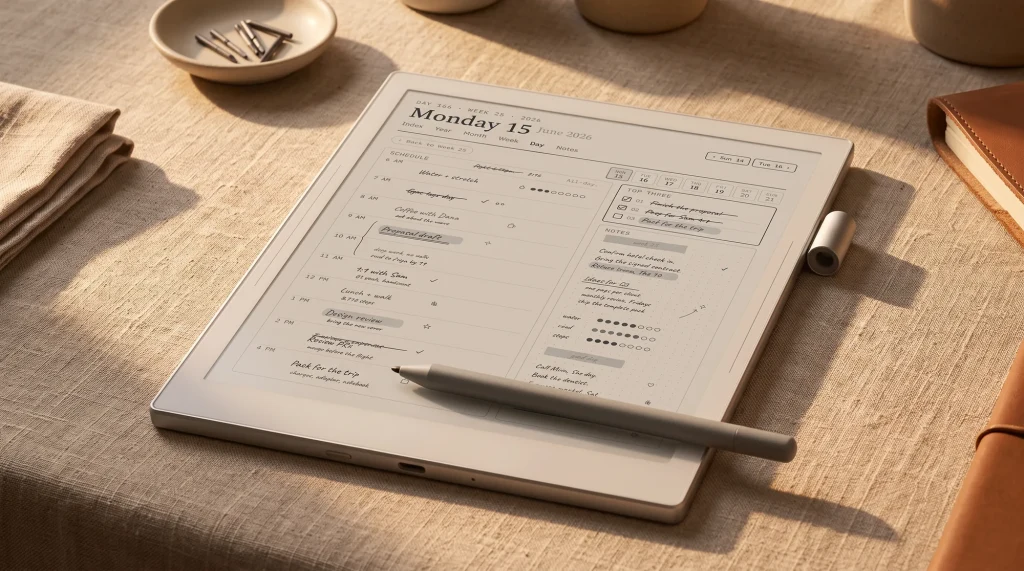
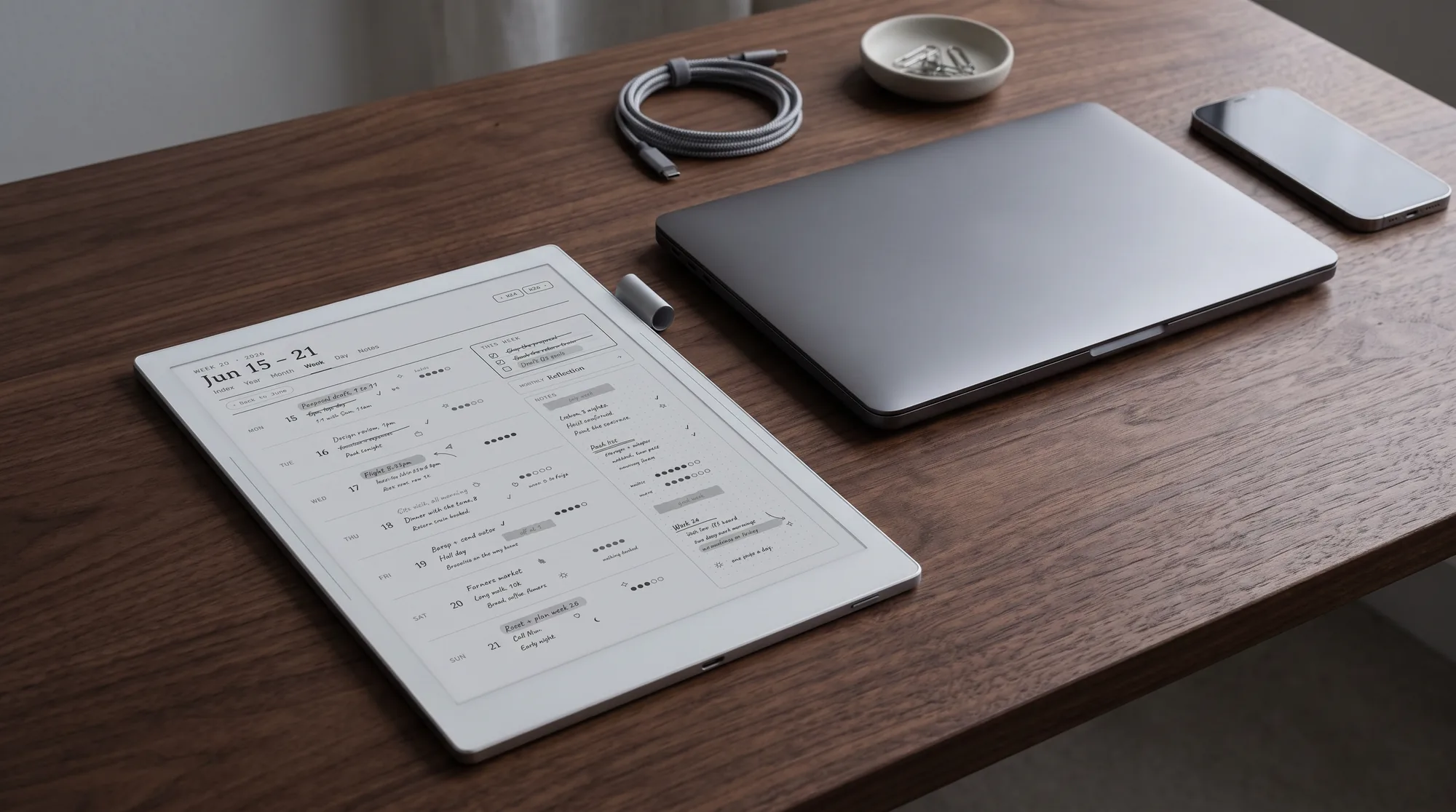
Sync is not only about backup; it is also how you get templates and planners onto the device and keep them consistent. You can drop a new PDF planner or PNG background into a synced folder and have it appear on the Supernote without plugging in, which makes updating your setup much less of a chore. If you run the same planner across a Nomad and a Manta, a shared cloud folder keeps both current, though remember to use templates sized for each screen.
FAQ
Common questions, answered briefly
Is Supernote Cloud free?
Can I sync my Supernote to Google Drive or Dropbox?
How do I back up my Supernote without the cloud?
Do my notes sync between two Supernote devices?
People also ask
Other questions, briefly answered
How do you keep your Supernote backed up, and have you settled on the built-in cloud or a third-party service? Tell us in the comments what your setup looks like. We keep this guide current as Supernote updates its sync options and adds new integrations.