
Kindle Scribe OneNote Integration: Ultimate Sync Guide
Kindle Scribe OneNote Integration: Ultimate Sync Guide Productivity & Tech Mastering Your Kindle Scribe OneNote Integration Workflow For professionals who live in the Microsoft ecosystem,

The 2026 release of the reMarkable Paper Pro Move has redefined portability for e-paper enthusiasts. However, this miniaturized masterpiece introduces a unique challenge for productivity. Using standard A4 or A5 layouts on a 7.3-inch screen often results in microscopic text and cramped writing spaces. To truly unlock this device, you need dedicated remarkable paper pro move templates engineered for its specific 954 x 1696 resolution.
In this guide, we explore how to transition from traditional large-screen planning to high-velocity, mobile workflows. We will analyze the impact of the Canvas Color display on organization and why “Vertical-First” design is the only way to avoid the shrinking trap. For a broader look at the current hardware, see our reMarkable E Paper Tablet Review 2026: The Complete Lineup (Pro, Move & 2).
Technical Deep Dive: While the larger reMarkable models use a 3:4 aspect ratio, the Move is closer to 9:16. If you import a standard planner, the software must “shrink-to-fit,” which compresses your writing lines. Proper remarkable paper pro move templates must be designed natively for this narrower width to ensure lines are spacious (at least 8mm high).
Workflow Application: When choosing a template, check the pixel dimensions. If it isn’t specifically labeled for the Move, the headers will likely be too small to read comfortably while standing or commuting. Native templates allow you to write naturally without zooming in, keeping your thoughts flowing during rapid field note sessions.
Technical Deep Dive: The Move features the Canvas Color display (Gallery 3), supporting millions of colors. High-quality remarkable paper pro move templates use semantic color coding. For instance, red zones are for urgent tasks, while blue lines act as subtle guides for personal reflections. This utilizes the 12ms latency to keep your organization visual and instant.
Workflow Application: Use color to create a “Visual Priority” system. Instead of checking off boxes, use a yellow highlighter on pre-formatted headers to denote active projects. This turns your 7.3-inch device into a dashboard that you can scan in seconds, even while walking between meetings or sites.
Technical Deep Dive: Because of its phone-like form factor, the Move is often used with one hand. Templates should place high-frequency navigation tabs on the right side (for right-handed users) or the center to minimize thumb travel. This ergonomics-first approach is a hallmark of professional remarkable paper pro move templates.
Workflow Application: Test your navigation speed. If you have to reach across the screen to switch from your “Daily Action” to your “Project Tracker,” the template isn’t optimized for the Move. High-velocity layouts ensure that every essential section is reachable in a single tap, maximizing your efficiency on the go.
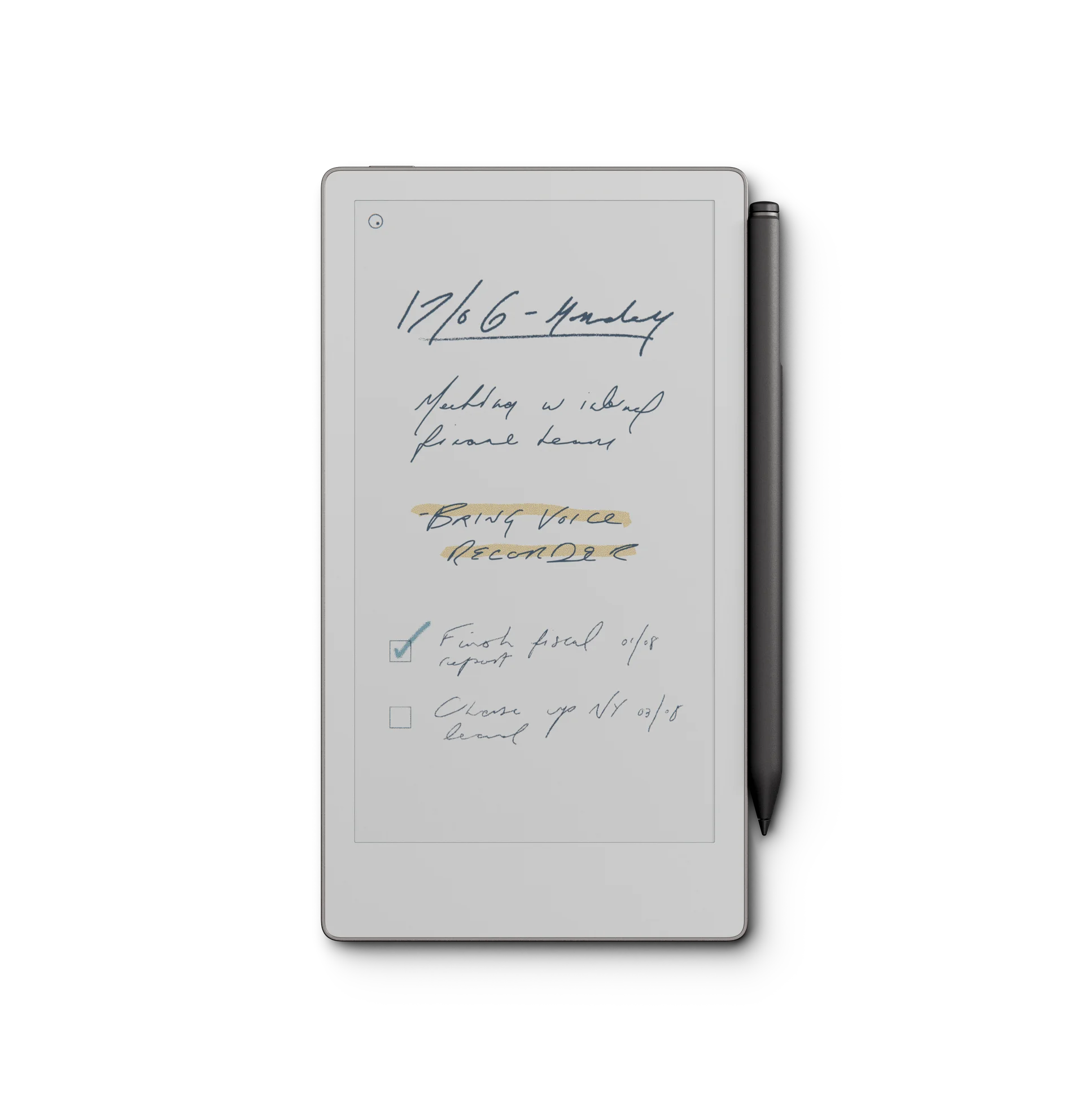
Technical Deep Dive: Standard weekly grids are too narrow for the Move. The “Vertical Stack” puts Monday at the top and Sunday at the bottom. This layout respects the 954px width, giving you the full screen for every day. It’s a complete departure from the A5 horizontal layouts used on the reMarkable 2.
Workflow Application: Use the top-to-bottom flow to track your energy levels or deadlines throughout the day. It mimics the scroll of a smartphone, which feels more natural on a device of this size. This is particularly useful for journalists or field engineers who need to log events chronologically.
Technical Deep Dive: Modeled after the classic reporter’s notebook, this template features a center vertical line. The left side is for “Cues/People,” and the right side is for “Notes/Actions.” By splitting the 7.3″ screen vertically, you avoid long, messy lines of text that are hard to read on a narrow display.
Workflow Application: During a site visit or a standing meeting, use the left column to jot down names. Use the right column for their specific requests. This structure forces a “Rapid Logging” style that prevents you from getting bogged down in long-form prose, ensuring you capture only the most vital data.
Technical Deep Dive: You can’t fit three columns on a Move screen. Instead, the remarkable paper pro move templates version of a Kanban board uses a single wide column with “Status Icons.” You use the highlighter tool to color-code tasks (Yellow = Doing, Green = Done), leveraging the Canvas Color display to replace physical columns.
Workflow Application: This is the ultimate project management tool for mobile professionals. Instead of dragging and dropping (which is slow on e-ink), you simply change the color of the task. It provides an instant visual overview of your workload without the cluttered UI of a traditional project board.
| Layout Style | Best For | Optimization Key |
|---|---|---|
| Vertical Stack | Weekly Planning | Full-width daily bars |
| Steno Log | Field Notes | Split-vertical hierarchy |
| Status Kanban | Project Tracking | Semantic color coding |
| Isometric Grid | Creative Sketching | Narrow-aspect 3D grids |
Technical Deep Dive: Custom remarkable paper pro move templates are imported as Interactive PDFs. To install, simply drag the file into your reMarkable desktop or mobile app. Ensure you create a dedicated folder named “Templates” to keep your layouts separate from your standard notebooks and imported PDFs.
Workflow Application: Once imported, use the “Duplicate” function to create a clean copy for every new project or week. Never write on your master file. This ensures you always have a fresh, un-inked layout ready to go the moment inspiration strikes, which is vital for maintaining a clean remarkable pro move templates workflow.
Technical Deep Dive: The Move integrates with the reMarkable Cloud, but its small screen makes cross-device viewing tricky. Professional remarkable paper pro move templates use high-contrast black lines and bold headers to ensure that when you view your notes on a smartphone or laptop, the structure remains perfectly visible despite the resolution scaling.
Workflow Application: Link your reMarkable account to OneDrive or Google Drive. This allows you to export your color-coded summaries as “PNG with Transparency.” You can then drop these summaries into your team’s Slack or Teams channels, making your handwritten field notes a part of the official digital record.
Technical Deep Dive: The Gallery 3 display consumes more power during page refreshes than monochrome screens. Templates with heavy, dark backgrounds or excessive decorative elements will drain your battery faster. The best remarkable paper pro move templates use a minimalist, “White-First” design to maximize the device’s two-week battery life.
Workflow Application: If you are planning to be away from a charger for several days, stick to templates with thin lines and plenty of empty space. Every pixel that doesn’t need to change color during a page turn is a pixel that saves battery. Minimalism isn’t just an aesthetic choice for the Move; it’s a technical strategy for long-term power management.
Technical Deep Dive: Standard square grids feel cramped on the Move. The Isometric Dot Grid uses a 60-degree angle, which feels more expansive on a narrow vertical screen. This is perfect for architects or product designers who need to sketch 3D concepts while on a site walkthrough.
Workflow Application: Use the “Layer” feature in the reMarkable OS. Put the isometric grid on the bottom layer and your sketch on the top. When you’re done, hide the grid layer before exporting. This gives you a professional, clean 3D drawing that looks like it was created in a studio rather than on a pocket-sized tablet.
Technical Deep Dive: This specialized layout includes dedicated fields for “Client Name,” “Budget,” and “Must-Haves.” By using pre-set boxes, the remarkable paper pro move templates force an organized data entry system, preventing your handwriting from sprawling across the screen and becoming unreadable.
Workflow Application: Fill this out while walking through a property with a client. It makes you look organized and professional. Because it’s in color, you can highlight the client’s “Deal Breakers” in red, ensuring you never forget the most critical feedback from your tour.
Technical Deep Dive: For filmmakers and content creators, the Move is the ultimate digital pocket storyboard. This template features three vertical frames with “Action” and “Dialogue” lines below each. The narrow screen is a perfect match for the “Vertical Video” (9:16) era of TikTok and Reels.
Workflow Application: Use this during location scouting. Sketch the frame while standing in the actual space. The color display allows you to note lighting cues (Yellow for sun, Blue for shadows), providing your crew with a clear visual guide before you ever step foot on a soundstage.
Technical Deep Dive: Free remarkable paper pro move templates are often just resized reMarkable 2 files, leading to the legibility issues mentioned earlier. Paid bundles, specifically those engineered for the 2026 Move, offer custom-sized tap targets and optimized line weights that ensure a premium experience.
Workflow Application: If you are a casual user, the built-in layouts from reMarkable are a good starting point. However, if you use your tablet for business, a dedicated bundle is a tax-deductible investment that will save you hours of organizational frustration. Look for “Native Move” collections to ensure the best fit.
Technical Deep Dive: Our flagship bundle for the Move includes 5 best-selling templates: Daily Planner, Meeting Notes, Daily Journal, Digital Notebook, and Project Planner. Every line and button has been redesigned for the 7.3-inch screen, ensuring they are touch-friendly and flawlessly displayed in color.
Workflow Application: Start with the “Daily Action” template. Its vertical-first design includes an hourly schedule and a “Top 3 Priorities” matrix that forces you to focus on what matters. It’s the perfect companion for a high-intensity professional life, helping you move projects forward without the weight of a laptop.
Technical Deep Dive: As reMarkable updates their OS, they may introduce “Responsive” templates. Until then, interactive PDFs are the gold standard. Our bundles are designed to be compatible with both current and future firmware, ensuring your planning system remains functional for years to come.
Workflow Application: Keep your “Templates” folder backed up on your PC. While the reMarkable cloud is robust, having a local copy of your favorite remarkable paper pro move templates ensures you can quickly re-install your system if you ever need to factory reset your device or upgrade to the next model in 2028.
The remarkable paper pro move templates ecosystem is built for speed and portability. To avoid the “shrinking trap” of the 7.3-inch screen, you must use vertical-first layouts designed natively for the 954 x 1696 resolution. By leveraging the Canvas Color display for semantic organization and using minimalist designs to preserve battery, you can turn your “Traveler” tablet into a high-performance productivity machine that fits in your pocket.
Stop struggling with tiny text on your Paper Pro Move. Get our Ultimate Move Productivity Bundle, specifically engineered for the 7.3″ color screen with high-velocity vertical layouts and rapid-access tabs.
Get the Move Template Bundle
One Response