Software Guides
OneNote Template for Project Management: The Ultimate 2026 Guide
Project management software has become a bloated, expensive industry. You sign up for Monday.com, Asana, or Trello, and before you know it, you’re paying $30 a month per user for features you barely use. But sitting right there on your Windows PC (or Mac) is a tool that is free, infinite, and incredibly powerful: Microsoft OneNote. Most people treat it like a digital sticky note, but with the right structure, it can be a full-fledged “Project Operating System.”
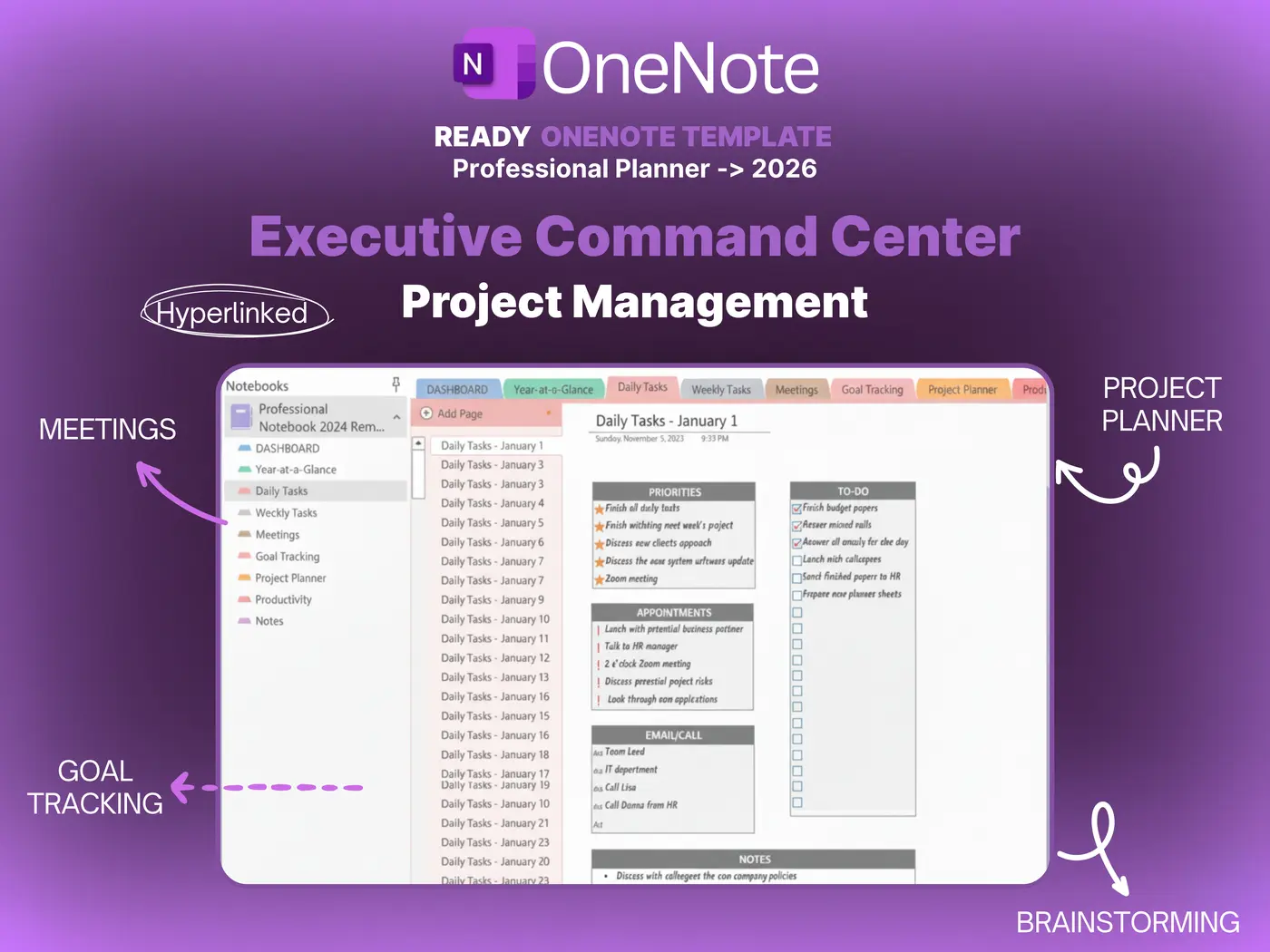
In 2026, managing complex workflows requires more than just a to-do list; it requires a dashboard. A robust **OneNote template for project management** can centralized your meeting notes, Gantt charts, risk registers, and Kanban boards into one syncable notebook. In this guide, we explore how to turn this humble note-taking app into your team’s command center.

Why Use OneNote for Projects?
Before you download a **OneNote template for project management**, you might be wondering why you shouldn’t just use a specialized tool. The answer is integration.
OneNote is deeply woven into the Microsoft 365 ecosystem. If you use Outlook for email and Teams for calls, OneNote is the glue that holds them together. You can:
- Embed Emails: Drag an important client email from Outlook directly into your project page.
- Link Meetings: Click “Meeting Details” to instantly pull in the date, time, and attendee list from your Outlook calendar.
- Live Sync: Unlike a static Excel sheet, a OneNote notebook syncs in real-time. Your team can edit the “Risk Register” while you update the “Timeline.”
For small to medium teams, paying for extra software is often unnecessary overhead. OneNote does 90% of the work for 0% of the extra cost.
5 Sections Every Project Needs
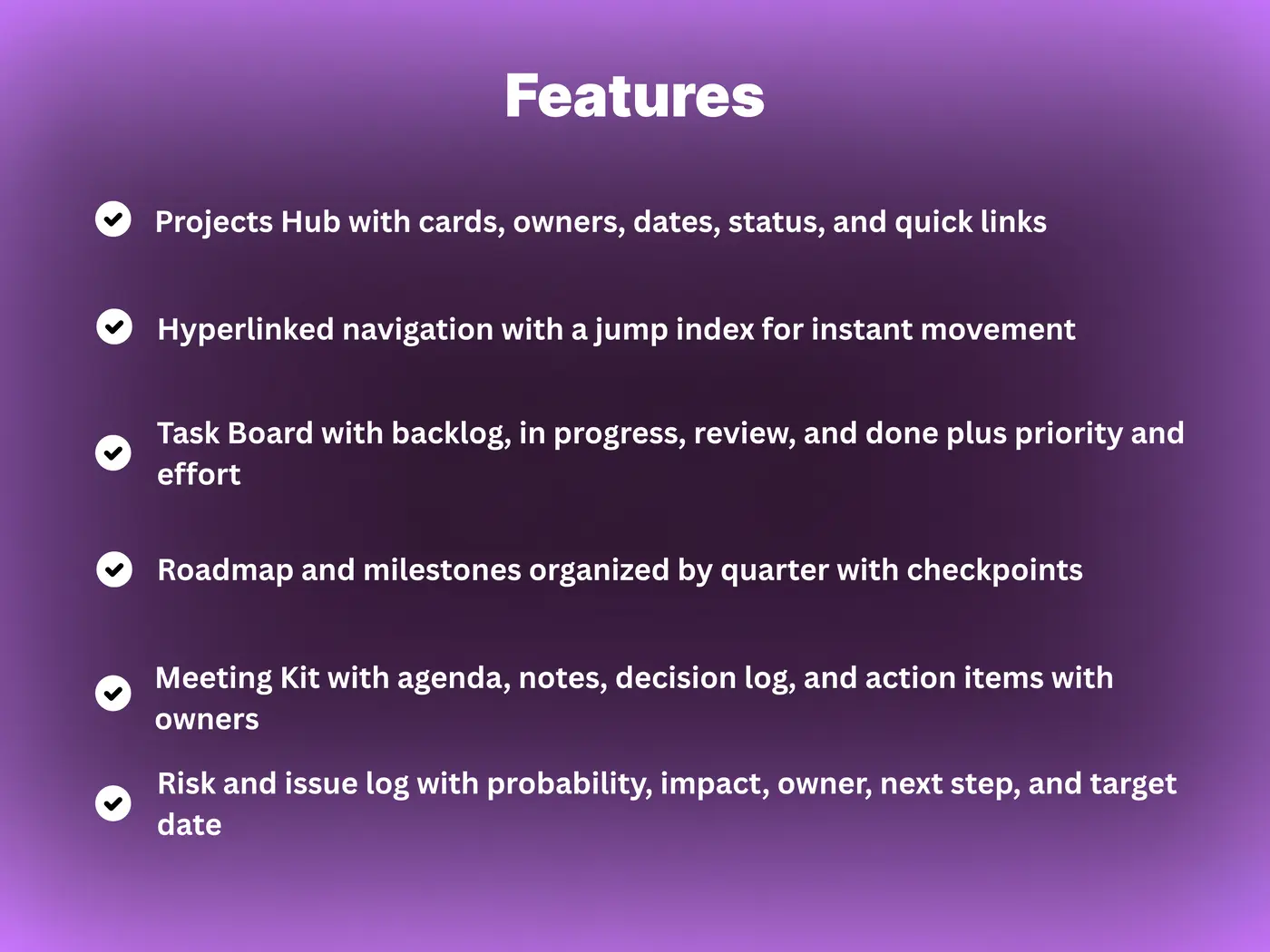
A blank notebook is terrifying. A good **OneNote template for project management** solves this by pre-building the structure you need. Here are the five essential “Tabs” (Sections) included in our 2026 template:
1. The Project Dashboard
This is your “Home” page. It contains a high-level summary of the project status, key stakeholders, and a “Quick Links” table to other sections. Think of it as the executive summary.
2. The Kanban Board
Yes, you can do Kanban in OneNote. By using a 3-column table (To Do, In Progress, Done) and dragging text boxes (or “Tiles”) between them, you create a visual workflow that rivals Trello.
3. Meeting Minutes
Stop losing notes. This section uses a standardized template for every meeting, with fields for “Attendees,” “Agenda,” “Discussion,” and critically, “Action Items” with checkboxes.
4. Risk & Issues Log
A dedicated table to track potential threats. It includes columns for “Risk Description,” “Impact (High/Med/Low),” and “Mitigation Strategy.”
5. Resources & Wiki
A dumping ground for PDFs, contracts, brand assets, and login credentials. Because OneNote’s search (OCR) can read text inside images, you can find any document instantly.
2026 Features: Loop & Copilot
Using a **OneNote template for project management** in 2026 is vastly different than in 2020, thanks to Microsoft’s AI and collaboration updates.
Microsoft Loop Components
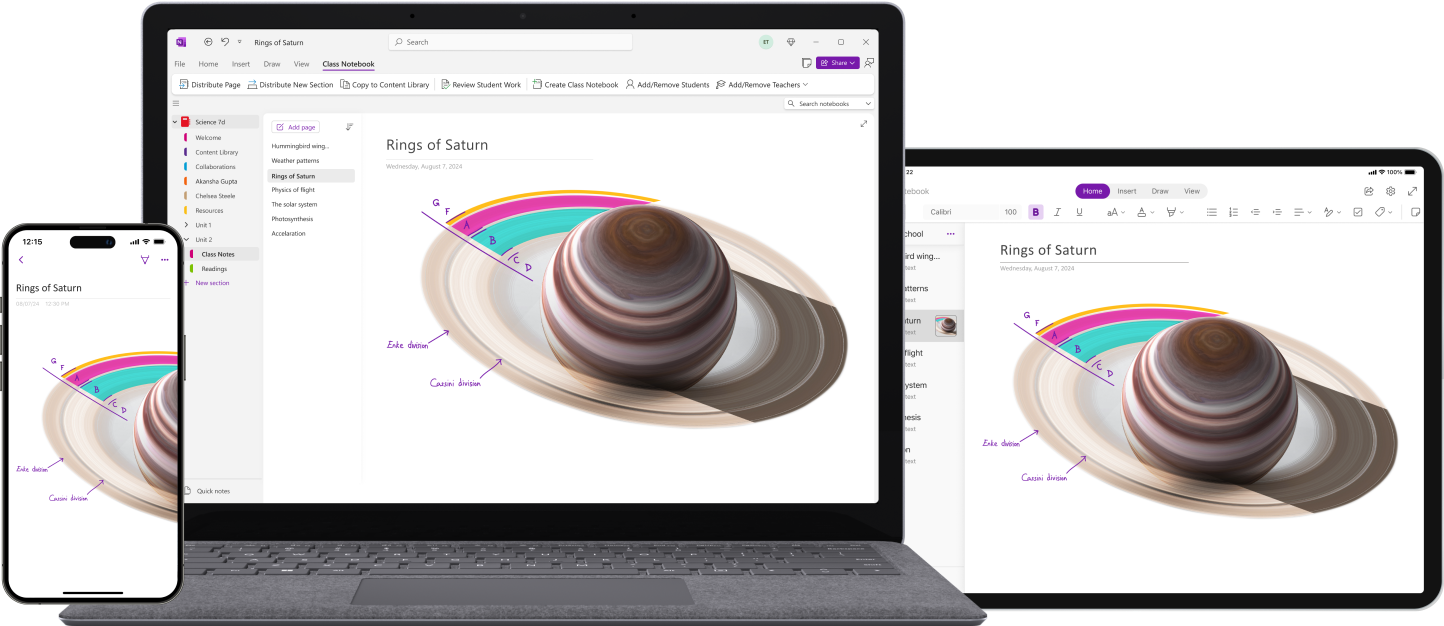
You can now insert “Loop” tables into OneNote. These are live, interactive blocks. If you update a task in a Loop table in OneNote, it updates instantly in Microsoft Teams chat. It turns a static page into a live app.
Copilot Integration
If you have a customized template, you can ask Microsoft Copilot to “Summarize the last 5 meeting notes in this section” or “Find all action items assigned to Sarah.” This AI layer makes managing large notebooks effortless.
How to Install OneNote Templates
Installing a **OneNote template for project management** can be tricky because of the different versions (OneNote for Windows 10 vs. OneNote Desktop). Here is the universal method:
- Download the `.onepkg` file: This is the package format.
- Open (Don’t Double Click): Open your OneNote Desktop app first.
- File > Open: Navigate to the downloaded file.
- Unpack: OneNote will ask where to save the new notebook. Choose your OneDrive “Documents” folder so it syncs to the cloud.
Once unpacked, the notebook acts as a master template. You can copy sections from it into your live work notebooks whenever you start a new project.
OneNote vs Asana/ClickUp
Is a **OneNote template for project management** really a substitute for dedicated software?
| Feature | OneNote Template | Asana / ClickUp |
|---|---|---|
| Cost | Free (with Office 365) | $10-$30/user/month |
| Flexibility | Unlimited (Freeform canvas) | Rigid (Database structure) |
| Learning Curve | Low (It’s just a notebook) | High (Requires training) |
| Automation | Low (Manual updates) | High (Automated workflows) |
If you need complex automated triggers (e.g., “When status changes to Done, email client”), stick to Asana. For everything else, OneNote is sufficient.
Final Verdict
Should you switch to a **OneNote template for project management**?
Yes, if:
You are a freelancer, a student, or a project manager in a small team (under 10 people). The freedom to mix handwriting, typed text, and file attachments on a single infinite page is unmatched for creative brainstorming and tracking.
No, if:
You manage a team of 50+ developers who need strict ticket tracking and automated reporting. OneNote is a canvas, not a database.
For most professionals, the “Project Dashboard” approach in OneNote offers the perfect balance of structure and freedom.
Download the Ultimate Dashboard
Don’t build it from scratch. Get our pre-designed 2026 Project Management Notebook with Kanban boards, Gantt charts, and Meeting Logs built-in.