Software Guides
OneNote Templates for Projects: 5 Essential Layouts for 2026
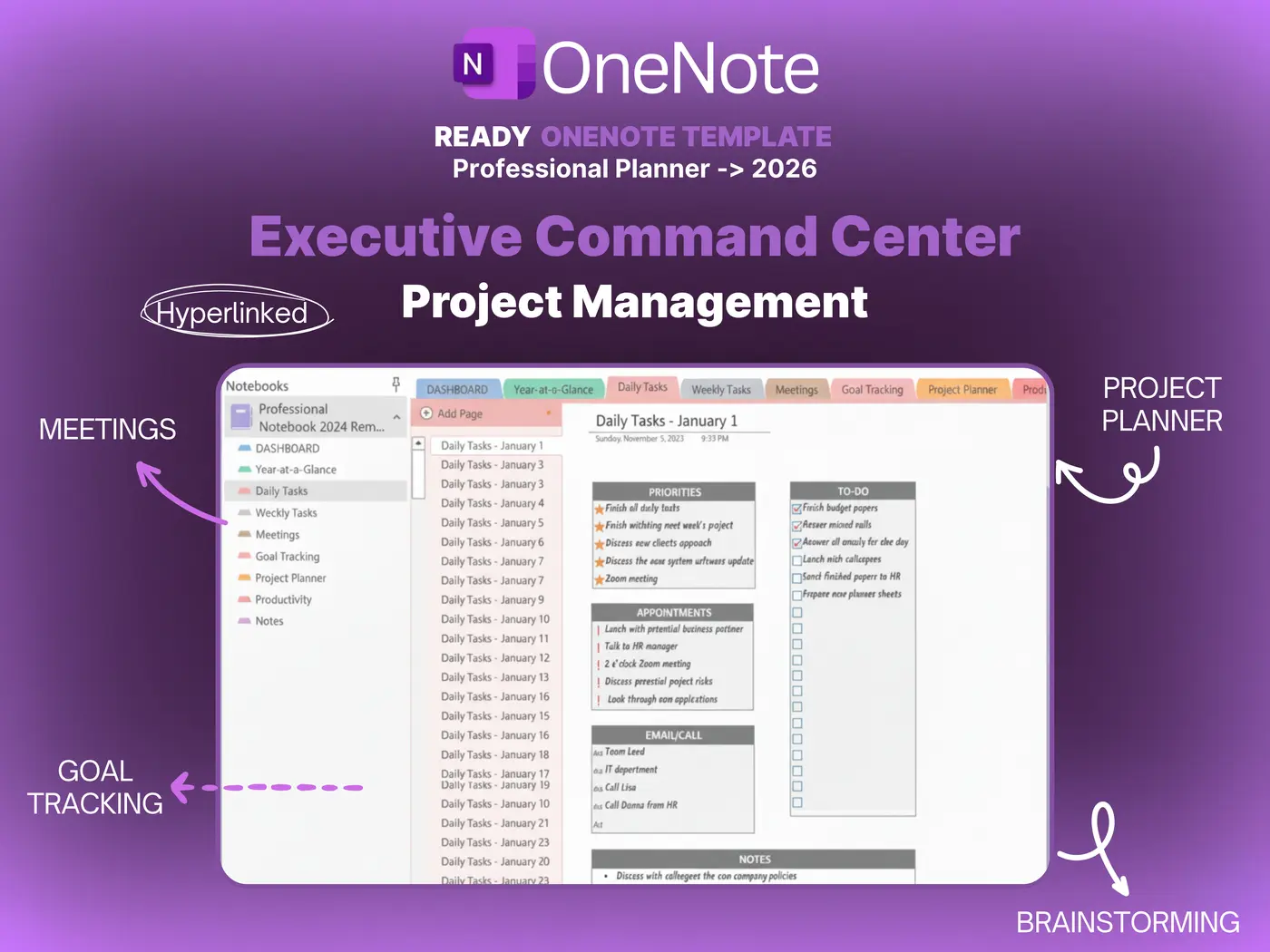
Managing a project in a blank OneNote page is like trying to build a house without a blueprint. You start with good intentions—a list of tasks here, a meeting date there—but within a week, it becomes a sprawling mess of unorganized text and lost files. The secret to mastering Microsoft’s free note-taking tool isn’t just “taking notes”; it’s using structure. You need specific **onenote templates for projects** that force your chaotic brainstorming into a rigid, actionable system.
In 2026, OneNote is no longer just a digital scrapbook. With the integration of Loop components and Copilot AI, it has become a legitimate competitor to paid tools like Trello and Jira. In this guide, we break down the five specific page layouts you need to download or build to turn your notebook into a professional project command center.
The Flexibility of OneNote vs. Jira
Why hunt for **onenote templates for projects** when specialized software exists? The answer is “Canvas Freedom.”
In tools like Jira or Asana, you are forced into a database structure. You must fill in the “Ticket Name,” “Due Date,” and “Assignee.” There is no room for a quick sketch, a voice memo, or a messy brainstorm.
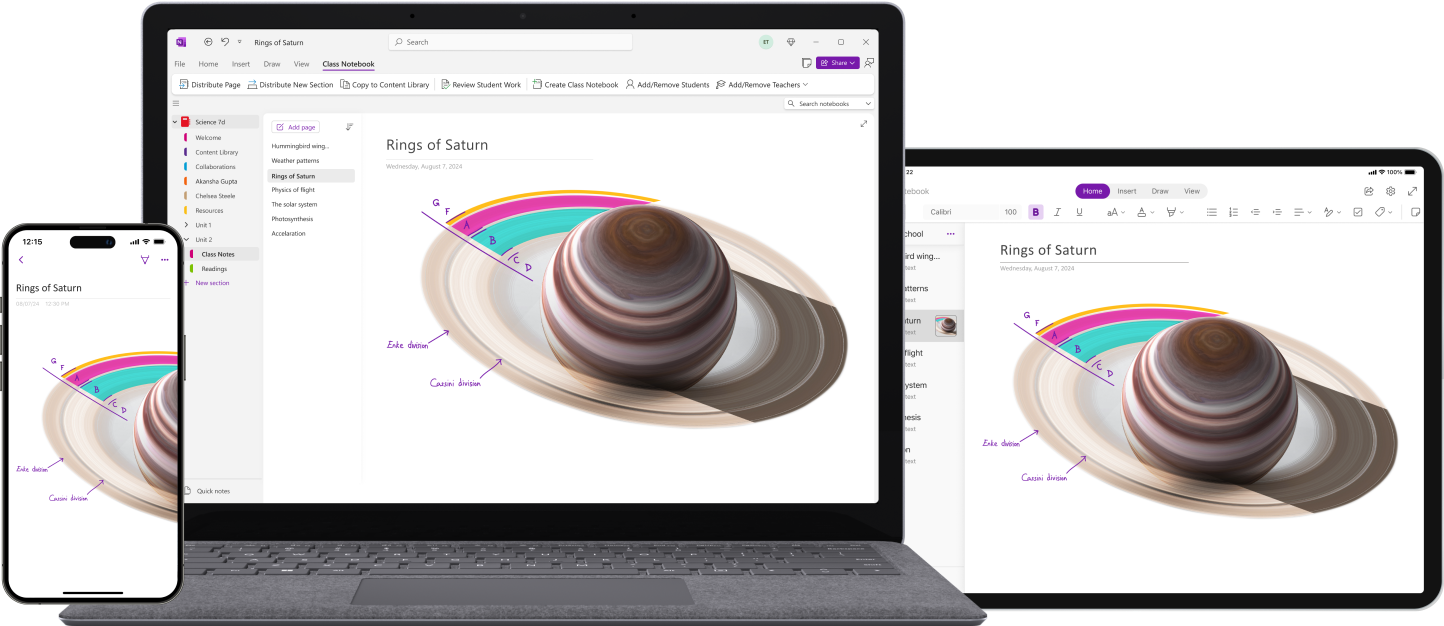
OneNote works differently. It is an infinite canvas. You can have a structured table on the left and a messy hand-drawn diagram on the right. This hybrid approach is perfect for the early stages of project planning where requirements are still fuzzy. By applying a template, you get the best of both worlds: the structure of a database with the freedom of a whiteboard.
1. The “Agile” Kanban Board
The most popular request we get is for a Kanban layout. While OneNote doesn’t have “drag and drop” cards like Trello, you can simulate it effectively.
The Layout:
Create a table with three massive columns: To Do, Doing, and Done.
The Workflow:
Use “text boxes” as your cards. You can click and drag these text containers between the table columns. Use background colors (cell shading) to indicate priority—Red for high priority, Green for low. This gives you a visual overview of your workflow without leaving the app.
2. The “Waterfall” Gantt Chart
For projects with strict timelines, you need a Gantt chart. While Excel is usually the king here, embedding an Excel spreadsheet into OneNote is clunky.
The Native Solution:
Our **onenote templates for projects** use a specialized table structure. The first column lists the Task Name. The subsequent columns represent Weeks (W1, W2, W3, etc.). You simply highlight the cells and change their background color to “Blue” to indicate the duration of the task. It’s a low-tech, high-visibility way to see your timeline at a glance.
3. The Meeting Minute Recorder
Projects die when meetings aren’t documented. This template is non-negotiable.
The Layout:
It includes auto-filling fields for “Date” and “Attendees” (pulled from Outlook). Below that, a 2-column table: “Topic” on the left, “Notes” on the right. At the bottom, a dedicated “Action Items” table with checkboxes.
The 2026 Trick:
Use Microsoft Loop components for the Action Items. This way, if you tick a box in OneNote, it syncs to the user’s “To Do” app automatically.
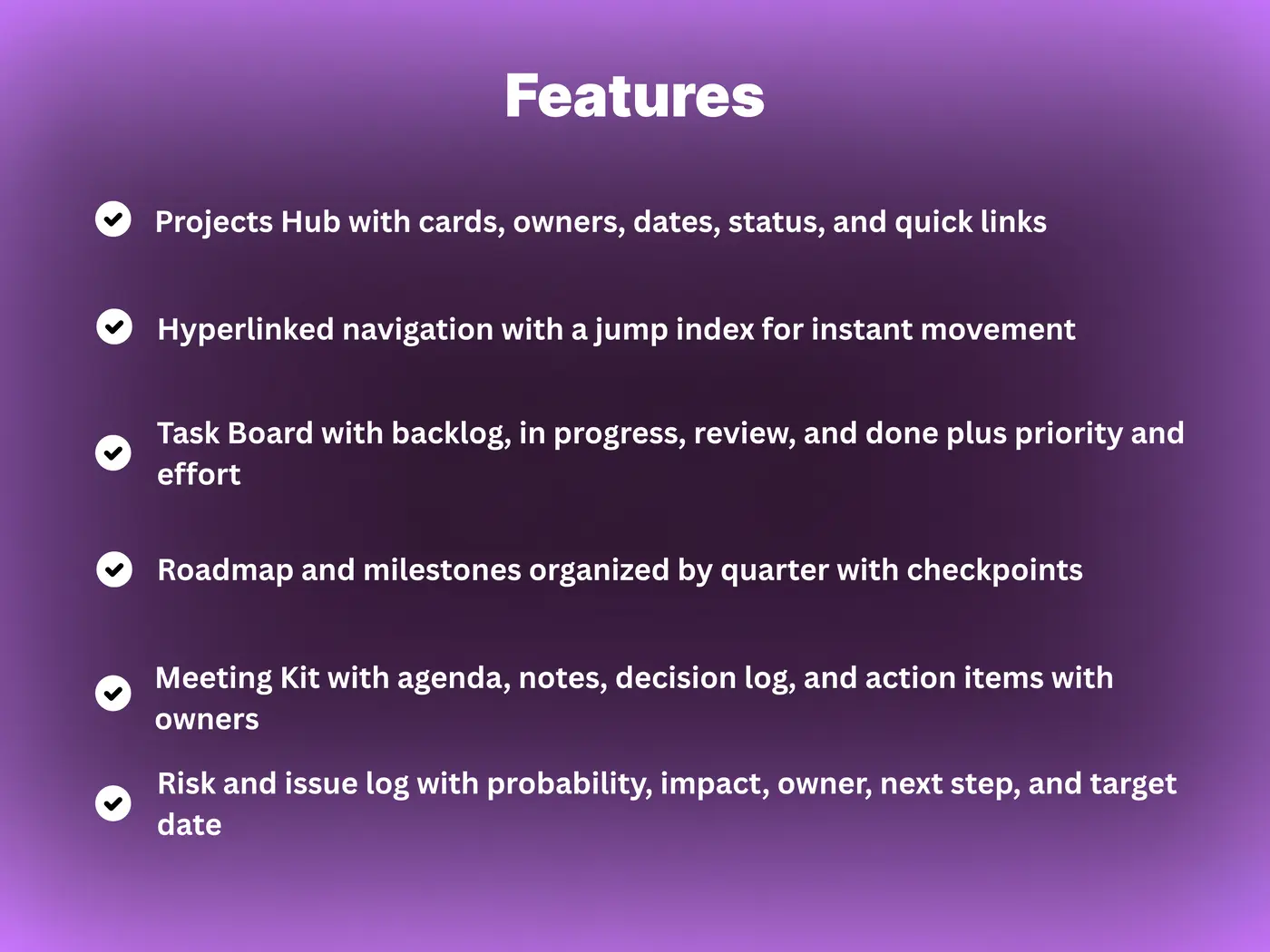
4. The Risk & Issues Log
Every professional project manager keeps a RAID log (Risks, Assumptions, Issues, Dependencies). Doing this in OneNote makes it searchable.
The Layout:
A wide table with columns for:
• ID: (e.g., R-001)
• Description: What could go wrong?
• Probability: 1-5
• Impact: 1-5
• Mitigation: What are we doing about it?
By keeping this in OneNote, you can link specific risks to the meeting notes where they were discussed using “Internal Wiki Links” (Ctrl+K).
5. The Project Wiki
Finally, you need a “Source of Truth.” This isn’t a single page, but a Section Group in your **onenote templates for projects**.
What goes here:
• Brand Assets: Hex codes, logos, and fonts.
• Contacts: A table of all vendors and stakeholders.
• Login Details: (Protected by OneNote’s password feature).
• Process Docs: How-to guides for the team.
How to Install Templates
Unlike Word or PowerPoint, OneNote doesn’t have a simple “Open Template” file menu. Here is how you install our layouts:
- Download the `.onepkg` file: This is a “Notebook Package.”
- Unpack it: Open it with OneNote Desktop (2026 version).
- Move Sections: Once opened, right-click the “Kanban” section and select Move/Copy.
- Copy to Your Notebook: Select your active work notebook and click “Copy.”
Now, that layout lives in your project. You can right-click the page and select “Set as Default Template” for that section, so every new page automatically uses that layout.
Final Verdict
Why bother with **onenote templates for projects**?
The Cost Benefit
OneNote is free. Monday.com costs $30/user/month. For a team of 10, using OneNote saves you $3,600 a year.
The Integration Benefit
Because it lives inside Office 365, your files, emails, and calendar are already there. You don’t have to “switch contexts” to update your project status.
If you are managing massive software development with 100 engineers, buy Jira. But for everyone else—agencies, freelancers, and students—OneNote with the right templates is the most powerful tool you already own.
Get the Complete System
Stop building tables from scratch. Download our “Project Management Notebook” which includes all 5 templates pre-linked and ready to use.