Productivity Resources
OneNote Project Templates: 5 Essential Downloads for 2026
Starting a new project is exciting. Setting up the documentation is not. Whether you are launching a marketing campaign, building a website, or planning a wedding, the administrative burden of creating timelines, task lists, and meeting logs can kill your momentum before you even begin. This is why smart professionals don’t build from scratch—they use **onenote project templates**.
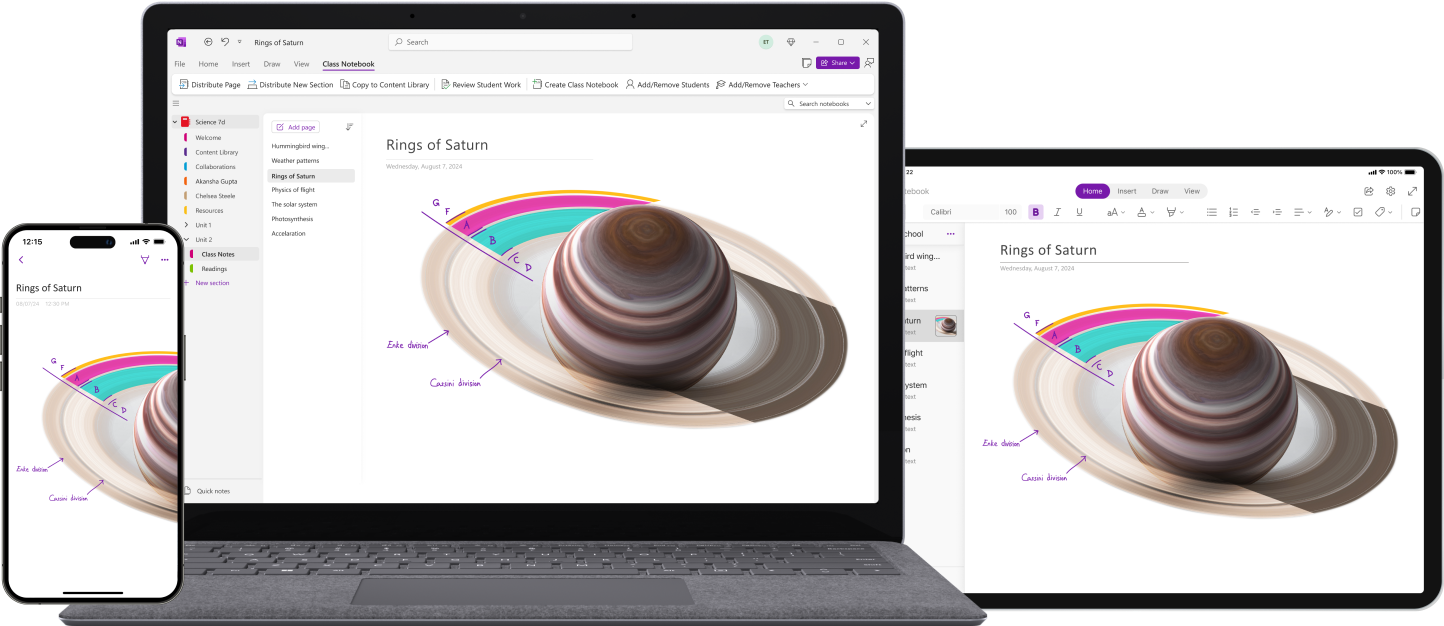
Microsoft OneNote is the perfect tool for project management because it is unstructured. Unlike Excel (which forces rows) or Word (which forces pages), OneNote is an infinite canvas. But without structure, it becomes chaos. In this guide, we break down the five essential template types you need to download or build in 2026 to turn your blank notebook into a command center.
Why Use Templates?
You might think, “I can just type a list. Why do I need **onenote project templates**?” The answer is standardization.
1. Consistency Across Teams
If every project manager on your team uses a different format for meeting notes, searching for “Action Items” becomes impossible. A template ensures that every meeting, regardless of who runs it, captures the same data points (Attendees, Decisions, Tasks).
2. Speed of Setup
Setting up a robust project notebook with sections for “Planning,” “Execution,” and “Closing” takes about 30 minutes manually. With a template, it takes 30 seconds. You simply open the template file and hit “Save As.”
3. Best Practices Built-In
Good templates aren’t just empty boxes; they include prompts. A “Risk Log” template forces you to think about mitigation strategies. A “Project Charter” template forces you to define the scope.
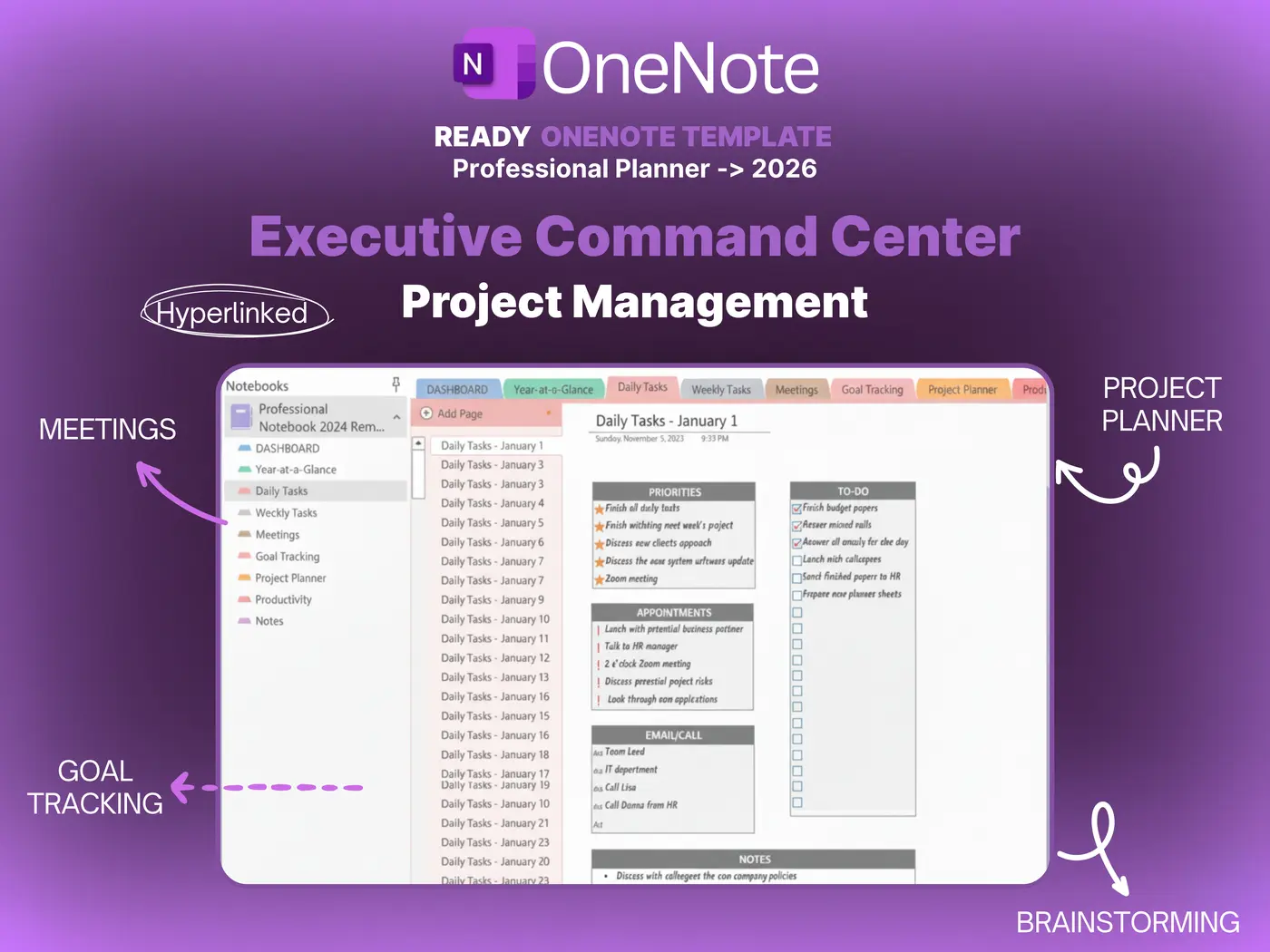
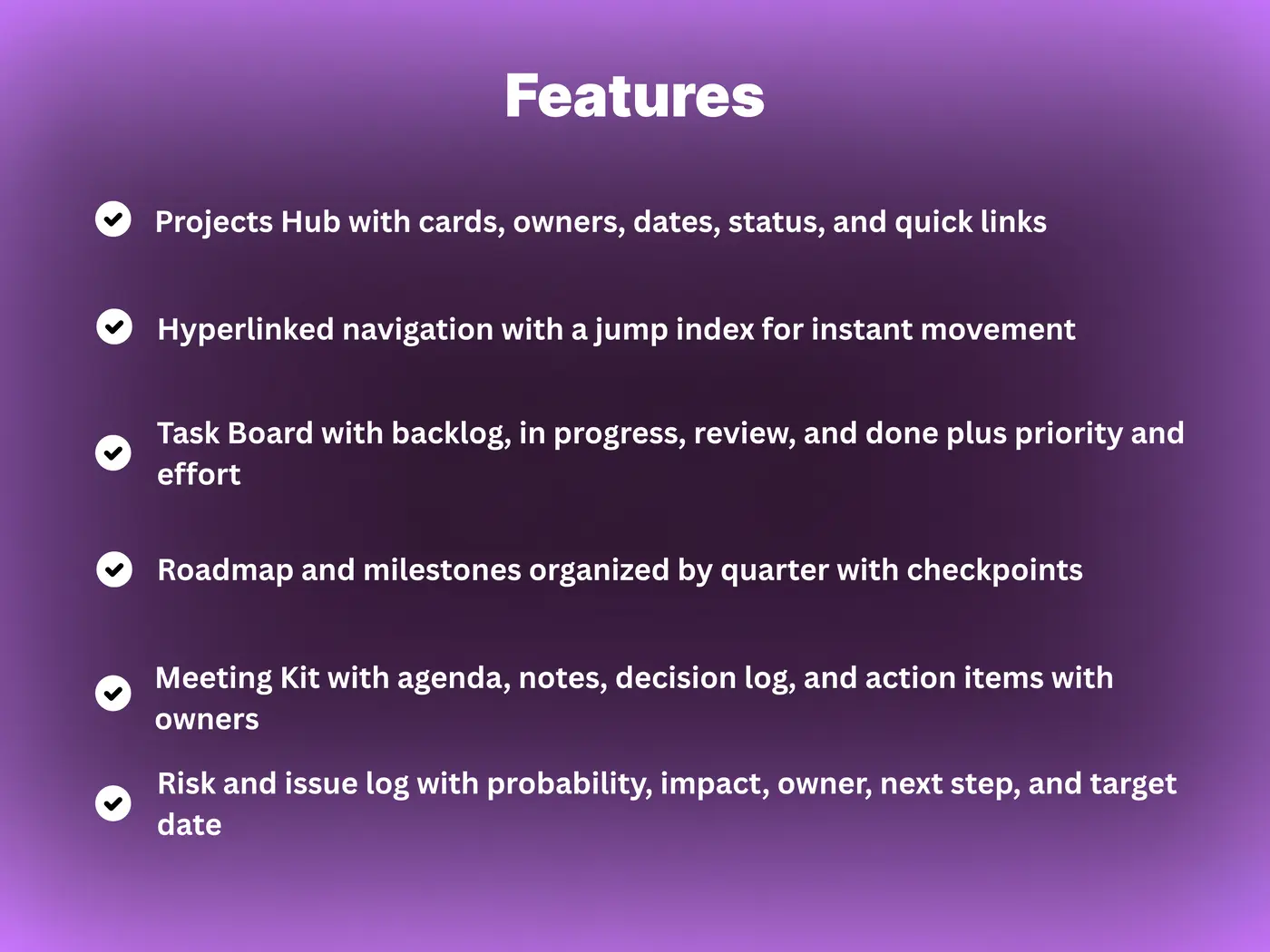
1. The Project Dashboard
This is the most critical page in your notebook. It serves as the “Home” screen for the entire project.
What it includes:
• Project Summary: A 2-sentence description of the goal.
• Key Stakeholders: A table with names, roles, and emails.
• Status Traffic Light: A visual indicator (Green/Yellow/Red) showing current health.
• Quick Links: Internal OneNote links to the other sections (e.g., “Jump to Budget”).
Without a dashboard, your team will get lost in the weeds of sub-pages. This keeps everyone aligned on the big picture.
2. The Agile Kanban Board
You don’t need Trello to run Agile. You can do it right inside OneNote.
The Layout:
A simple 3-column table:
1. To Do (Backlog)
2. Doing (In Progress)
3. Done (Complete)
How it works:
Create text boxes for each task. You can drag and drop these text boxes between the table columns. It’s low-tech, but it works perfectly for small teams. Using OneNote’s “Highlight” tool, you can color-code tasks by assignee (e.g., Blue for Sarah, Yellow for Mike).
3. The Meeting Minutes Log
Projects die when decisions aren’t recorded. This template is non-negotiable.
The Layout:
It integrates with Outlook to pull meeting details automatically. Below that, it features a specialized “Action Item” table with columns for Task, Owner, and Due Date.
The 2026 Twist:
Modern **onenote project templates** use Microsoft Loop components here. This means if you assign a task in the meeting note, it syncs to the user’s “To Do” app instantly.
4. The Client Overview
If you are an agency or freelancer, you need a CRM-lite template.
What it includes:
• Contact Info: Phone, Email, Office Address.
• Contract Details: Links to the signed PDF and SOW (Statement of Work).
• Running Log: A chronological list of every call and email interaction.
Having this in OneNote is better than a CRM because you can paste screenshots of emails or drag-and-drop audio recordings of calls directly onto the page.
5. The Resource Wiki
Finally, every project needs a library. This template organizes your assets.
What it includes:
• Brand Assets: Logos, Hex codes, Fonts.
• Logins: (Password protected section) for shared tools.
• Process Docs: How-to guides for the team.
Because OneNote has OCR (Optical Character Recognition), you can paste a screenshot of a login error or a whiteboard diagram here, and it becomes searchable text.
How to Install .onepkg Files
Most professional **onenote project templates** come as a `.onepkg` file. Here is how to use them:
- Download: Get the file to your desktop.
- Open: Double-click the file (requires OneNote Desktop 2016/2026, not the Windows 10 app).
- Unpack: OneNote will ask where to save the new notebook. Choose your OneDrive Documents folder.
- Copy/Move: Once open, you can right-click any section (like “Kanban”) and copy it to your existing work notebooks.
Pro Tip: Save the unpacked notebook as a “Master Template” and never write in it directly. Always copy sections out of it.
Final Verdict
Should you buy or build **onenote project templates**?
Build it if:
You have simple needs and plenty of time. Creating a 3-column table for a Kanban board takes 10 minutes. It’s free and fully custom.
Buy/Download it if:
You need standardization. A pre-made bundle (like ours) ensures that every project starts with the same high-quality structure. It saves hours of setup time and looks professional to clients.
Ultimately, the template is just a tool. The real value comes from using it consistently to keep your team aligned.
Start Your Project Right
Don’t waste time formatting tables. Download our complete “Project Management Notebook” with all 5 templates included.