Sign-in basics
How to sign in OneNote across desktop, web, and mobile
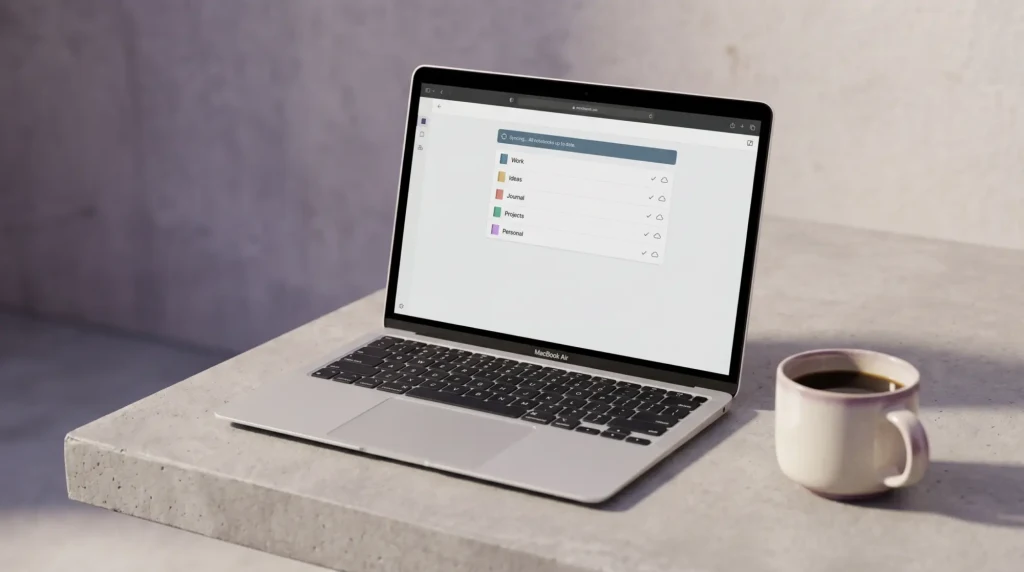
To sign in OneNote, open the app, tap or click the account icon (top-right corner on desktop and mobile, top-right of the title bar on the web app), and enter your Microsoft account email. The account types that work are personal (@outlook.com, @hotmail.com, @live.com), work or school (Microsoft 365 issued through an organization), and Azure AD identities linked to an Office license. The same account works across OneNote for Windows 10, OneNote on the web, the macOS app, and the iOS and Android mobile clients; what you sign into syncs through OneDrive in the background.
OneNote 2016 (the legacy desktop app for Office) and OneNote for Windows 10 use the same Microsoft account but maintain separate notebook caches on your machine. If you have both installed, signing into one does not sync to the other automatically; you have to sign in to each separately, and the underlying notebook stores remain independent on disk. Microsoft has been consolidating the two apps into a unified OneNote experience, but the dual-cache behavior persists in mixed-version environments through 2026.
When it breaks
OneNote won’t sign in: the 4 common fixes
When OneNote refuses to sign in or kicks you back to the account chooser after a successful login, four fixes resolve the great majority of cases. Try them in order; each one rules out a layer before you move to the next.
The Credential Manager fix is the one that surprises people. Windows caches Microsoft account tokens aggressively, and a stale token (one that was valid when stored but has since been invalidated by a password change, a security event, or an MFA reset) keeps OneNote stuck in a loop where it thinks you are signed in but the server rejects the cached credential. Clearing the cache forces a fresh sign-in handshake.
Template sync
How sign-in affects your OneNote template workflow
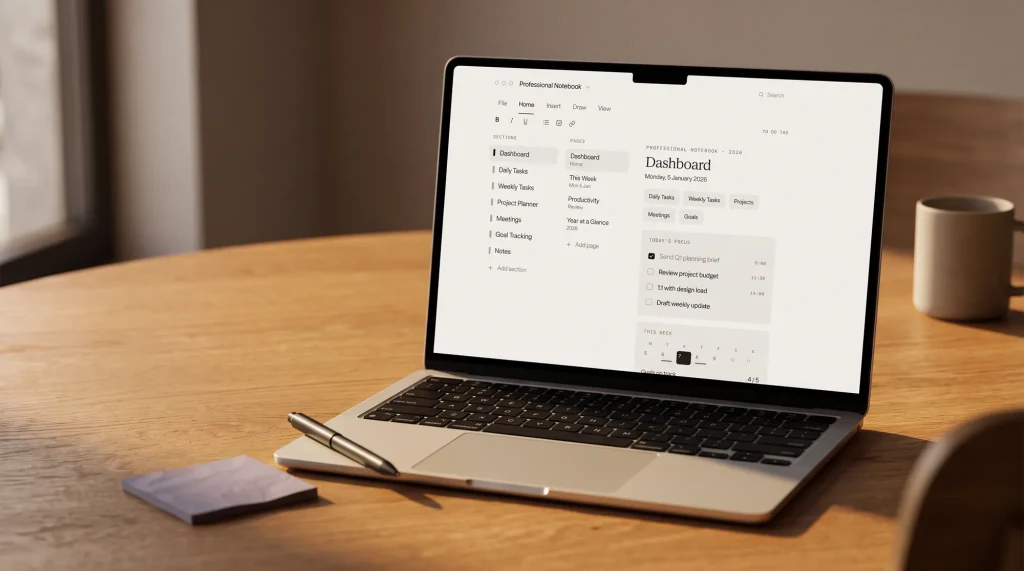
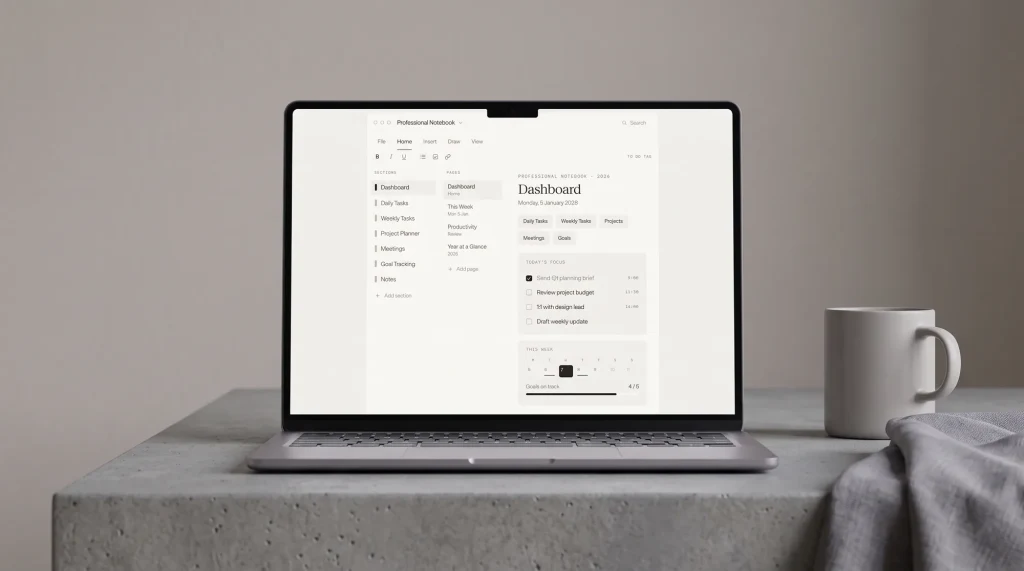
For template users, the sign-in account is load-bearing in a way most OneNote login guides do not name. OneNote templates (the kind we ship for project management, weekly planning, and habit tracking) are distributed as notebook files that live in OneDrive once imported. The account you sign in OneNote with on each device must be the same account that owns the OneDrive notebook holding the template. If you sign in with a personal Microsoft account on desktop but the template was shared to your work account’s OneDrive, the desktop app cannot reach the template until you switch accounts.
The cleanest setup for template users: pick one account (personal or work, not both) and use it consistently across every OneNote device. Import the template into that account’s OneDrive root, then let OneDrive sync push the notebook to every device you sign in OneNote on. Cross-account imports are the most common reason templates “do not sync” or appear corrupted after install. Our OneNote project-management template ships with a single-account install path for exactly this reason; sync errors disappear when the account graph is one node deep.
If you regularly switch between work and personal OneNote contexts, the second-best path is to use the web app for the template and the desktop app for whichever account is your primary. The web app handles account switching cleanly (sign out of one, sign into the other); the desktop apps cache the primary account and resist quick switches. The sync questions that show up after the template install are usually downstream of the same account-mismatch root cause; the OneNote sync troubleshooting rundown covers the rest of the OneDrive-sync layer.
FAQ
Common questions, answered briefly
How do I sign in OneNote with a different Microsoft account?
Why does OneNote keep asking me to sign in?
Can I use OneNote without a Microsoft account?
Does signing into OneNote work without internet?
If your question is not above, drop it in the comments. OneNote’s sign-in behavior changes incrementally with each Microsoft 365 update, and the FAQ is the first place we fold in new questions readers actually ask.
People also ask