The decay pattern
Why most OneNote meeting agenda templates stop getting used
The usual story runs like this. Someone builds a tidy OneNote meeting agenda template on a Sunday, uses it for two or three meetings, and then quietly stops. By week four the notebook is back to a wall of undated pages with headings that drift. The template did not fail because the layout was wrong, and it is not that the person lacked discipline. It failed because of a rule almost nobody is told up front.
Microsoft’s own documentation states it plainly: OneNote templates can be applied only to new pages that do not already contain any notes. If you open today’s meeting page, type two lines while waiting for people to join, and then reach for your template, nothing happens. No error, no warning. The template silently declines to apply, and you conclude the feature is unreliable.
That single rule explains most of the frustration in this corner of OneNote. It also points at the fix, which is a habit rather than a better layout: create the page from the template first, then start typing. Everything else in this post assumes that order.
The second reason agenda templates decay is that they are usually too long. An agenda that takes four minutes to fill in before a fifteen minute stand-up will be abandoned, correctly. The formats below are deliberately short.
The formats
The six agendas worth building
Most teams need fewer templates than they think. Six formats cover nearly every recurring meeting, and each one earns its place by having a different shape, not a different colour scheme. A one to one and a project kickoff are not the same meeting with different headings; they fail in different ways and the agenda has to defend against different things.
| What it defends againstthe failure mode | Sections that matterthe shape | |
|---|---|---|
| One to one | Turning into a status report | Their topics first, your topics second, growth, actions |
| Team weekly | Round-robin updates nobody listens to | Numbers, blockers, decisions needed, actions |
| Client check-in | Vague reassurance with no record | Since last time, open items, risks, next commitment |
| Project kickoff | Starting without agreed scope | Goal, scope in and out, roles, dates, risks |
| Retrospective | Blame, or bland positivity | What happened, what to keep, what to change, one owner each |
| Interview | Inconsistent comparison between candidates | Fixed questions, evidence, scoring, decision |
The column that matters most is the middle one. An agenda is not a list of topics, it is a defence against a known way the meeting goes wrong. Once you write down what a given meeting keeps getting wrong, the sections choose themselves.
Two of these deserve a note because they are the ones people most often get wrong. The one to one puts the other person’s topics first, before yours, and that ordering is the whole design. Put your items at the top and the meeting becomes a status report with a friendly tone; put theirs first and it stays a conversation. The retrospective needs an owner against every change, singular, because a change owned by the team is a change owned by nobody.
You do not need all six on day one. Build the OneNote meeting agenda template for whichever meeting currently runs worst, use it for a month, and only then add the next. Six templates built in one sitting is a project; one template that survives four weeks is a habit, and the habit is what you are actually trying to install.
Here are the three that go wrong most often, written out so you can paste one straight onto a page and set it as your section default. Change the headings to your own words if you like; keep the order, because the order is the part doing the work.
Paste-ready agendas
Three you can set as a page template today
Copy one, paste it onto a blank OneNote page, then save that page as your section default.
One to one, 30 minutes
Date: Attendees: Last one to one:
1. Your topics (they talk first, you take notes)
2. My topics (kept short on purpose)
3. Growth (one thing, not a review)
4. Actions (To Do tag on every line, owner named)
Carried over from last time:
Why this works: their topics sit above yours, so the meeting cannot quietly become a status report. The carried-over line at the foot is what stops the same unresolved thing being raised fresh every fortnight.
Team weekly, 45 minutes
Date: Attendees: Absent:
1. Numbers (the three you track, typed in before the meeting)
2. Blockers (only things needing someone in this room)
3. Decisions needed (one line each, decided in the meeting)
4. Actions (To Do tag, owner, date)
Not discussed today, parked for next week:
Why this works: there is nowhere to give a personal update. Numbers are filled in beforehand, so the hour goes on the two things that genuinely need everyone present, blockers and decisions.
Retrospective, 60 minutes
Period covered: Attendees:
1. What happened (timeline only, no opinions yet)
2. What to keep (name the person who did it)
3. What to change (one owner each, singular)
4. One thing we will do differently next time
Checked from the last retro:
Why this works: the timeline comes before any judgement, which keeps the first ten minutes factual. Every change gets one named owner, because a change owned by the team is a change owned by nobody.
Wording reviewed 30 July 2026
Contents
What belongs in a OneNote meeting agenda template
A working OneNote meeting agenda template splits into three moments, and the mistake is writing all of it as one undifferentiated list.
Before the meeting carries the date, the attendees, the purpose in one sentence, and the topics with a rough time against each. The purpose line does more work than it looks. A meeting whose purpose cannot be written in one sentence usually should not happen, and writing that line is the cheapest filter available.
During the meeting carries notes under each topic, decisions as they land, and actions as they are assigned. Decisions and actions want to be visually distinct from notes, because they are the only two things anyone will look for afterwards.
After the meeting carries almost nothing: a place for the summary you send, and the date of the next session. If your agenda template has a large follow-up region that is always empty, delete it. Empty sections train people to skim.
What does not belong: a project brief, a running client history, or a task list that outlives the meeting. Those want their own homes, and OneNote is good at giving them one. A recurring client conversation belongs alongside the account record rather than buried in one week’s page, which is the argument for keeping a OneNote CRM structure next to the meetings section rather than inside it.
Building it
Building a OneNote meeting agenda template that applies cleanly
The build itself is short. To make a OneNote meeting agenda template on the Windows desktop app, open a new blank page, lay out the sections you want, then choose Insert and Page Templates and save the current page as a template with a name you will recognise in a list of twenty. Microsoft lists that pane in OneNote for Microsoft 365, OneNote 2024, OneNote 2021 and OneNote 2016.
Then do the step almost everyone misses, because it is the one that makes the whole thing automatic. At the bottom of that same pane is an Always use a specific template dropdown, which sets a default for the section you are in. Saving a page as a template also offers this at the moment you name it. Once it is set, every new page in that section arrives already shaped, and the copy-last-week’s-page habit has nothing left to do. That is the difference between owning a template and owning a system.
One more thing worth wiring up while you are here. If Outlook is on the same machine, Home then Meeting Details drops the date, location, agenda, topic and attendees straight onto the page as text. Microsoft is explicit that Outlook and OneNote have to be installed on the same computer for it to work, so a team living in Outlook on the web will not see the button. Where it does work it removes the two minutes of transcription that stops people filling in the header at all.
Two more details decide whether it survives contact with a real week.
First, leave the title line empty rather than pre-filling it with something like Meeting. A page called Meeting seven times in a section is unsearchable. Date plus counterpart, written as you create the page, is what makes the section navigable six months later.
Second, keep the template to one screen. If the agenda scrolls before anyone has typed anything, the sections at the bottom will never be filled. This is the same discipline that keeps a OneNote task structure usable: the surface has to be smaller than the ambition.
Where the template lives matters as much as what is on it. Put the agendas in their own section group, one section per recurring meeting, rather than one section holding every meeting the company runs. The section becomes the timeline for that relationship, which is what you want when someone asks what was agreed in March.
One habit is worth installing alongside the OneNote meeting agenda template itself: create next week’s page at the end of this week’s meeting, while everyone is still in the room. The page exists, empty and correctly templated, before anyone is tempted to type into a blank one. That single move removes almost every occasion where the empty-page rule bites.
An agenda is not a list of topics, it is a defence against a known way the meeting goes wrong.On choosing the sections
Mixed devices
If your team is on Mac, iPad or the web
This is where honest advice differs from most of what is written about OneNote templates, so it is worth being exact.
Microsoft’s documentation for OneNote on the web states that creating and customising new page templates is not possible there, and that you finish creating and saving a custom template in the OneNote desktop app on a Windows PC. The same page confirms what the web app can do: open, display and edit existing pages created from a template.
That distinction is the practical answer for a mixed team, and it is better news than the usual summary of Windows only suggests. One person with a Windows machine builds the templates. Everyone else creates pages from them and works normally, on any device. The constraint is on authoring, not on use.
If nobody on the team has Windows at all, the workable substitute is a section containing one page per agenda type, kept empty, that people copy before each meeting. Copying a page is available everywhere. It is less elegant than a real template and it will drift, because copies get edited by accident, so keep the master pages in their own section and treat them as read-only by convention.
Actions
Turning agenda items into actions you can actually find
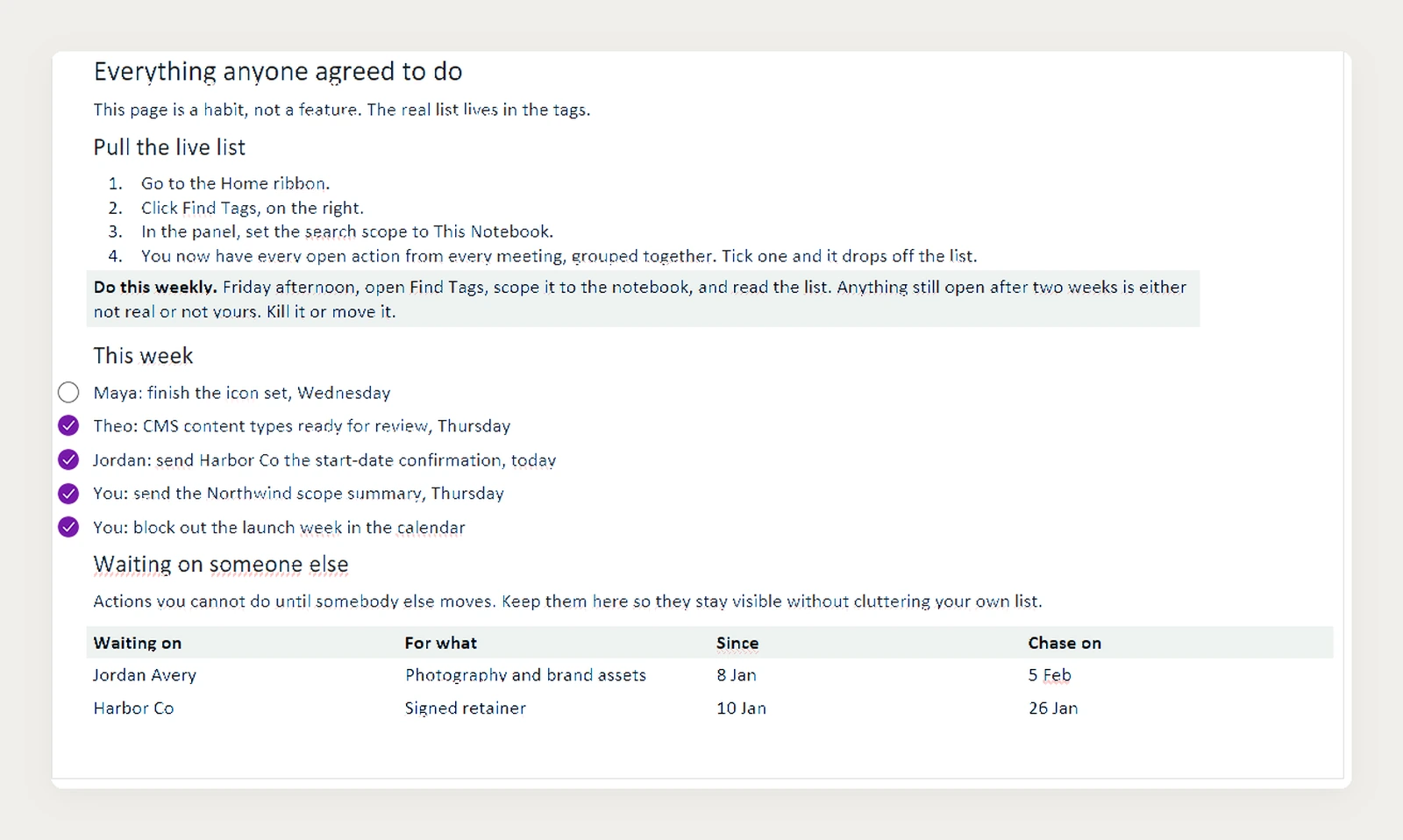
An agenda that generates actions nobody can find later is just a diary. OneNote’s answer is tags, and it is genuinely useful as long as you know what it does and does not do.
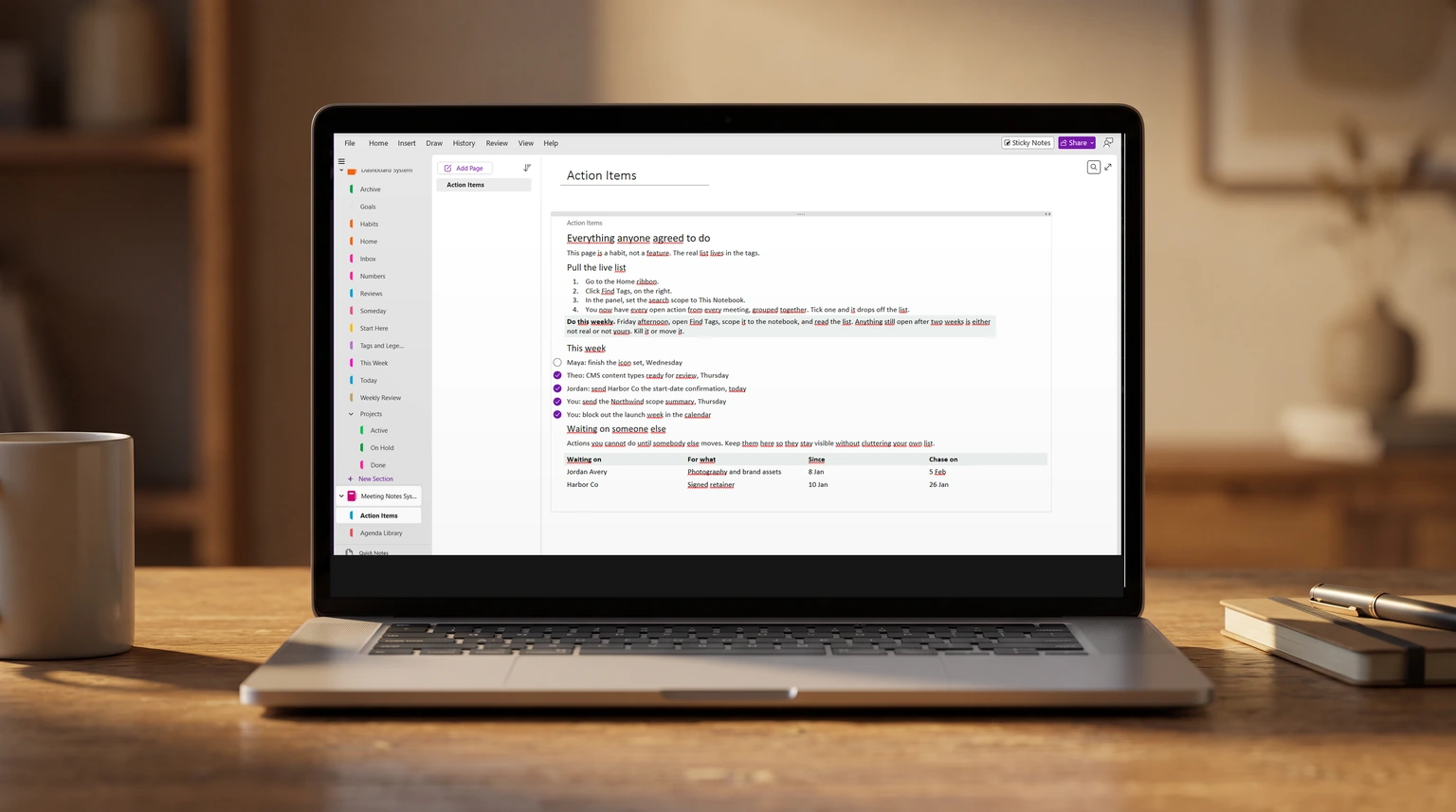
Tag every action as you assign it. Then Home, then Find Tags, which opens the Tags Summary pane and gathers tagged items from across the notebook into one list. There is also a Create Summary Page button that writes those results out as a normal page.
Here is the part worth stating plainly, because a lot of writing on this quietly implies otherwise: the Tags Summary is a query you re-run, not a live view. Microsoft’s own instructions have you change the search scope and then click Refresh Results. A summary page is a snapshot, accurate at the moment you make it and out of date as soon as someone ticks something off.
That is not a flaw so much as a shape. Re-run it once a week, at a fixed time, and it is reliable. Expect it to keep itself current in the background and it will mislead you. Teams that want a genuinely rolling view of work usually end up keeping the meeting notes in OneNote and the tracked work in something built for it, which is the same conclusion the project management side of OneNote tends to reach.
Decisions
The decision log most agenda templates leave out
Actions get captured because they have an owner and a deadline. Decisions usually do not, and six weeks later nobody can remember whether a thing was agreed or merely discussed. The cost lands at the worst moment, when someone acts on an assumption the room never actually made.
A decision log is one page per section, not per meeting, with four columns: the date, the decision in one line, who made it, and what it reversed if anything. Writing the reversal column is the part people skip and the part that pays. A decision that quietly overturns an earlier one is the most expensive kind to lose.
Keep it outside the agenda template itself. Each meeting page links to it; the log survives the meetings. This is the same reasoning behind keeping a standing OneNote dashboard page apart from the pages that feed it: things that outlive the week want to live somewhere the week cannot bury them.
Minutes
Meeting minutes need more than the agenda template gives you
Everything above is built for the agenda, the document you write before the meeting for the people who will be sitting in it. Minutes are the opposite artifact: written afterwards, for the people who were not. Running both off one template is the most common reason minutes turn into a wall of half-sentences that nobody opens again.
Four things belong in minutes that an agenda has no reason to carry: who attended and who sent apologies, each decision with the person who made it and the date it was made, each action with one owner and a due date, and, for anything formal, sign-off on the previous set. The decision log in the section above already does the second of those. The other three need their own page.
Attendance is the part worth automating, because it is the part everyone skips. OneNote can pull it in: the Meeting Details command inserts the date and location, agenda, topic and attendees from an Outlook meeting straight into the page (checked July 2026). Two limits are worth knowing before you build a habit on it. Microsoft’s own instructions require Outlook and OneNote installed on the same computer, which rules out anyone working in the browser or on a tablet, and the details land as plain text, so the page will not follow the invite if the meeting moves or the attendee list changes.
Structurally, keep minutes on their own page with the date in the title, then resist prose. An attendance line, a decisions table, an actions table. Anyone reading minutes is looking for one of three things: what was decided, what they owe, and when it is due. Paragraphs bury all three, and the person who has to find them six months later is usually you.
One honest limit before you commit. If the minutes are a formal record, a board, a committee, anything a regulator might ask for, OneNote is the wrong home. A page can be edited afterwards by anyone with access and nothing records that it changed, which is precisely what a formal record has to prove. The section below on where OneNote stops covers the wider version of that problem.
Limits
When OneNote is the wrong place for your meetings
OneNote is very good at capture and poor at computation. It has no formulas, no automatic totals, and nothing that rolls a set of pages up into a number without a person doing it. For meeting notes that is mostly irrelevant, which is why the format suits it.
It stops suiting you at three specific points. When more than about ten people need to edit the same notebook in the same hour, sync conflicts start producing duplicate pages. When someone outside your organisation needs reliable access, sharing gets awkward in a way a dedicated tool handles better. And when the actions coming out of meetings need dates, dependencies and a real assignee model, tags stop being enough.
Below those thresholds, and most teams sit below them, a well-built OneNote meeting agenda template beats a heavier tool for the reason that matters: people actually fill it in. A structure that gets used at seventy percent is worth more than a system that gets used at zero. The same test decides what a calendar page should look like, which is the argument in our OneNote calendar template guide.
The honest test is whether the notes get reopened. If nobody has looked at last month’s pages, the problem is not the OneNote meeting agenda template, it is that the meetings are not producing anything worth revisiting. No amount of structure fixes that, and it is worth knowing before you spend a Sunday building templates.
If you want the structure around the agendas rather than just the agendas, the wider OneNote template guide covers what the app can and cannot do before you commit to it, and the project management templates go deeper on the tracking side. If you take meetings by hand and type them up afterwards, the Kindle Scribe and OneNote workflow is the closest thing to keeping handwriting and typed notes in one place.
If you build one of these and it survives a quarter, we would like to hear which sections you cut, because the cuts are usually the interesting part. The OneNote hub collects the rest of what we have written on structure, sync and templates.
FAQ
Common questions, answered briefly
Why will my OneNote meeting agenda template not apply to the page?
Can I create a OneNote template on a Mac or iPad?
How many agenda templates should a team have?
Does Find Tags update automatically?
Should meeting minutes and meeting notes use the same template?
People also ask