The problem
Why most OneNote CRM template builds fail by month three
Most OneNote CRM template attempts fail for the same reason most CRM software adoptions fail: they ask for more data per record than the user is willing to fill in. A template with twelve fields, four tags, three colour codes, and a sentiment-tracking box gets abandoned by the third account. Sales work is fast. A CRM template has to be faster than the work, or the work routes around it.
The template that survives has four fixed fields, a free-form history block, and a strict rule about follow-up dates. Five minutes per account, no more. Pipeline status is moved by dragging pages between sections, not by editing a status field. The discipline is in the workflow, not the form.
The build
The five-section OneNote CRM template, step by step
Section 1: contact metadata
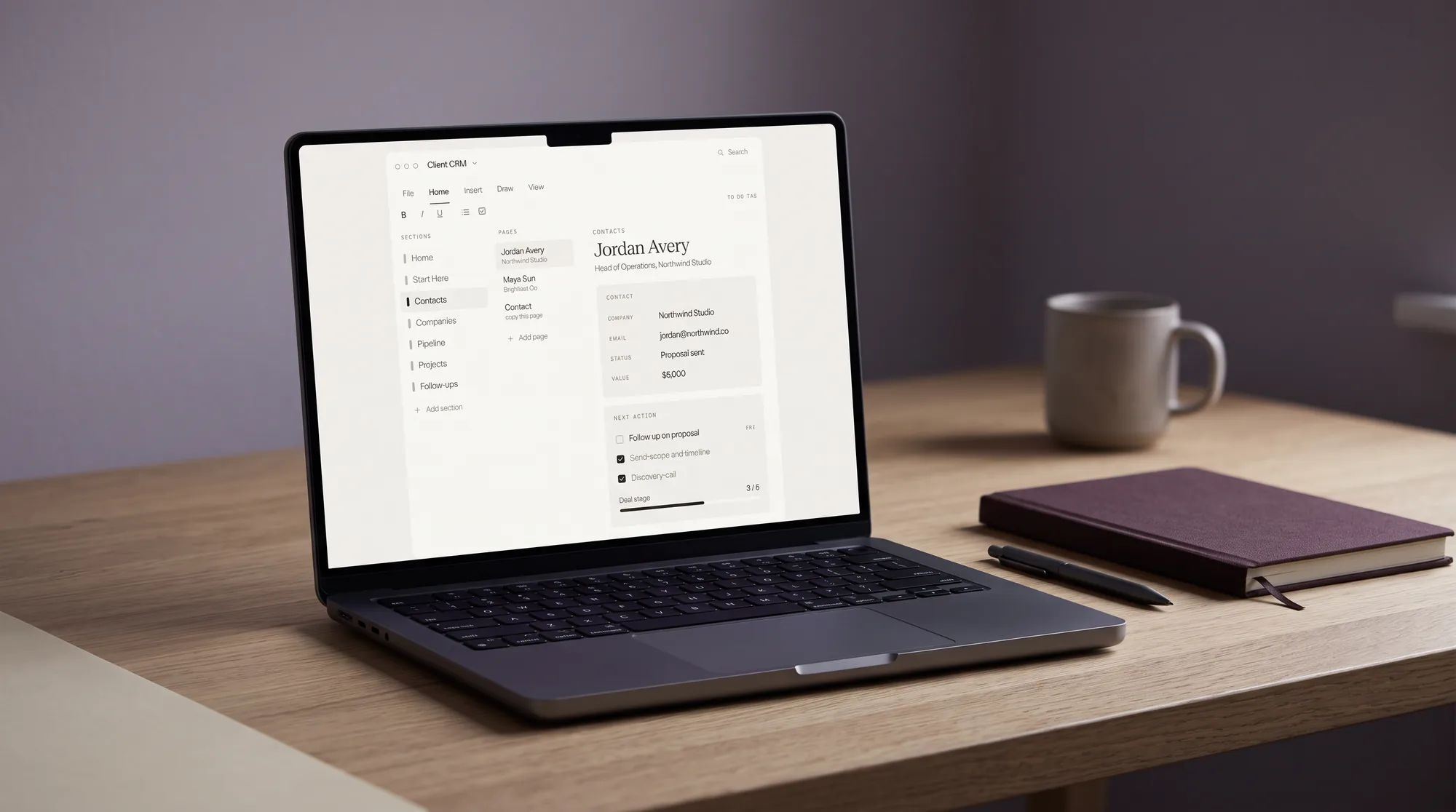
Four fields, fixed order. Name, primary email, role and company, source (how the account entered the pipeline). That is the entire contact block. Phone numbers, addresses, and LinkedIn URLs go in section three as free-form notes if they matter.
Section 2: pipeline status
One field, value from a fixed list (Cold, Qualified, Negotiating, Closed, Lost). Pipeline status changes are made by dragging the page from one section in the notebook to another, not by editing this field. The field is a label, the section is the truth.
Section 3: relationship history
Free-form, in reverse chronological order. Each entry starts with a date in ISO format (2026-05-13), then a one-line summary of the touch (call, email, meeting, demo). Detail underneath only when the touch produced something worth remembering. Most entries are one line.
Section 4: next action and follow-up date
Two fields. Next action is a verb plus an object (Send pricing one-pager, Schedule demo, Wait for legal review). Follow-up date is an ISO-format date. The rule: every page in the active sections must have a non-empty next action and a follow-up date in the future. Pages that violate the rule get pulled into the Cold section.
Section 5: links and cross-references
Cross-link to the relevant meeting notes pages, the proposal document in OneDrive, the project page if the account becomes a delivery, and any external CRM record if you also keep one. The links block is what makes the account page navigable a year later.
Five sections, in fixed order, no decoration. The template should take less than five minutes to fill in for a new account, and less than thirty seconds to update after a touchpoint. If either of those times grows, the template has drifted and needs a prune. The whole point is to be faster than the work; an account record that takes ten minutes to update is one that does not get updated, which is the same as not having a CRM at all.
Notebook structure
The notebook structure that supports the template
A OneNote CRM is two things: the per-account page template described above, and the notebook structure that moves pages through the pipeline. The notebook layout that survives a year of use is one notebook per pipeline (or per sales role, if you cover more than one), with one section per pipeline stage plus a fixed Templates section at the front.
- Templates
- Holds the saveable page template plus a “process” page that documents the rules (the four-field cap, the next-action discipline, the pipeline-stage definitions).
- Cold
- Accounts that have not been touched in 30+ days or that lack a future follow-up date. Audit this section monthly and decide each account: re-engage, downgrade to Lost, or delete.
- Qualified
- Accounts where the buyer has been identified and the need is real. Pages here have an active next action and a follow-up date within two weeks.
- Negotiating
- Accounts where pricing or scope is being discussed. Pages here have a current proposal linked and a clear next step on the buyer’s side.
- Closed
- Won accounts. Cross-link the project notebook from the page. Archive after 90 days post-launch to keep the active surface clean.
- Lost
- Deals that ended without a close. One-line reason at the top of the page. Useful for pattern-finding at the quarter end.
Moving a page between stages is the actual pipeline action. Right-click the page, Move or Copy, pick the destination section. The page keeps its history, its cross-links, and its follow-up date. This is the part that makes the OneNote CRM workflow feel like an actual CRM rather than a static notebook.
The OneNote 2016 desktop client supports proper page templates via Insert tab, Page Templates, then Save current page as a template at the bottom of the templates pane. Save the template with a clear name (Account standard) and optionally set it as the default for the pipeline-stage sections. The fuller walkthrough of OneNote template saving is in our OneNote template piece.
A CRM page without a follow-up date is not an active account. It is a wish. Wishes do not close.From the takeaway block
The modern OneNote for Windows app and OneNote on the web do not have full template support. The workaround is the same as for any OneNote layout: keep a master account page in the Templates section, right-click and Move or Copy to the relevant pipeline section every time a new account opens. Less elegant, same effect, no template feature required.
Limits
When the OneNote CRM template stops working
The honest line: a OneNote CRM template works well up to roughly 100 active accounts across all pipeline stages, and it works very well up to 30. Past 100 active accounts, the page-by-page navigation starts to feel slow, search returns too many hits, and the notebook section selector becomes a phone book. The build is not broken at that scale; it is just being asked to do work it was not designed for.
The graduation path is to keep OneNote as the notes layer (meeting notes, call summaries, account history) and move the structured pipeline data into a real CRM (HubSpot’s free tier handles up to 1,000,000 contacts; Pipedrive starts at $14/user/month). The OneNote pages cross-link to the CRM record; the CRM holds the structured fields. This split is how most solo founders and small agencies end up working once they cross the 100-account line.
If you are well under that scale (one to fifty active accounts), do not graduate early. A second tool is friction the workflow does not need. The OneNote CRM template covered above handles a solo founder, a one-person consulting practice, or a small agency desk for two to three years before the friction of scale shows up.
If you would rather not build the five sections by hand, we packaged the same discipline as the OneNote CRM Template: 39 pages holding companies, people, a pipeline you read in one table, deal records, renewals, and a four-company pack you copy per client, imported once, $29. If you also run projects and meetings out of the same notebook, the OneNote project management template ($29) covers the project half of the workflow.
FAQ
Common questions, answered briefly
Can OneNote be used as a CRM?
What sections should a OneNote CRM template have?
How do you handle the pipeline in a OneNote CRM template?
Is there a free OneNote CRM template?
How is the follow-up date rule enforced?
Does a OneNote CRM template work on the web app?
If yours is not above, drop the question in the comments and we will answer it under the next OneNote piece.
People also ask