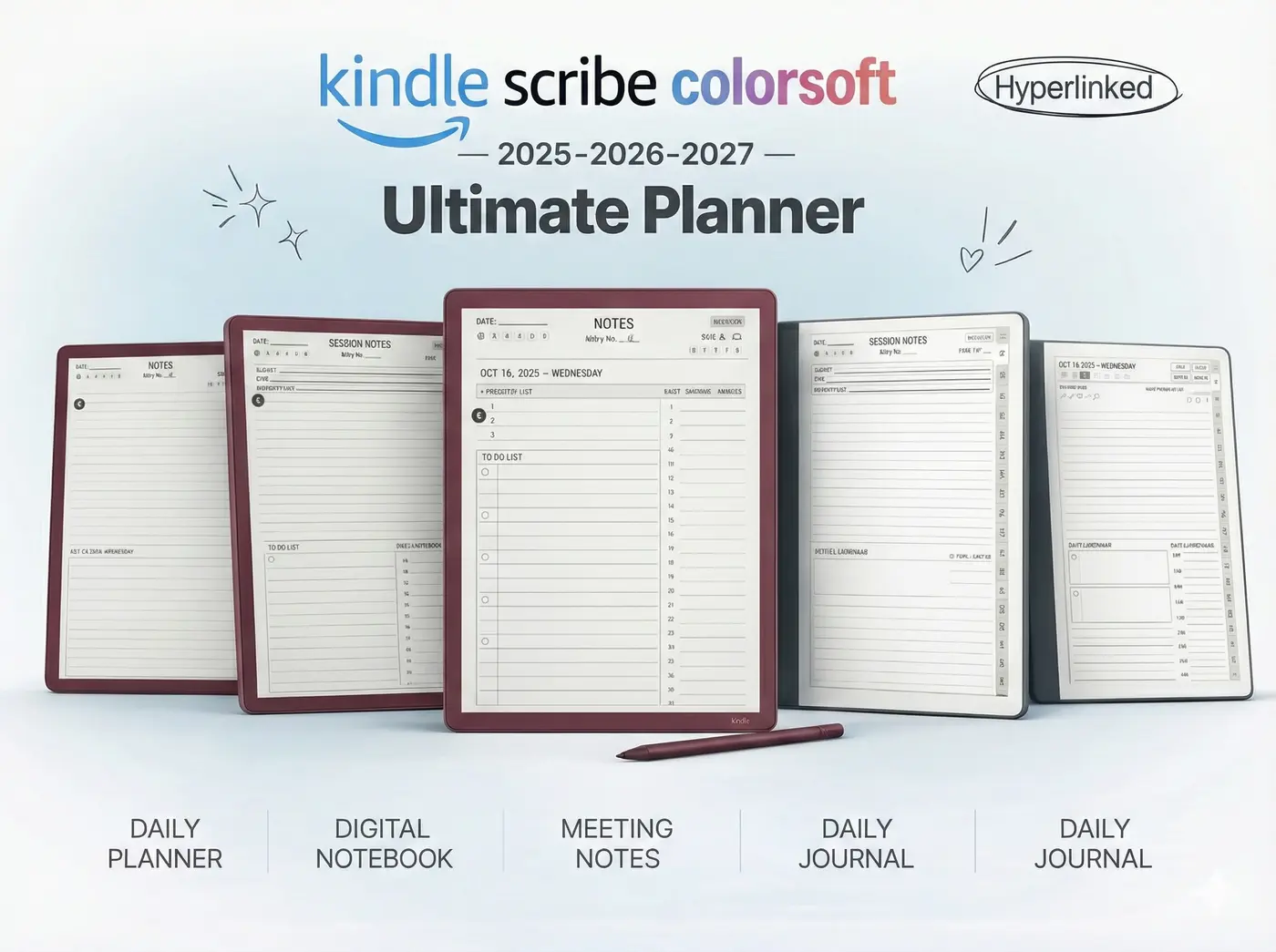
Kindle Scribe OneNote Integration: Ultimate Sync Guide
Kindle Scribe OneNote Integration: Ultimate Sync Guide Productivity & Tech Mastering Your Kindle Scribe OneNote Integration Workflow For professionals who live in the Microsoft ecosystem,

Optimal Resolution
1860 x 2480 px
Color Profile
Soft Pastels
Upload Pipeline
Send to Kindle API
| Feature Matrix | Monochrome Templates | Colorsoft Templates |
|---|---|---|
| Visual Hierarchy | Rely on bolding and shading | Utilize color-coded semantic blocks |
| Export Rendering | 100% 300 PPI Output | Mixed 300 PPI (Text) & 150 PPI (Color) |
| Highlighter Function | Grayscale opacity variations | 5 distinct native neon/pastel colors |
| Best Workflow Fit | Heavy text drafting & reading | Project management & financial tracking |
The introduction of color e-ink has fundamentally altered how professionals interact with digital paper. While traditional monochrome screens forced users to rely on shading and bold text to organize their thoughts, the ability to utilize dynamic color coding allows for instantaneous visual processing. However, fully unlocking this capability requires a dedicated kindle scribe colorsoft template. Attempting to use a standard black-and-white PDF on this new device wastes its most expensive and powerful hardware feature.
In this comprehensive, 1,500-word technical teardown, we will explore the specific physics of designing for Kaleido 3 displays. We will deconstruct why certain colors look muddy on e-ink, detail the exact upload pipeline required to activate your digital stylus, and provide a blueprint for structuring an interconnected database. Whether you are an executive managing quarterly KPIs or an academic color-coding research notes, deploying a properly engineered kindle scribe colorsoft template will drastically elevate your daily productivity and focus.
Technical Deep Dive: The hardware powering your device dictates the design rules. The tablet utilizes an E Ink Kaleido 3 display. This technology places a Color Filter Array (CFA) over a standard 300 PPI monochrome backplane. Because the color relies on this physical filter grid, any colored element within your kindle scribe colorsoft template—whether it’s a painted header box, a logo, or your own digital highlighter stroke—is rendered at 150 PPI. Black text, however, remains at a razor-sharp 300 PPI.
Workflow Application: When designing or selecting a file, never use colored text for small, dense paragraphs (like daily journaling lines). The drop to 150 PPI will make small colored fonts look fuzzy and pixelated. Instead, use pure black (`#000000`) for all primary text and structural lines. Reserve color strictly for large, blocky elements like thick calendar headers, priority tags, and background shading where absolute pixel density is less critical.
Technical Deep Dive: E-ink screens do not emit light natively; they reflect ambient light. Even with the device’s specialized nitride front-LEDs active, colors will not “pop” with the neon intensity of an OLED iPad. Using heavily saturated primary colors (deep reds, dark navy blues) in a kindle scribe colorsoft template will absorb too much light, resulting in muddy, dark smudges that are difficult to read under office lighting.
Workflow Application: You must design with “Soft Pastels.” Utilize light seafoam greens for financial columns, pale yellows for urgent warnings, and soft powder blues for daily reflection boxes. These lighter hues reflect enough ambient light to remain distinct while providing a beautiful, watercolor-like aesthetic that complements the paper-like texture of the screen.
Technical Deep Dive: Because the device is highly sensitive to scaling, incorporating raster images (JPEGs or PNGs) into the background of your file can lead to severe anti-aliasing issues. A high-quality kindle scribe colorsoft template must be built entirely with scalable vector graphics (SVGs) before being exported as a PDF. This ensures that when you pinch-to-zoom on the tablet, the lines recalculate mathematically and remain perfectly crisp.
Workflow Application: If you are building your own file in Canva or Adobe Illustrator, do not import photographs to use as page backgrounds. Stick to digitally drawn vector lines and shapes. This not only preserves the visual clarity of the document but keeps the file size lightweight, preventing the tablet’s quad-core processor from lagging during page turns.

Technical Deep Dive: A static PDF is just a picture, but a hyperlinked PDF is an interactive software application. To make a kindle scribe colorsoft template functional, the file must contain embedded XML cross-reference tables. When you tap a “March” tab on the right side of the screen, the device’s processor reads this invisible bounding box and executes a jump to page 95 in a fraction of a second.
Workflow Application: A central “Master Dashboard” is critical. Your first page should serve as an index, containing buttons that link out to various projects, daily logs, and financial trackers. This non-linear navigation allows you to jump between vastly different mental contexts instantly without manually swiping through hundreds of blank pages.
Technical Deep Dive: The capacitive touch layer on the device requires precision. If you are importing a kindle scribe colorsoft template, ensure the interactive tabs are at least 44×44 pixels wide. Furthermore, the tablet features a floating pen toolbar that can dock on the left or right margin. You must establish a 40-pixel “Safe Zone” along the edges. If a hyperlink falls within this zone, the toolbar will cover it, rendering it inaccessible.
Workflow Application: Position your monthly navigation tabs slightly inward from the absolute edge of the page. This guarantees that whether you are left-handed or right-handed, your docked toolbar will never interfere with your ability to navigate your digital planner.
Technical Deep Dive: A massive 365-day planner with tens of thousands of internal hyperlinks can quickly exceed 50MB. While the tablet possesses ample storage (up to 64GB), its active RAM is limited. Opening a bloated file will result in a 2-second “black flash” refresh every time you tap a link as the processor struggles to map the XML data.
Workflow Application: An optimized kindle scribe colorsoft template should remain under 15MB. If your file is sluggish, you are losing productivity. Keep your frameworks lean, and consider splitting your year into four separate, quarterly documents to maximize operational speed.
A beautifully designed PDF is useless if you cannot write on it. You must master the specific installation pipeline to ensure the Wacom digitizer activates.
Technical Deep Dive: If you open your new kindle scribe colorsoft template and the writing toolbar is grayed out, the system has classified the file as a standard, read-only eBook. This happens almost exclusively when users bypass the web portal and attempt to sideload files via a USB cable or third-party Calibre plugins that strip the necessary conversion triggers.
Workflow Application: Delete the corrupted file from your library immediately. Re-upload the original PDF strictly through the official web browser interface. Once the cover art generates on your home screen, the file is successfully wrapped and ready for full annotation.
Technical Deep Dive: The tablet’s software uses a prioritized input matrix. To prevent accidental page jumps while resting your palm on the screen, the system completely disables PDF hyperlinks while the Pen tool is active. This is a common source of panic for new users testing their hyperlinked files.
Workflow Application: You must develop “mode switching” muscle memory. When you want to tap a hyperlinked tab on your kindle scribe colorsoft template, you must first tap the “Hand” icon on the floating toolbar. This disengages the digital ink. Once you arrive at your target page, tap the “Pen” icon to resume writing.
Technical Deep Dive: Agile professionals rely heavily on Kanban layouts. A horizontal kindle scribe colorsoft template allows for three distinct columns (To-Do, Doing, Done). With the color screen, you can assign colored headers to these columns (e.g., Yellow, Blue, Green) to visually separate the stages of a project’s lifecycle.
Workflow Application: Use the “Lasso” tool to physically circle a handwritten task and drag it from the “To-Do” column to the “Done” column. The addition of color transforms a static list into a vibrant, easily readable dashboard that mimics physical sticky notes on a whiteboard.
Technical Deep Dive: Managing numbers on a monochrome screen can be tedious. A colored financial kindle scribe colorsoft template allows you to clearly demarcate income columns in pale green and expense columns in light red. This immediate visual contrast prevents data entry errors during rapid note-taking.
Workflow Application: If you manage a small business, tracking your daily expenses on a dedicated, color-coded PDF ledger ensures your raw data is organized perfectly before you sit down to reconcile your accounts in your main accounting software at the end of the month.
Technical Deep Dive: After filling out your kindle scribe colorsoft template, you must extract the data. Using the “Share” function triggers Amazon’s cloud to “burn” your vector handwriting—including all colored highlighters and pen strokes—permanently onto the PDF layer. This creates a universal document that retains its full-color markup when viewed on a PC or smartphone.
Workflow Application: Develop a Friday backup routine. Export your completed weekly planner pages and email them to yourself. This ensures your critical project data is secured off-device. For advanced routing into corporate databases, review our Kindle Scribe Onenote Integration guide.
Technical Deep Dive: Once you establish a flawless digital workflow, colleagues and clients will inevitably ask how you maintain such organized meeting minutes. High-quality templates are highly sought-after digital assets in the e-ink community.
Workflow Application: If you are sharing your organizational strategy with your network, joining a generous affiliate ecosystem—such as the 50% commission program offered by Templacity—allows you to easily monetize your productivity recommendations while providing immense value to your peers.
Deploying a properly optimized kindle scribe colorsoft template is the critical step in unlocking the full ROI of your color e-ink investment. By leveraging soft pastel color profiles, adhering to strict 1860 x 2480 vector resolutions, and utilizing the official web upload pipeline, you transform the tablet from a simple e-reader into an elite, color-coded command center designed for maximum focus.
Stop fighting with monochrome PDFs on your premium color screen. Instantly upgrade your workflow with our Ultimate Template Bundle, specifically optimized with pastel hierarchies and perfectly scaled for your 11-inch display.
Shop the Colorsoft Template Bundle