Kindle Scribe OneNote Integration: Ultimate Sync Guide
Kindle Scribe OneNote Integration: Ultimate Sync Guide Productivity & Tech Mastering Your Kindle Scribe OneNote Integration Workflow For professionals who live in the Microsoft ecosystem,

Canvas Standard
1860 x 2480 Pixels
Export Format
Flattened PDF
Upload Path
Send to Kindle
Learning how to create Kindle Scribe templates is the ultimate power move for anyone looking to transcend the basic note-taking limits of Amazon’s software. While the device comes with standard lined and grid pages, professional workflows often require specialized layouts like SWOT analysis boards, medical charting, or complex project timelines. By mastering the design and export process, you turn your e-ink tablet into a bespoke productivity engine tailored to your exact career needs.
In this 1,500-word deep dive, we will analyze the technical architecture required to build native-feeling planners. We will explore resolution matching, the importance of vector graphics, and how to implement interactive navigation without causing device lag. Whether you’re a minimalist or a power user tracking global KPIs, knowing how to create Kindle Scribe templates ensures your digital sanctuary functions exactly the way your brain thinks.
Technical Deep Dive: The Kindle Scribe display features a crisp 300 PPI resolution on its 10.2-inch panel. To avoid blurry lines or fuzzy text, you must design your how to create Kindle Scribe templates project at exactly 1860 x 2480 pixels (a 3:4 aspect ratio). Using these dimensions ensures the Scribe’s software doesn’t have to rescale your PDF, which prevents “aliasing” artifacts that make handwriting feel disconnected from the digital grid.
Workflow Application: When setting up your document in Canva, Figma, or Adobe InDesign, always start with a custom canvas size. If you use standard A4 or US Letter, you will end up with wide white margins that waste valuable writing real estate. A pixel-perfect how to create Kindle Scribe templates strategy ensures your daily schedule fills the screen from bezel to bezel, maximizing every millimeter for your 2026 project logs.
Technical Deep Dive: E-ink screens physically move microcapsules of ink to form images. High-contrast, thin lines look best. When learning how to create Kindle Scribe templates, aim for line weights between 0.5pt and 1.0pt. Vector lines are superior to rasterized lines because they remain perfectly sharp at any zoom level, ensuring the Scribe’s Premium Pen follows the visual guide with absolute precision.
Workflow Application: Use a light-gray color (#D1D1D6) for your grid or dotted guides. Pure black lines can be visually distracting and may lead to “ghosting” when you turn the page. A subtle gray background guide—a key tip for any how to create Kindle Scribe templates workflow—allows your dark-black handwriting to pop, making it easier for your eyes to track your notes during long review sessions.
Technical Deep Dive: The Scribe’s auto-rotate feature is powerful, but your template must be designed for a specific orientation. Most how to create Kindle Scribe templates projects should focus on Portrait (1860×2480) for writing and reading. However, for complex Gantt charts or budget leders, Landscape (2480×1860) is often more efficient as it provides more horizontal room for column-based data entry without excessive panning.
Workflow Application: Audit your daily routine before you start designing. If you are a journalist, Portrait mimics a classic reporter’s notepad. If you are an engineer, Landscape mimics a drafting board. Understanding the physical mechanics of how to create Kindle Scribe templates for your industry allows you to work more naturally, reducing the friction between your physical hand movements and the digital canvas.
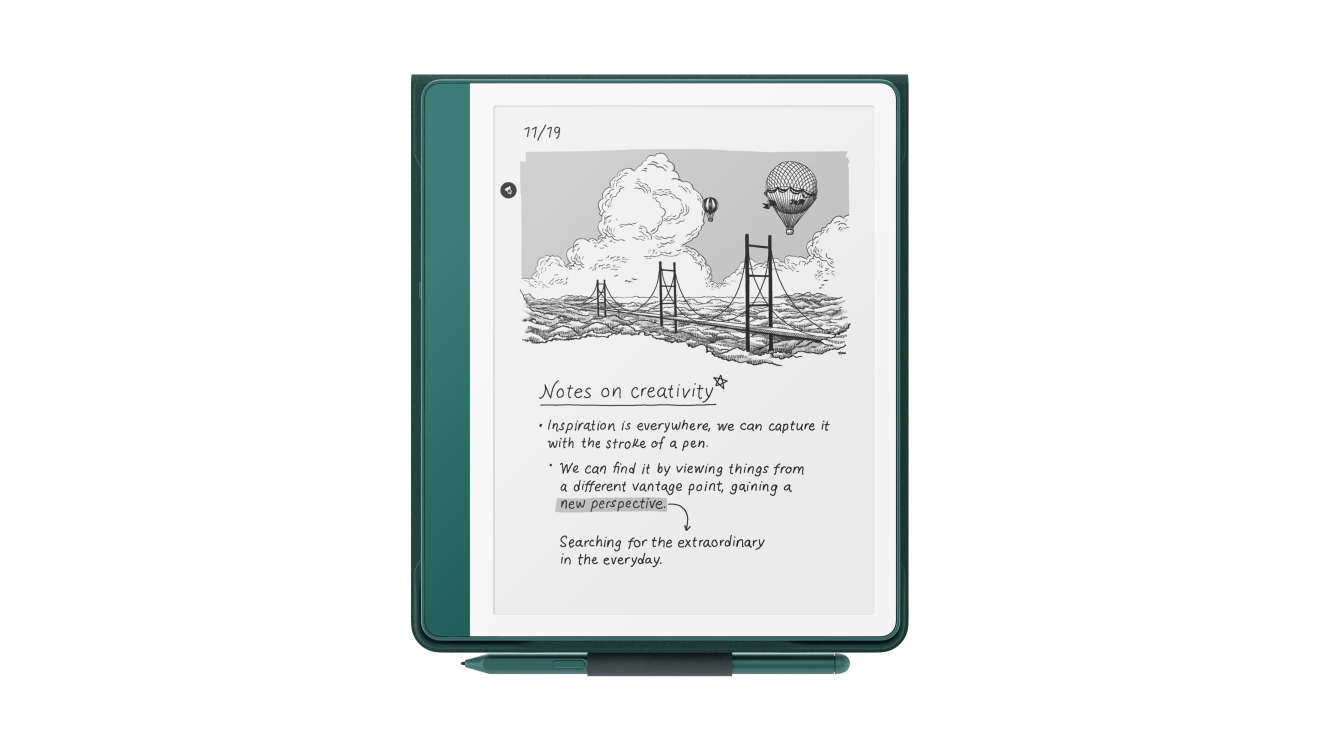
Technical Deep Dive: While the Scribe does not allow you to “add” links on the device, it fully supports interactive PDFs. When designing how to create Kindle Scribe templates, you can use invisible “hit boxes” over navigation tabs. These links use the standard PDF XML structure to jump to specific page numbers. The Scribe’s quad-core processor parses these links in milliseconds, providing a faster experience than physical page-flipping.
Workflow Application: Create a “Dashboard” page for every how to create Kindle Scribe templates project. Use buttons for “Daily,” “Weekly,” “Project A,” and “Archive.” By hyperlinking these to the first page of each section, you create a non-linear workspace. You can jump from a client call directly to your budget tracker with one tap, keeping your high-velocity workflow moving without breaking your mental flow state.
Technical Deep Dive: The Scribe uses a capacitive touch layer for navigation. For a successful how to create Kindle Scribe templates experience, ensure your hyperlinked “tabs” are at least 40×40 pixels. If the links are too small, the device may misinterpret your finger tap as a pen stroke, leading to frustrating navigation errors during high-pressure meetings where every second of retrieval counts.
Workflow Application: Place your navigation tabs on the right-hand side of the screen if you are right-handed. This allows you to jump between months or sections with your thumb while keeping the Premium Pen in your writing position. This “Thumb-Link” strategy is a hallmark of professional how to create Kindle Scribe templates design, ensuring your device remains an extension of your body, not an obstacle to it.
Technical Deep Dive: A yearly planner with 400+ hyperlinked pages can balloon in file size. To keep your how to create Kindle Scribe templates snappy, use “Flattened PDF” settings during export. This removes hidden document history and extraneous metadata while preserving the visual vectors and functional links. Aim for a file size under 50MB to ensure the Scribe’s RAM can handle rapid page transitions without the dreaded “Wait” icon appearing.
Workflow Application: If your how to create Kindle Scribe templates project is a massive corporate planner, break it into quarters. Instead of one 500-page file, use four 125-page files. This speeds up sync times via Amazon’s cloud service and keeps your device’s library organized. It also allows you to archive completed months more easily, keeping your active workplace lean and fast.
Design is only half of the equation. Knowing how to create Kindle Scribe templates means mastering the “Send to Kindle” pipeline to ensure the handwriting layer is active.
Technical Deep Dive: If you sideload your how to create Kindle Scribe templates via a USB cable, the writing toolbar will be disabled. The Scribe OS only authorizes the digitizer for documents delivered via the Whispersync cloud. This is because the server must “process” the PDF to inject the specialized “Write-On” metadata that tells the hardware where the ink strokes belong on the page.
Workflow Application: If your pen isn’t working, delete the file and re-upload via the official portal. This is the #1 mistake new users make when learning how to create Kindle Scribe templates. Once processed by Amazon, the toolbar will appear instantly, allowing you to use the fountain pen, highlighter, and eraser tools natively within your custom design.
Technical Deep Dive: The Scribe has a prioritized input matrix. You cannot use PDF hyperlinks while the Pen tool is active to prevent accidental page jumps. When using your how to create Kindle Scribe templates, you must first tap the “Hand” icon to switch from “Ink Mode” to “Navigation Mode.” This deactivates the pen digitizer and enables the touch-screen’s responsiveness for tappable navigation.
Workflow Application: Develop the habit of “Modes.” It takes about 48 hours of use to build this muscle memory. By intentionally switching to navigation mode, you ensure your how to create Kindle Scribe templates environment remains stable. This is especially important for high-intensity deep-work sessions where a rogue touch could otherwise pull you away from your current strategic thought.
Technical Deep Dive: For high-level leadership, a how to create Kindle Scribe templates project should include a “Project Hub” table. This layout utilizes large boxes for owner names, status lights (RAG), and target dates. By using a 10.2-inch canvas, you can fit a 12-project status board on a single page, which is essential for maintaining a high-level overview without getting lost in the details.
Workflow Application: Use the “Highlighter” tool to color-code your statuses if you are using the latest Best E Ink Tablet 2025 models. This visual hierarchy—explained in our Kindle Scribe Colorsoft Review 2025—allows you to see bottlenecks in seconds. It turns a static PDF into a live dashboard that keeps your focus on the “Signal” while ignoring the “Noise” of a standard notification-heavy tablet.
Technical Deep Dive: Compliance and privacy are critical. A how to create Kindle Scribe templates strategy for clinicians should include a “Structured Data” layout. This uses pre-defined fields for patient ID, chief complaint, and vital signs. By forcing your handwriting into specific containers, you ensure that the Scribe’s AI OCR engine—detailed in Kindle Scribe Onenote Integration 2025—can accurately convert your notes into searchable digital records later.
Workflow Application: Use a persistent “Bottom Bar” for checkboxes like “Follow-up Scheduled” or “Prescription Issued.” By standardizing your how to create Kindle Scribe templates, you reduce the time spent on manual transcription. After the consultation, simply “Share as Text” to your laptop, and your handwritten notes are ready for your official EMR system, bridging the gap between analog care and digital documentation.
Technical Deep Dive: For creators, a how to create Kindle Scribe templates project often starts with a 1:1 mobile grid. By designing a 9:16 aspect ratio box inside your 3:4 Scribe template, you create a native-sized window for wireframing TikTok or Instagram layouts. The e-ink’s lack of glare and the Premium Pen’s zero-latency response—at 12ms—makes it the ultimate tool for rapid UI prototyping in bright sunlight.
Workflow Application: Layer your designs. Use the Scribe’s pen for the “Rough Sketch” and then the highlighter tool to denote “Color/Action Areas.” Because how to create Kindle Scribe templates allows for infinite pages, you can create a storyboard sequence that remains organized and eye-friendly. It is the perfect “Analog First” tool for a “Digital First” creative career, protecting your vision and your focus during the ideation phase.
| Industry | Layout Recommendation | Grid Density |
|---|---|---|
| Healthcare | SOAP Note / Vertical Patient Log | 8mm Ruled lines |
| Engineering | Isometric Grid / Technical Ledger | 5mm Square grid |
| Marketing | Kanban Board / 9:16 Wireframe | Dot Grid (low opacity) |
| Academia | Cornell Notes / Literature Review | 10mm Ruled lines |
Technical Deep Dive: Amazon has teased a “Smart Search” update that will utilize on-device AI to index handwriting within your how to create Kindle Scribe templates. This means the device will “understand” that a word written inside a specific box is a “Task.” By building your templates with clear, bold headers now, you are future-proofing your data for the 2027 software cycle, ensuring your notes are always queryable.
Workflow Application: Start practicing “Header Discipline.” Use a larger font size or a specific highlighter color for project titles in your how to create Kindle Scribe templates. This semantic formatting helps the current AI decipher your cursive more accurately. When the next generation of Scribe software arrives, your years of handwritten strategy will be ready for instant, automated summarization and project tracking.
Technical Deep Dive: The release of the Colorsoft Scribe has changed the how to create Kindle Scribe templates game. Your designs can now include colored zones (e.g., a red sidebar for “Critical Warnings”). The display utilizes a Kaleido 3 filter to render these colors without sacrificing the 300 PPI text resolution. This adds a third dimension to your planning—visual urgency that bypasses the need to read text.
Workflow Application: Establish a “Visual Language” in your how to create Kindle Scribe templates. Use a soft-blue background for your evening “Reflection” pages and a light-green for your “Growth” trackers. This use of color leverages the human brain’s rapid color-processing ability, helping you switch between work “Modes” instantly. It turns your tablet from a simple notebook into a high-powered dashboard for your focused professional life.
Mastering how to create Kindle Scribe templates is about combining 1860 x 2480 pixel resolution with native vector graphics and hyperlinked navigation. By utilizing the “Send to Kindle” cloud portal, you ensure the pen digitizer is active for your bespoke designs. Whether you’re building a clinical log or a creative storyboard, the ability to design your own digital stationery is the ultimate step in owning your professional productivity and focus in 2026.
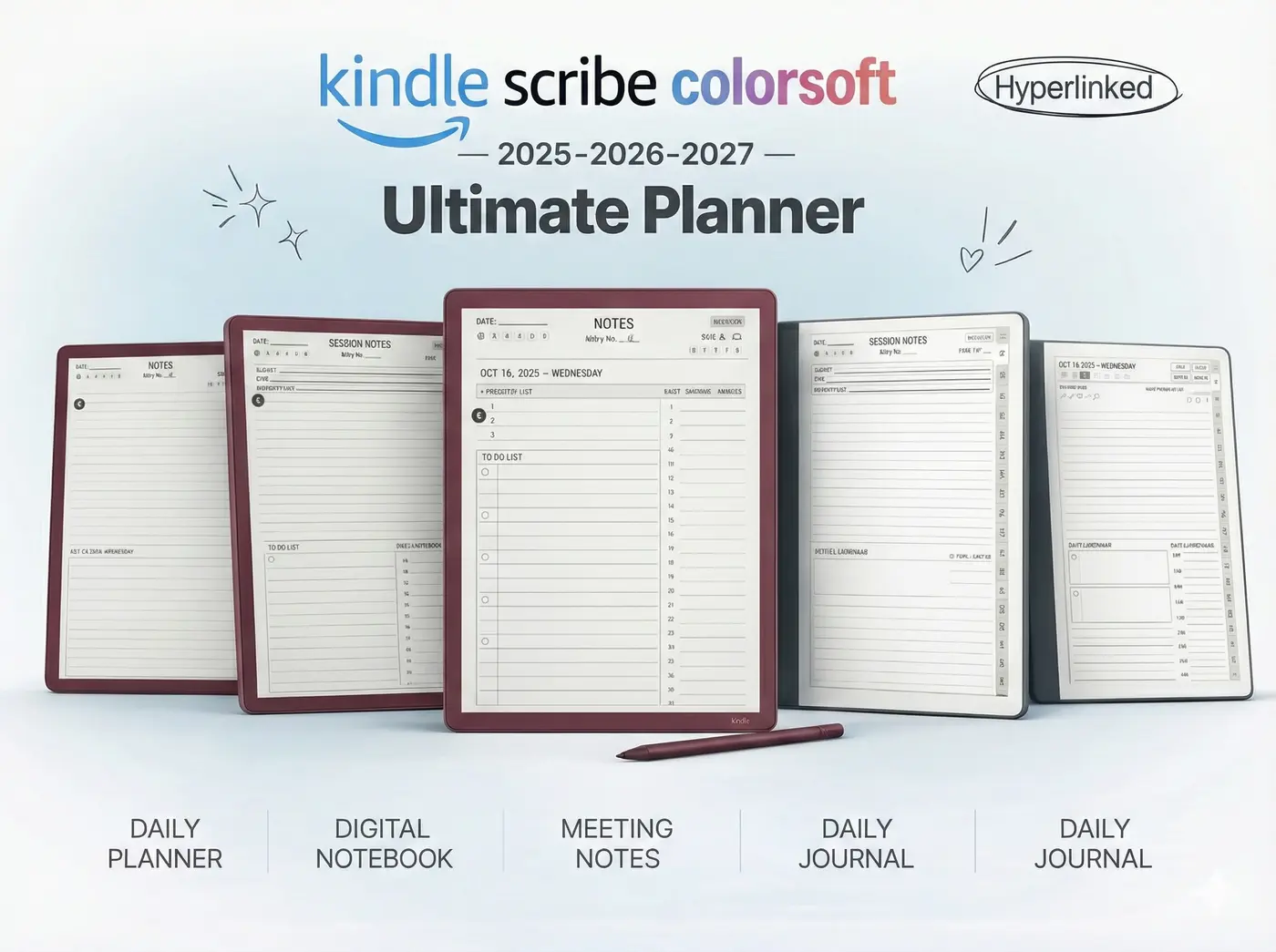
Ready to skip the design process and start planning? Our Ultimate Kindle Scribe Bundle features 1,000+ hyperlinked pages, resolution-matched 300 PPI graphics, and a dedicated 2026/2027 structure to help you master your career with precision.
Shop the Professional Bundle